Calendar Exporter for Google & Outlook

Getting calendar data in a usable format is challenging. So we created Tackle. In just minutes, you can transform data from multiple calendars into a spreadsheet without needing a developer or script adjustments. Start analyzing where your time goes today.

24/7 Support • Cancel Anytime • Free Forever

how to export google calendar to excel

Trusted by users and teams at

Robolox

Supported Platforms

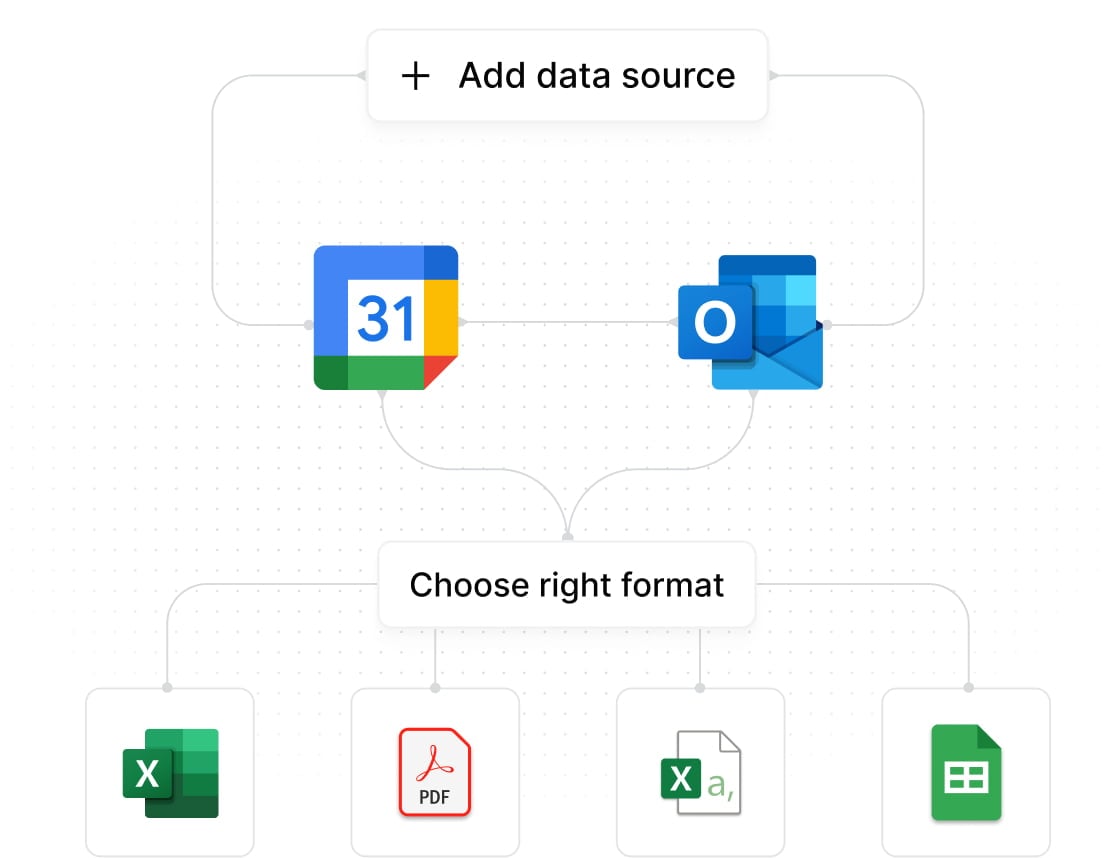
TimeTackle's Calendar Exporter seamlessly integrates with the platforms you already use

Google Calendar

Export events from all your Google accounts with ease.

Outlook Calendar

Compatible with both personal and business Outlook calendars.

Calendar to Excel

A simple tool to export calendar events to Excel format in just one click.

Free up a day every month

Say goodbye to manual data entry. What're you going to do with your newly freed time?

Remove manual review

Tackle provides an error-free way to export your calendar data. No more eye-straining manual review!

Works out of the box

Easy-to-use, intuitive interface that feels familiar straightaway. No need to pull your hair trying to figure things out.

Fitted to your needs

Ample options to filter, format, or augment your calendar data. All your customizations are only one wish away.

Features

Frequently asked questions

Yes, you can transfer your calendar from a different Google account by following the steps below.

Step 1: Sign in to your Google account from where you want to export the calendar.

Step 2: Refer to the section above under How to Export Google Calendar.

Step 3: Download an ics file on your computer when you export the calendar.

Step 4: Log in to the Google account where you want to import calendar.

Step 5: Click on the Setting wheel and choose settings.

Step 6: Click the Import and export option from the left panel.

Step 7: Under Import, click on select the file from your computer and select the ics file you had saved.

Step 1: Go to Google Calendar to import your calendar data.

Step 2: From the top right, click the Setting wheel or gear icon and select Settings.

Step 3: From the left panel, select Import & export.

Step 4: Click on Select file from your computer under Import.

Step 5: The ics file will show on your computer. Select the file.

Step 6: Select the calendar where you want to add the imported events by clicking the down arrow and then click the Import button below.

If you have a zip file, open it to find ics files of every one of your calendars. You need to take each file out of the zipped folder and import the individual ics files.

When you export your Google Calendar, it means you’re copying the information from your Google Calendar to another app like Google Sheets, Microsoft Excel, etc. Further edits on the main Google Calendar will not show on the exported file and vice versa. Remember that only limited information will be exported from your Google Calendar. These include the event title, description or summary, date and time, timezone, the text of the location of the event, and an event link.

High-performing teams leverage Tackle insights every day

Maximize potential: Tackle’s automated time tracking & insights