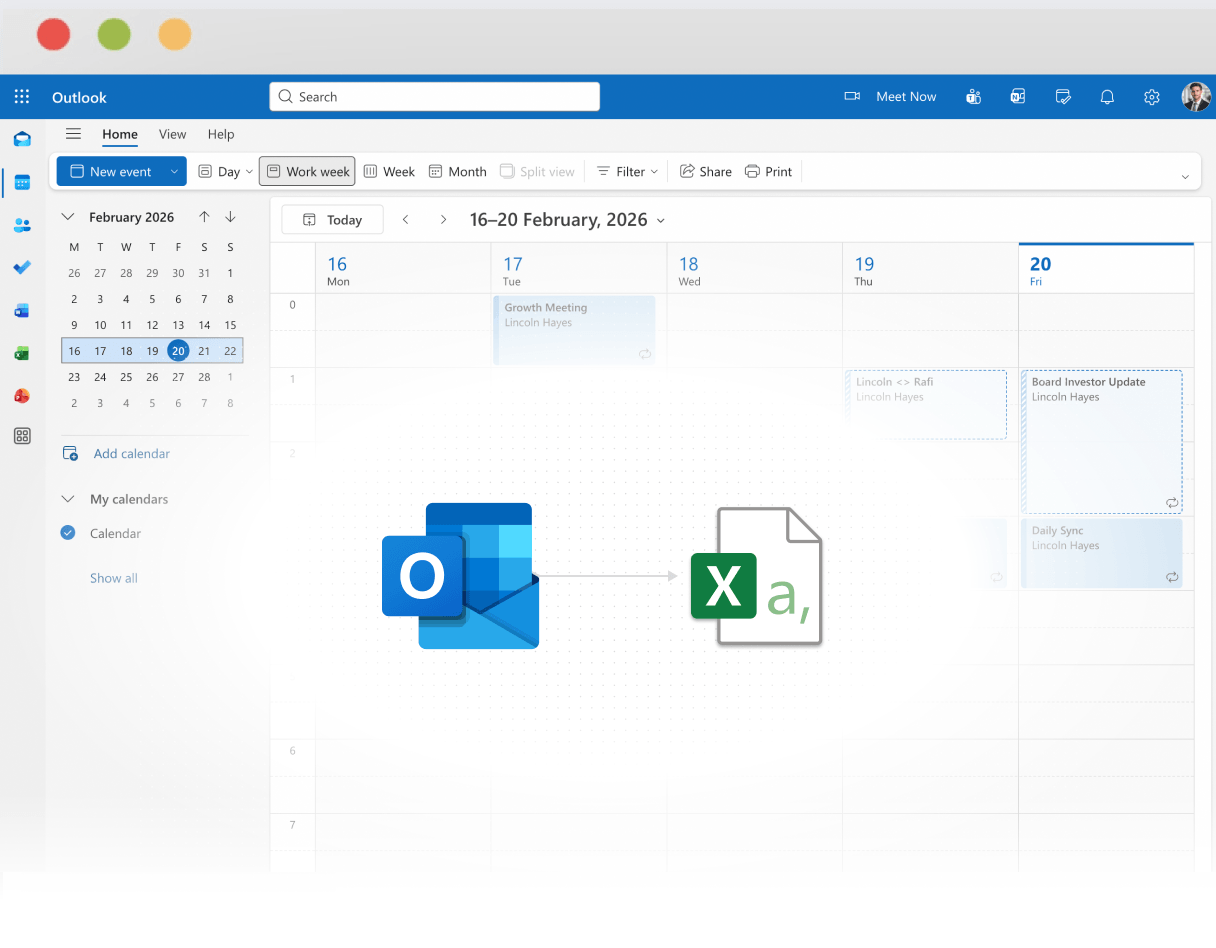
CSV is the standard format for data integration. Export your Outlook calendar to CSV to seamlessly connect with Salesforce, HubSpot, Pipedrive, Zendesk, or any other business system. CSV gives you the flexibility to move your calendar data anywhere without vendor lock-in.
How to Export Outlook Calendar to CSV with Tackle
Step 1
Log in to Tackle with your Outlook credentials.
Step 2
Select the Outlook Calendars you want to export.
Step 3
Configure your export settings (date range, fields to include).
Step 4
Choose Excel as your export format.
Step 5
Download and open the Excel file with Microsoft Excel
Step 6
Save the Excel file as CSV format from the save as option.
Step 7
Your CSV file is ready to import into your business applications.
How to Export Outlook Calendar to CSV Manually
Step 1
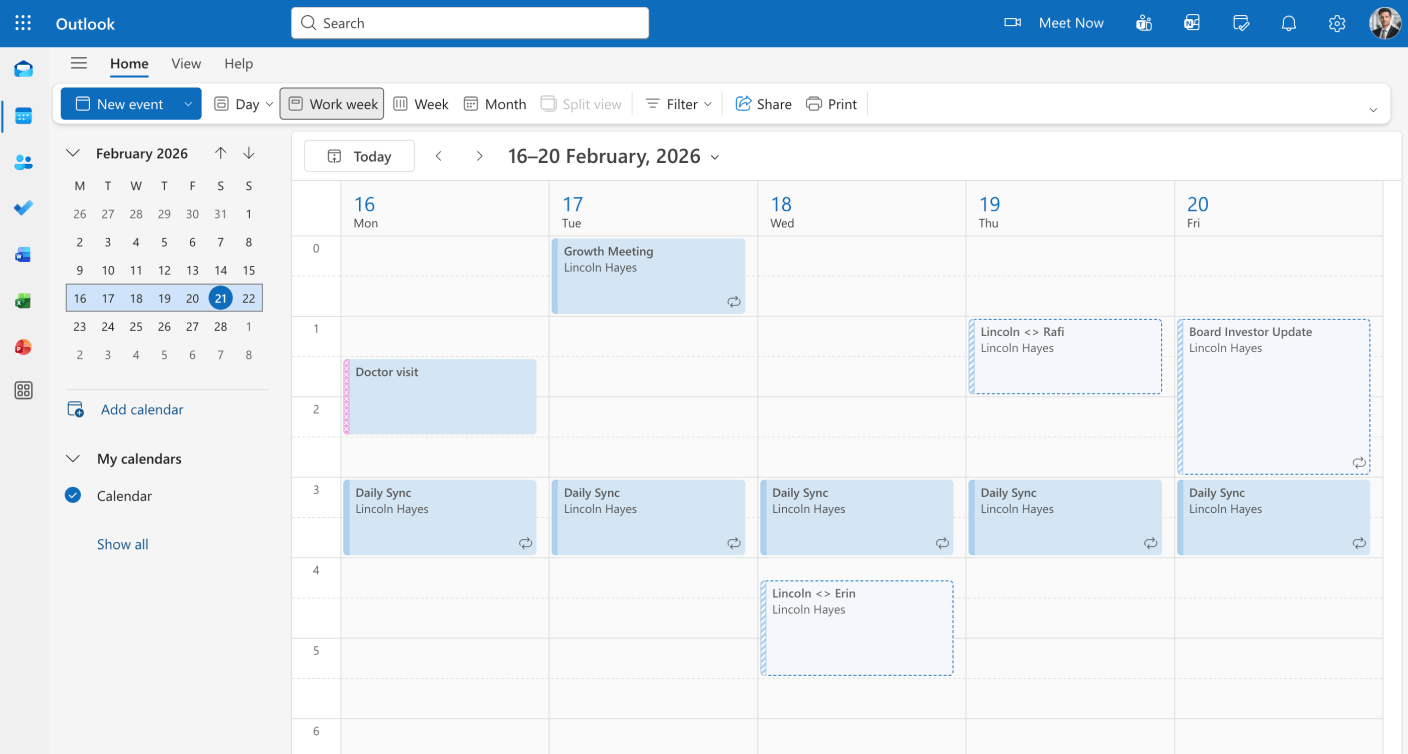
Open Outlook and go to your Calendar view.
Step 2
Select the calendar you want to export.
Step 3
Use “File” > “Save Calendar” to download the .ics file.
Step 4
Use a conversion tool or script to transform the .ics file into CSV format.
Step 5
Manually verify and clean the CSV data before importing elsewhere.
Yes! Tackle’s CSV exports are formatted for CRM compatibility. Import directly into Salesforce, HubSpot, Pipedrive, or any other system that accepts CSV files. No additional formatting needed.
You control exactly what gets exported. Select which fields to include—event titles, times, attendees, location, notes, and more. Create custom exports for different purposes.
As often as you need! Export manually whenever you want, or set up scheduled exports with TimeTackle to automatically deliver updated CSV files on your preferred schedule.
Ready to take control of your calendar data?
Stop wasting time on manual exports and start gaining valuable insights from your calendar.