CSV is the universal language of data. It works with Excel, Google Sheets, databases, programming languages like Python and R, and virtually any business tool. Exporting to CSV gives you maximum flexibility—use your calendar data anywhere without compatibility headaches.
How to Export Google Calendar to CSV with Tackle
Step 1
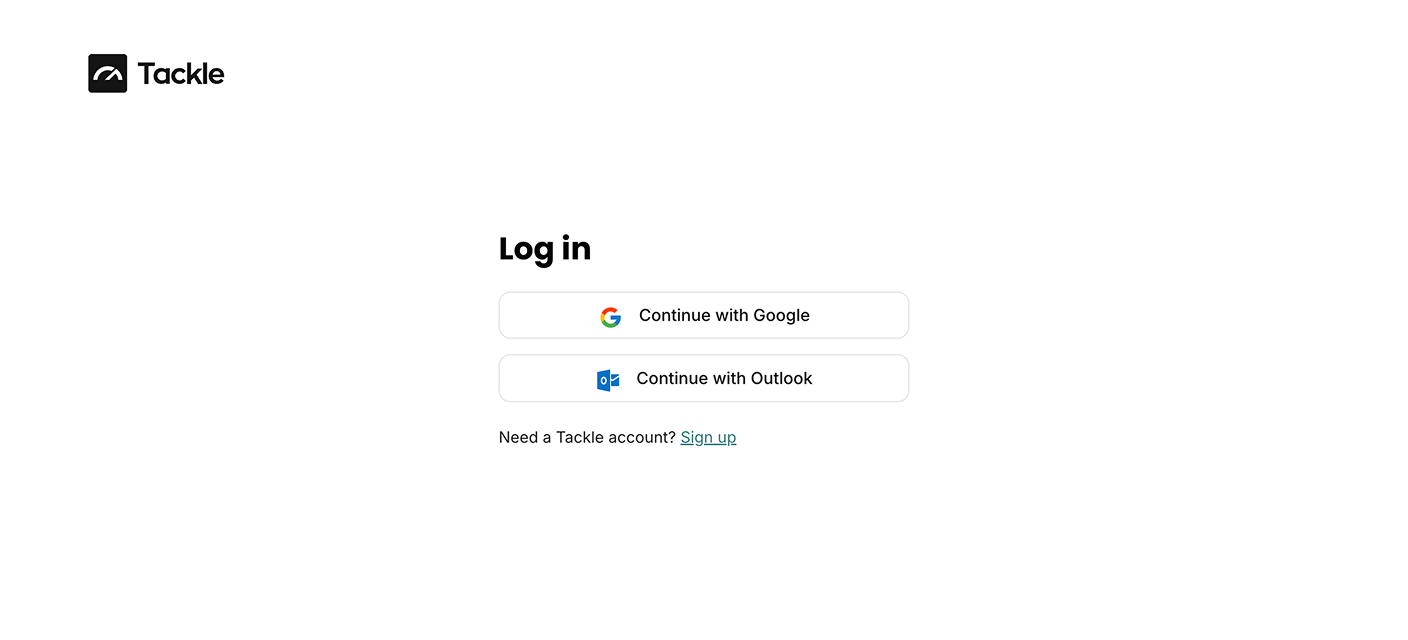
Log in to Tackle using your Google credentials.
Step 2
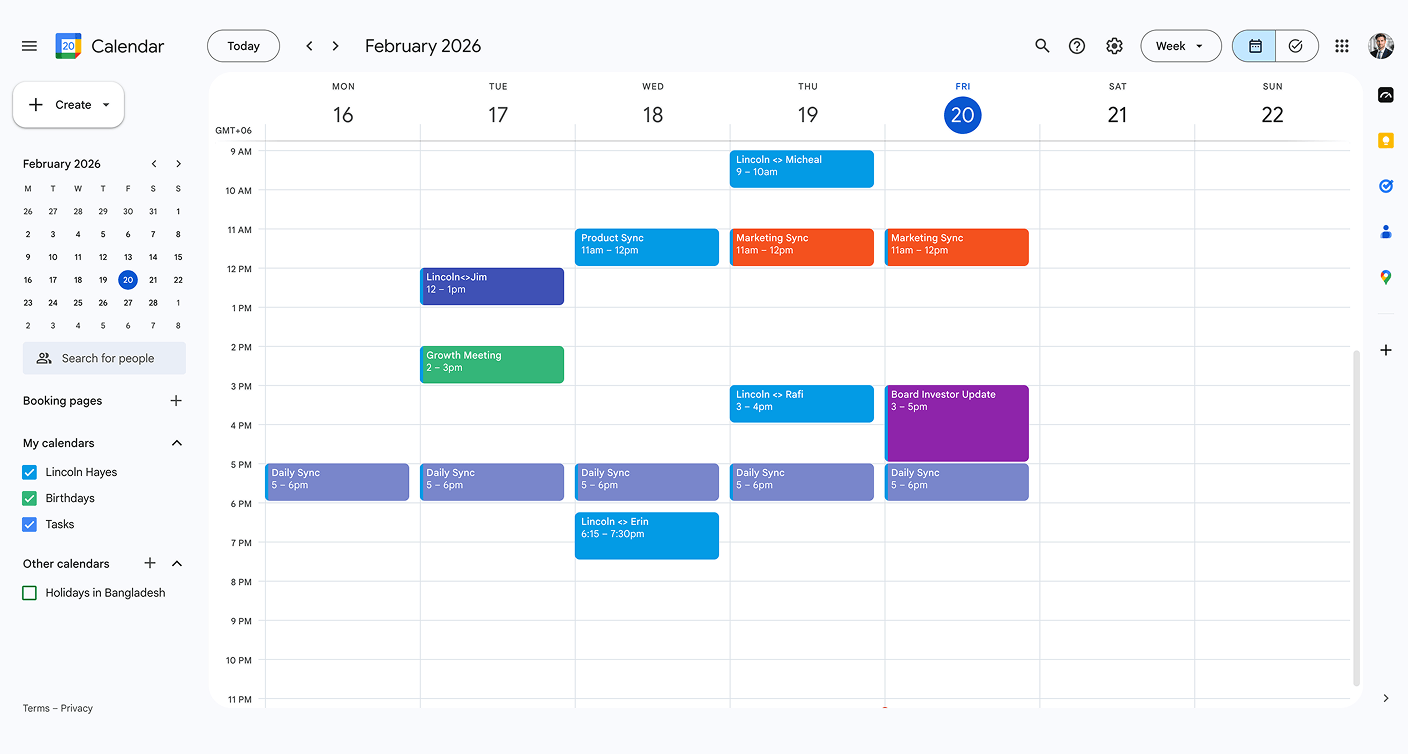
Select which Google Calendars you want to export.
Step 3
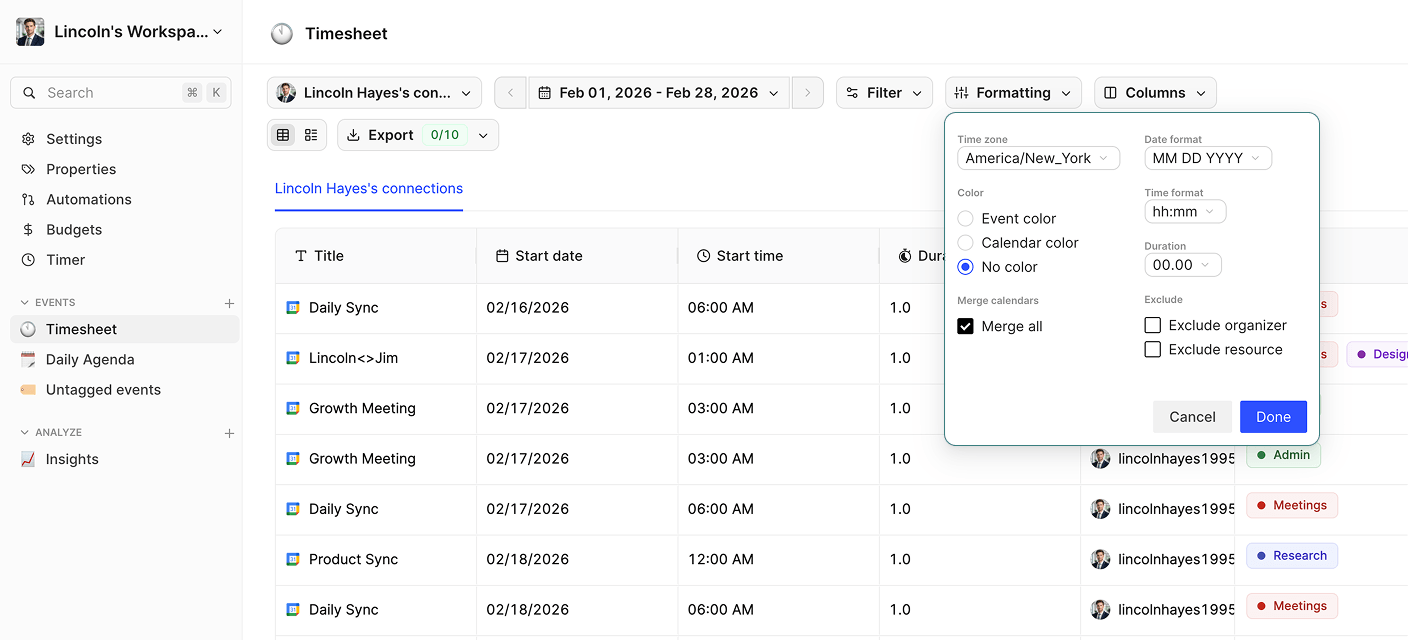
Set your date range and select which data fields to include.
Step 4
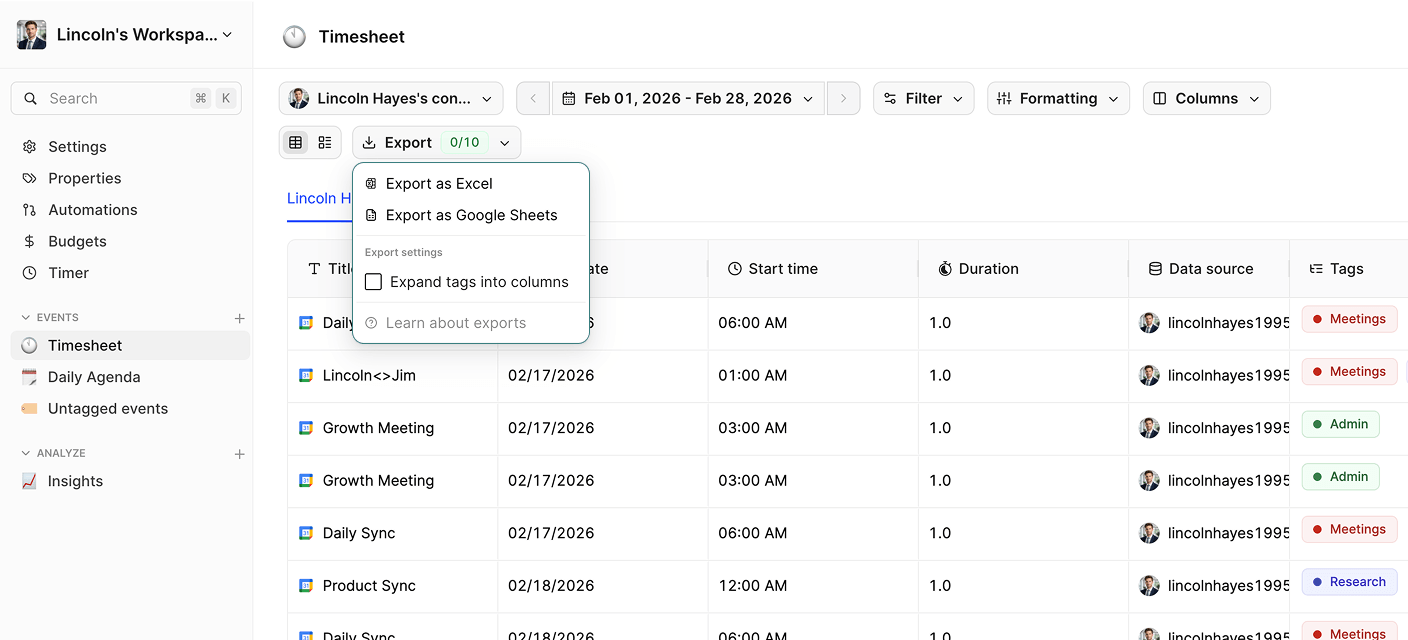
Choose Excel as your export format.
Step 5
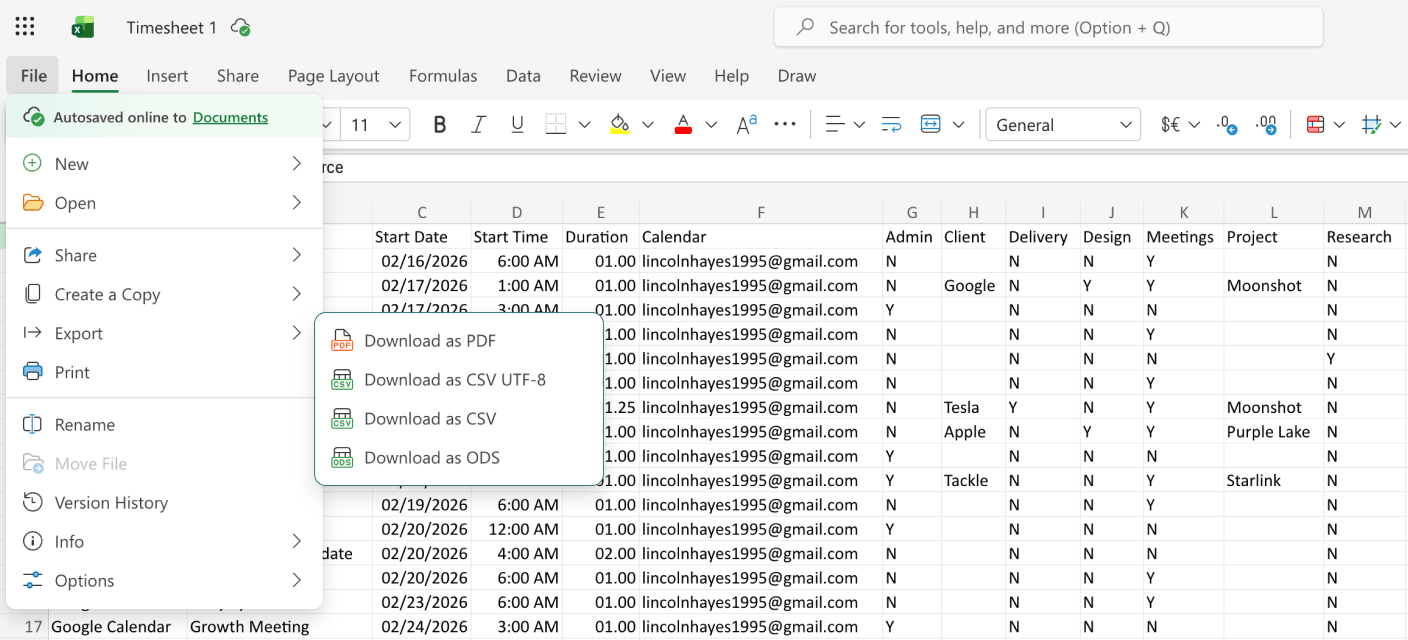
Download and open the Excel file with Microsoft Excel
Step 6
Go to Save As option and select CSV format and save it. Use it anywhere -Excel, databases, Python scripts, or CRM systems.
How to Export Google Calendar to CSV Manually
Step 1
Go to Google Takeout (takeout.google.com) to export your data.
Step 2
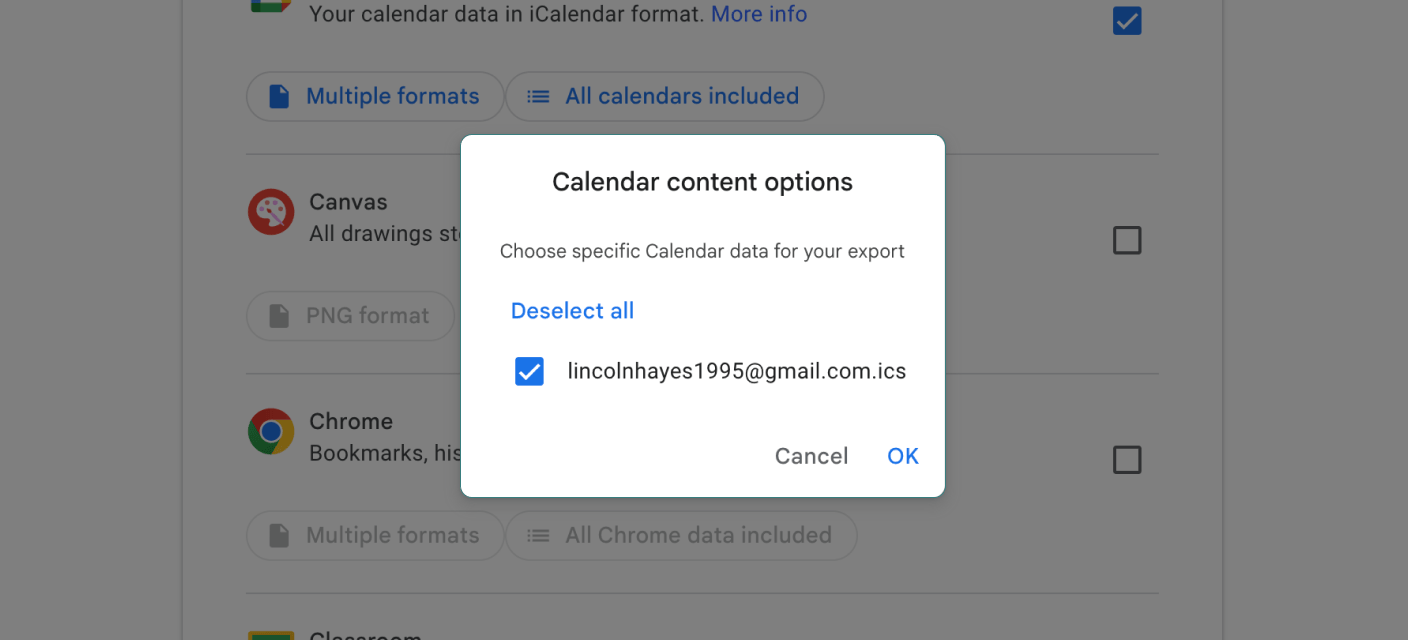
Select “Calendar” and choose the calendars you want to export.
Step 3
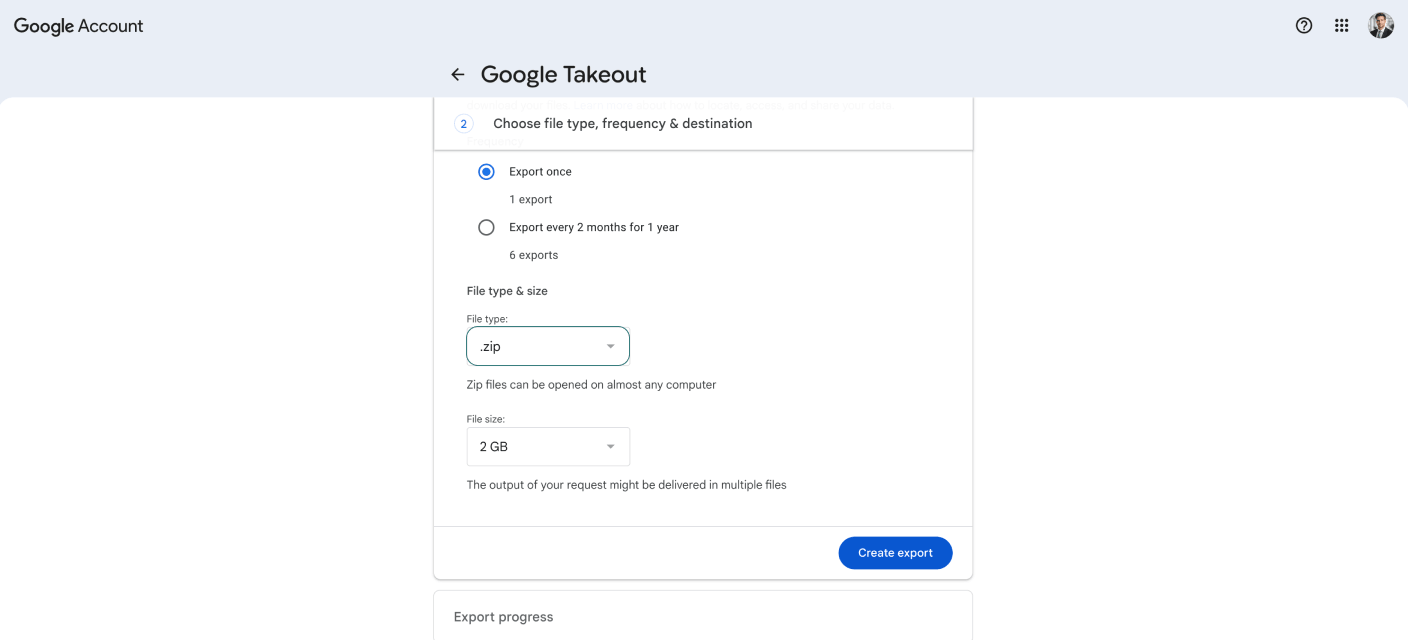
Download the ZIP file containing your calendar data in .ics format.
Step 4
Use a third-party converter or script to transform the .ics file into CSV format.
CSV is a plain-text format that’s universally compatible but lacks formatting and formulas. Excel (.xlsx) is better for complex analysis with formulas and charts. Choose CSV for data portability and integration with other systems.
Yes! CSV is specifically designed for database and CRM imports. TimeTackle’s clean, structured CSV exports import seamlessly into Salesforce, HubSpot, Pipedrive, and other business systems.
Tackle provides direct CSV export without conversion steps. Google Takeout gives you .ics files that require additional conversion. Tackle’s approach is faster and produces cleaner, more organized data.
Ready to take control of your calendar data?
Stop wasting time on manual exports and start gaining valuable insights from your calendar.