Excel is the universal tool for data analysis and reporting. When you export your Google Calendar to Excel, you unlock the ability to create timesheets, billing reports, project summaries, and productivity dashboards. Instead of manually copying calendar events one by one, get a clean, structured spreadsheet in seconds.
How to Export Google Calendar to Excel with Tackle
Step 1
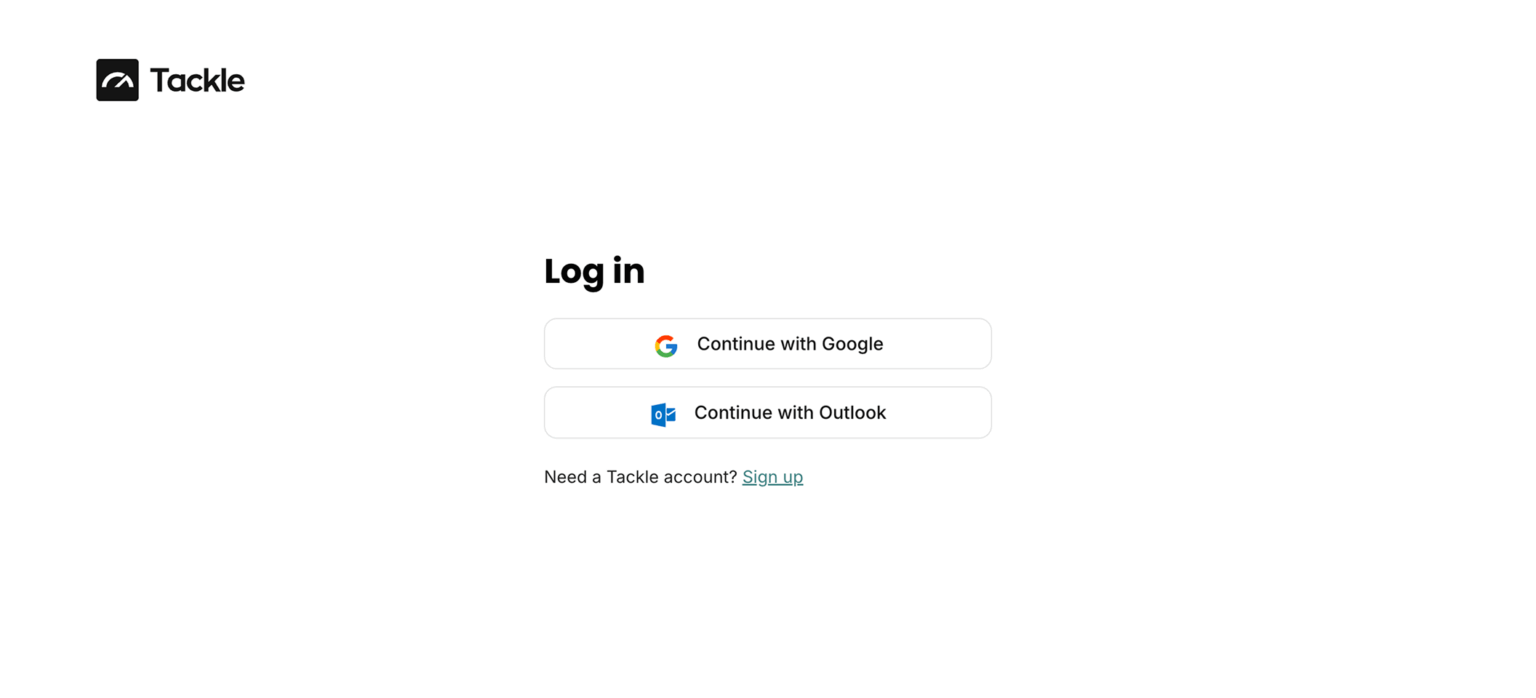
Sign in to Tackle with your Google account credentials.
Step 2
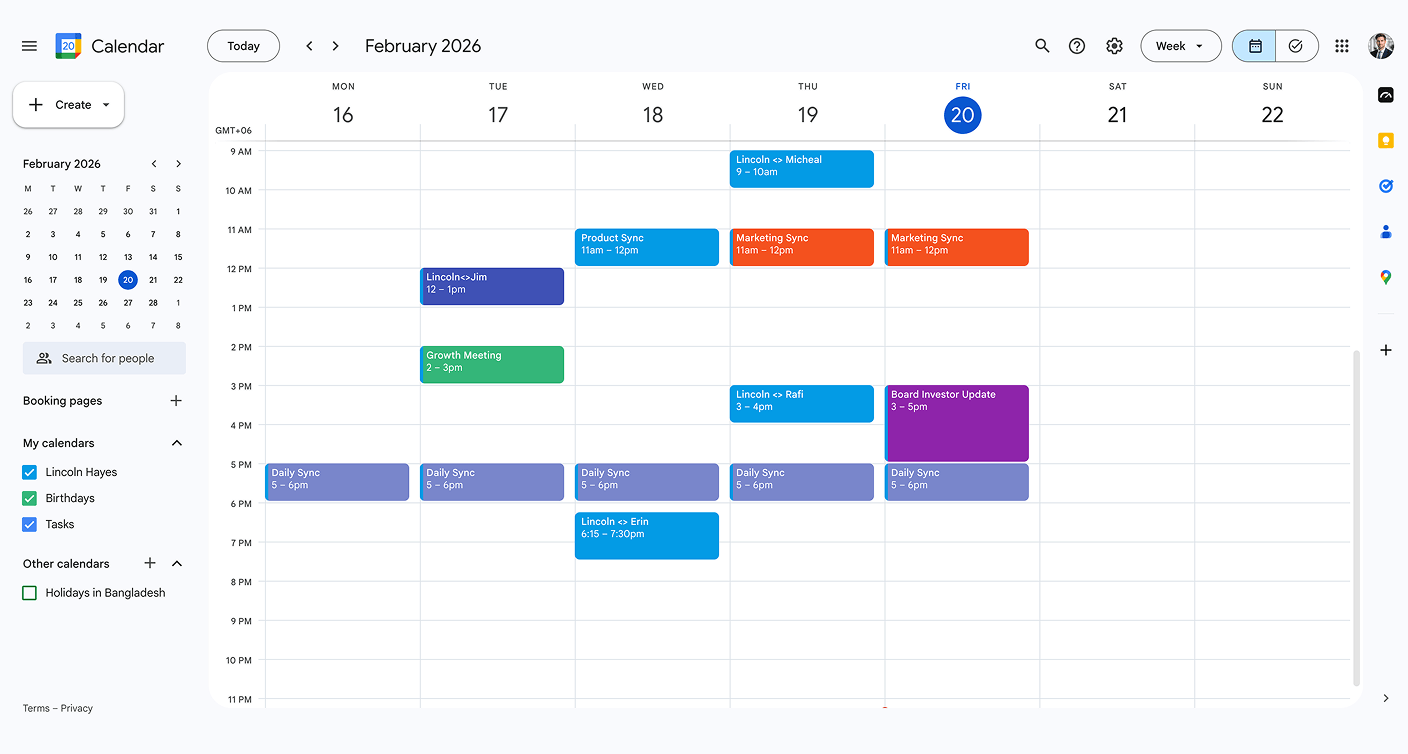
Select the Google Calendars you want to include in your export.
Step 3
Customize your export by selecting date ranges and data fields you need.
Step 4
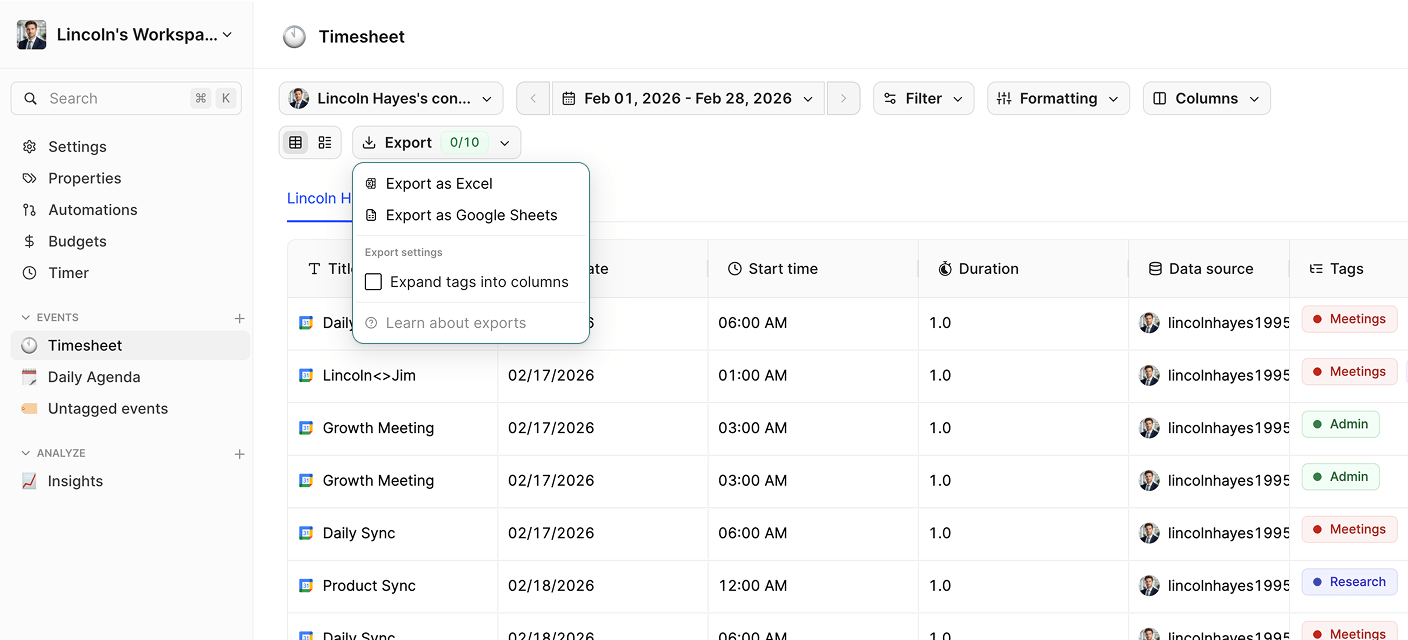
Choose Excel (.xlsx) as your preferred export format.
Step 5
Click “Download” to get your Excel file instantly.
Yes! Tackle lets you select and merge events from all your Google Calendars into a single, unified Excel spreadsheet. This is perfect for consolidating personal, work, and shared calendars.
You can set up recurring exports with Tackle to receive updated Excel files on your schedule—daily, weekly, or monthly. Your reports stay current without manual work.
Absolutely! Tackle exports data in a clean, structured format that’s ready for Excel formulas, pivot tables, charts, and analysis. Start building reports immediately.
Ready to take control of your calendar data?
Stop wasting time on manual exports and start gaining valuable insights from your calendar.