
Here are your ready-to-use timesheet template xls files. Just download our free weekly and monthly versions to get a handle on your time tracking right away.
Even with all the fancy software out there, a simple Excel spreadsheet is still one of the best ways to track work hours. This is especially true for freelancers and small businesses who need flexibility, offline access, and zero software costs. It's a reliable workhorse for managing everything from project billing to payroll.
Below, you'll find direct download links for both weekly and monthly templates. I've designed them to be intuitive and ready to go from the second you open them.

Why a Simple XLS Timesheet Just Works
In a world crowded with complex apps, the classic Excel timesheet holds its own for a few very good reasons. Its adaptability and ease of use are why it’s still a go-to for so many small and medium-sized businesses.
You can effortlessly track start times, end times, breaks, and overtime with pre-built formulas. This is a huge help in cutting down on the manual calculation errors that always seem to cause payroll headaches.
Our templates are built with this exact practicality in mind. The goal is to give you a clean, straightforward structure that anyone who's ever touched Excel can use, letting you focus on your actual work instead of wrestling with new software.
Choosing the Right Template for Your Needs
So, weekly or monthly? The best choice usually comes down to your billing cycle and how much detail you really need to capture.
-
The Weekly Template is perfect for projects with frequent billing, like freelance consulting gigs or short-term contract work. It gives you a detailed, day-by-day view of where time is going, which makes pulling together an accurate weekly invoice a breeze.
-
The Monthly Template is generally a better fit for salaried employees or long-term projects with monthly billing cycles. It provides a bigger-picture view, consolidating a whole month's work into one document to simplify payroll.
Which XLS Timesheet Is Right for You?
Still on the fence? This quick comparison should help you pick the right tool for the job.
| Feature | Weekly Template | Monthly Template |
|---|---|---|
| Best For | Freelancers, consultants, short-term projects | Salaried employees, long-term retainers |
| Billing Cycle | Weekly or bi-weekly invoicing | Monthly payroll or client billing |
| Detail Level | High (daily task breakdowns) | Moderate (summarized daily hours) |
| Use Case | Tracking detailed project hours | Managing overall monthly work logs |
Once you’ve settled on the best format for your workflow, you can explore our complete guide on timesheet templates for more advanced tips and customization options.
Ultimately, whether you go weekly or monthly, both templates are designed to give you a solid foundation for accurate and stress-free time tracking.
How to Customize Your Excel Timesheet
A great timesheet template is a fantastic starting point, but its real power comes from making it your own. Transforming a standard spreadsheet into a tool that perfectly fits your business isn't as complicated as it might sound. With a few smart adjustments, you can make that timesheet template xls file work exactly how you need it to.

Most of the time, the biggest impact comes from tweaking the formulas that calculate hours. A standard template might just sum up the total time, but your business probably has more specific rules for payroll or client billing.
Fine-Tuning Your Formulas
The first tweak most businesses make is accounting for unpaid breaks. If your staff clocks out for lunch, you need a formula that subtracts that time from the total workday to get the paid hours right. This is a simple change that prevents overpaying and keeps your records clean.
Handling overtime is just as critical. Most templates won't come pre-configured with overtime logic because the rates and thresholds can vary so much. You can easily set up an IF formula to automatically calculate hours that go beyond a standard 8-hour day or 40-hour week.
For instance, a formula can check if total weekly hours are greater than 40. If they are, it calculates the extra hours and puts them in a separate "Overtime" column, all set to be multiplied by the higher pay rate. Getting these calculations right is everything for accurate payroll.
Pro Tip: Before you start changing formulas, always work on a copy of your original template. This simple step protects you from accidental errors and makes sure you always have a clean, working version to fall back on if a formula breaks.
Adding Fields for Greater Detail
Beyond just calculating time, your timesheet can become an incredibly powerful data collection tool. Customizing the columns to capture more information is an easy way to get deeper insights into your operations. This is especially true for service-based businesses like marketing agencies or consulting firms.
Consider adding columns for things like:
- Project Codes: Assign a unique code to each project. This lets you filter the timesheet to see exactly how many hours were spent on a specific client or job, which is invaluable for costing and profitability analysis.
- Task Descriptions: A quick note about the specific task performed helps clarify what those logged hours were actually for. This adds important context for managers reviewing time and for clients who get detailed invoices.
- Billable vs. Non-Billable Hours: Splitting time between client-facing work and internal tasks is a must. Tracking this helps you understand your team's utilization rate and overall efficiency.
Getting comfortable with formulas can seem intimidating, but starting with the basics makes a huge difference. For a deeper dive, check out our comprehensive guide on the most useful timesheet Excel formulas to get you started.
Preventing Errors with Data Validation
One of the biggest headaches with any manual entry system is human error. A misplaced decimal point or a wonky time format can throw off your entire payroll calculation. Excel's Data Validation feature is your best defense against these common slip-ups.
You can set up rules to make sure data entered into cells meets specific criteria. For example, you can restrict the time entry columns to only accept valid time formats (like HH:MM). You could also create a dropdown list for project codes, ensuring team members can only select from approved projects. This completely eliminates typos and keeps your data consistent and reliable.
All the theory and formulas are great, but seeing a timesheet template xls in action is where it all really clicks. Let's get out of the setup weeds and into the real world, where these simple spreadsheets solve actual business problems every single day.
The secret is learning how to mold the template to your specific workflow. That’s how a generic grid becomes a purpose-built business tool.
We’ll look at two common situations: a freelance designer juggling clients and a small construction business managing its crew.
The Freelance Designer Juggling Multiple Clients
Imagine Alex, a freelance graphic designer who’s got projects going with three different clients at once. Alex needs a dead-simple way to track billable hours for each one. Without it, invoicing at the end of the week is a nightmare of guesswork.
This is where the weekly timesheet template shines. It's perfect for this kind of detailed, project-based work.
Alex makes one small tweak: adding a "Client/Project" column. Now, every time block is tied to a specific job, whether it's "Client A – Logo Design" or "Client B – Social Media Graphics." That one change turns a basic time log into a killer project tracker.
When Friday rolls around, Alex just uses Excel's filter function to isolate the hours for each client. Invoicing becomes a quick, error-free process because all the data is already organized and summed up.
A Practical Takeaway: Just by adding a single custom column for project codes or client names, freelancers can segment their work instantly. This takes the guesswork out of billing and gives clients a crystal-clear breakdown of where their money went.
The Construction Business Managing Crew Payroll
Now let's picture Maria, who runs a small construction business. She has a crew of five guys she pays monthly. Her biggest headache? Calculating payroll, especially when overtime gets involved. For this, the monthly timesheet template is the only way to go.
Maria uses the template to track each crew member's daily hours. She customizes it by adding two critical columns right next to "Total Hours": "Regular Hours" and "Overtime Hours." This is where the magic happens—she drops in a simple IF formula to do the heavy lifting.
The formula looks at the total weekly hours. If that number goes over 40, it automatically splits the time:
- Regular Hours get capped at 40.
- Overtime Hours are everything else above that mark.
This little bit of automation is a total game-changer for her payroll process. When it’s time to cut checks, Maria just multiplies the totals from the "Regular Hours" and "Overtime Hours" columns by the correct pay rates. Done.
Every employee gets paid accurately, the business stays compliant, and she avoids the costly manual errors that can wreck team morale. The whole process is clean, consistent, and saves her a ton of time.
Common Excel Timesheet Mistakes to Avoid
Even the best timesheet template xls can turn into a headache if you're not careful. We've all seen it happen. Excel is incredibly flexible, which is great, but that freedom can also lead you straight into a few common traps that completely undermine all your hard work. Sidestepping these mistakes is the real secret to keeping your time tracking system reliable and stress-free.
One of the biggest culprits? Version control. Or rather, the lack of it.
When multiple people are editing the same file—especially one saved on a local server or, even worse, emailed back and forth—chaos is pretty much guaranteed. You end up with a folder full of files named "Timesheet_Final," "Timesheet_Final_v2," and "Timesheet_John's_version." Suddenly, nobody has any idea which one is the real source of truth.
This isn't just messy; it's dangerous. It can easily lead to overwritten data, lost hours, and some very serious payroll errors.
Avoiding Version Control Nightmares
The simplest fix is to have one—and only one—source of truth. Cloud-based storage like Google Drive, OneDrive, or Dropbox is perfect for this. Everyone works on the exact same file, changes are saved in real-time, and most services have a built-in version history. If someone makes a mistake, you can just roll it back.
If going to the cloud isn't an option, you can still manage with a strict check-in/check-out system. Just put one person in charge of the master file. They send out the template and collect the completed versions. It adds a bit of admin work, but it's a small price to pay to avoid the file conflicts that can derail a whole project or payroll cycle.
Honestly, file reliability is a well-known issue. In fact, around 40% of businesses that lean heavily on Excel for important reporting run into problems with data corruption or version conflicts. It’s often what pushes them to find more stable, cloud-based tools. You can find more insights on these common timesheet challenges on timedoctor.com.
Keeping Your Data Clean and Simple
Another mistake I see all the time is making the spreadsheet way too complicated. It’s tempting to load it up with intricate formulas, flashy conditional formatting, and layers of macros. While that stuff is powerful, the complexity can make the file sluggish, prone to breaking, and a nightmare for anyone but the original creator to fix. One broken formula link can set off a chain reaction of errors.
Key Takeaway: The best Excel timesheet is usually the simplest one that gets the job done. Focus on clarity and reliability first. If someone on your team can't figure it out intuitively, it’s probably too complex.
To keep your data clean and your spreadsheet manageable, here are a few best practices I swear by:
- Use Data Validation: This is a lifesaver. You can restrict what people can enter—like forcing a HH:MM time format or using a dropdown list for project names. No more typos throwing off your formulas.
- Protect Formula Cells: It's easy to accidentally delete or type over a calculation. Lock down any cells with formulas so users can't touch them.
- Separate Data from Reports: Keep the sheet where people enter their time as clean as possible. Create a separate tab for your analysis, using pivot tables or charts to summarize the data. This keeps the main timesheet fast and uncluttered.
Automating Your Time Tracking Workflow
Let's be honest: the biggest drag of using an Excel timesheet is the manual data entry. It’s tedious, it’s slow, and it’s way too easy to make mistakes. When you're ready to graduate from manually punching in numbers, automation is the obvious next move. The smartest place to start? By connecting the tools you’re already glued to every day—like your digital calendar.
This completely changes the game. Instead of trying to recall what you did three days ago, you can pull data directly from your Google or Outlook Calendar events. Suddenly, all those scheduled meetings and appointments become accurate, pre-filled timesheet entries. This single shift dramatically reduces administrative busywork and makes your records far more reliable.
The trick is finding a tool that can pull this calendar data and organize it into a clean, structured format. From there, you can import it right into your XLS template, creating a seriously efficient semi-automated system.
Without a system, things can get messy fast. Poor version control and overly complex formulas in a shared spreadsheet often spiral into a data nightmare.
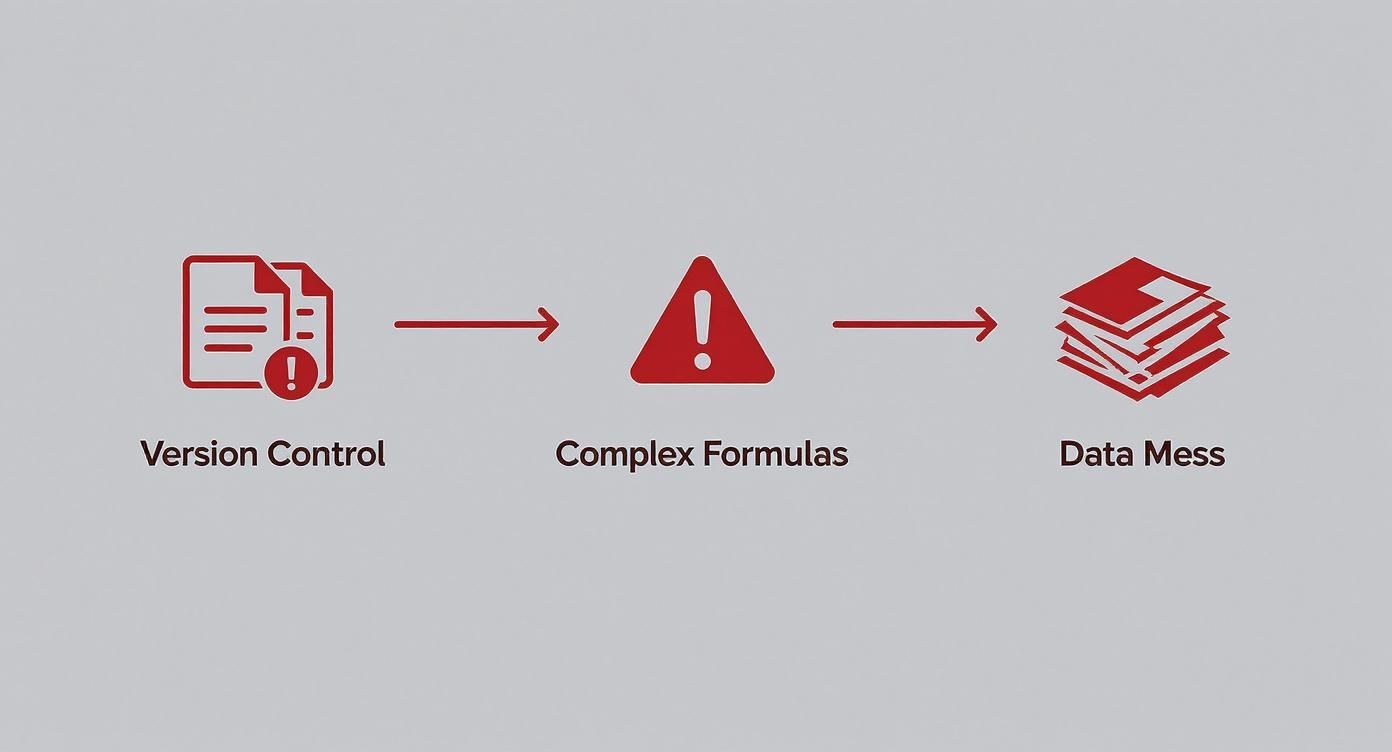
This just goes to show how easily manual processes can lead to unreliable data, making a strong case for a more streamlined, automated approach.
Bridge Your Calendar and Your Timesheet
Tools like TimeTackle were designed to solve this exact problem. It hooks into your calendar and automatically captures your activities, essentially building your timesheet for you based on what's already on your schedule. You can even set up custom rules and tags to categorize your time without lifting a finger.
This doesn't just save you hours every week; it provides a level of detail that manual tracking simply can't compete with. Every event is captured with a precise start and end time, giving you an indisputable record of your work. You can learn more about how to set up automated timesheets that sync directly with your calendar.
The impact of a standardized system—whether it's manual or automated—is huge. In fact, many companies have seen team efficiency jump by up to 40% after implementing a consistent timesheet process.
Exporting Calendar Data for Your XLS Template
Once your calendar data is captured and properly categorized, the last piece of the puzzle is getting it into your spreadsheet. Most automation tools will let you export your time logs as a CSV or XLS file.
This exported file can be set up to match the columns in your timesheet template perfectly. After that, a quick copy-and-paste is all it takes to populate your weekly or monthly timesheet with accurate, calendar-verified data. And if you're looking to streamline operations beyond time tracking, exploring other business automations can unlock even more efficiencies.
This semi-automated workflow truly gives you the best of both worlds: the familiar flexibility of an Excel template combined with the pinpoint accuracy of automated time capture.
Your Excel Timesheet Questions, Answered
Even the best timesheet template xls can throw you a curveball. Maybe you're stuck on a tricky formula, or you just want to bulletproof your setup before sharing it. This is your go-to guide for those little problems that always seem to pop up.
Two of the biggest headaches I see are calculating overtime and protecting sheets from accidental edits. Let's tackle those first.
How Do I Calculate Overtime and Unpaid Breaks?
Getting overtime right is all about separating regular hours from OT hours. The easiest way is with a simple IF formula in Excel. For instance, if overtime starts after 40 hours a week, your formula would check the total. If it's over 40, the extra hours get calculated and dropped into your "Overtime" column. Simple as that.
For unpaid breaks, don't just subtract a flat 30 or 60 minutes. That's asking for trouble. A much better approach is to have dedicated columns for "Break Start" and "Break End." This gives you a crystal-clear record of actual hours worked, which is essential for accurate payroll and client billing.
I’ve seen people build monstrous, nested formulas that are impossible to fix when they break. Keep it simple. Use separate, clean calculations for regular hours, breaks, and overtime. It makes spotting and fixing mistakes a hundred times easier.
How Do I Protect My Formulas and Use This Template on Other Platforms?
You’ve finally perfected your formulas. The last thing you need is someone accidentally typing over a key calculation and wrecking the whole sheet.
Excel's "Protect Sheet" feature is your best friend here. You'll find it under the 'Review' tab. It's a fantastic tool that lets you lock specific cells—like your precious formulas—while leaving others, like the time-in/time-out fields, totally editable for your team. You can even add a password for an extra layer of security.
Here are a few other common questions I get all the time:
- Can I use this in Google Sheets? Of course. Just upload the
.xlsfile to Google Drive, and it'll open right up in Google Sheets. Most basic formulas and formatting transfer without a hitch, but it's always smart to give any complex calculations a quick double-check after you import. - How do I track multiple projects in one sheet? Easy. Just add a new column for "Project Code" or "Task." You can even set up a dropdown list using Data Validation. This lets team members assign their time to a specific job with a single click, making it a breeze to filter and add up hours for different clients.
By thinking through these common scenarios, you can turn a basic spreadsheet into a seriously reliable tool that makes your life easier, not harder.
Ready to stop wrestling with spreadsheets? TimeTackle automatically pulls your work hours straight from your calendar events, so you can ditch the manual entry for good. See how TimeTackle can automate your time tracking.