Export Google calendar

Export Outlook Calendar

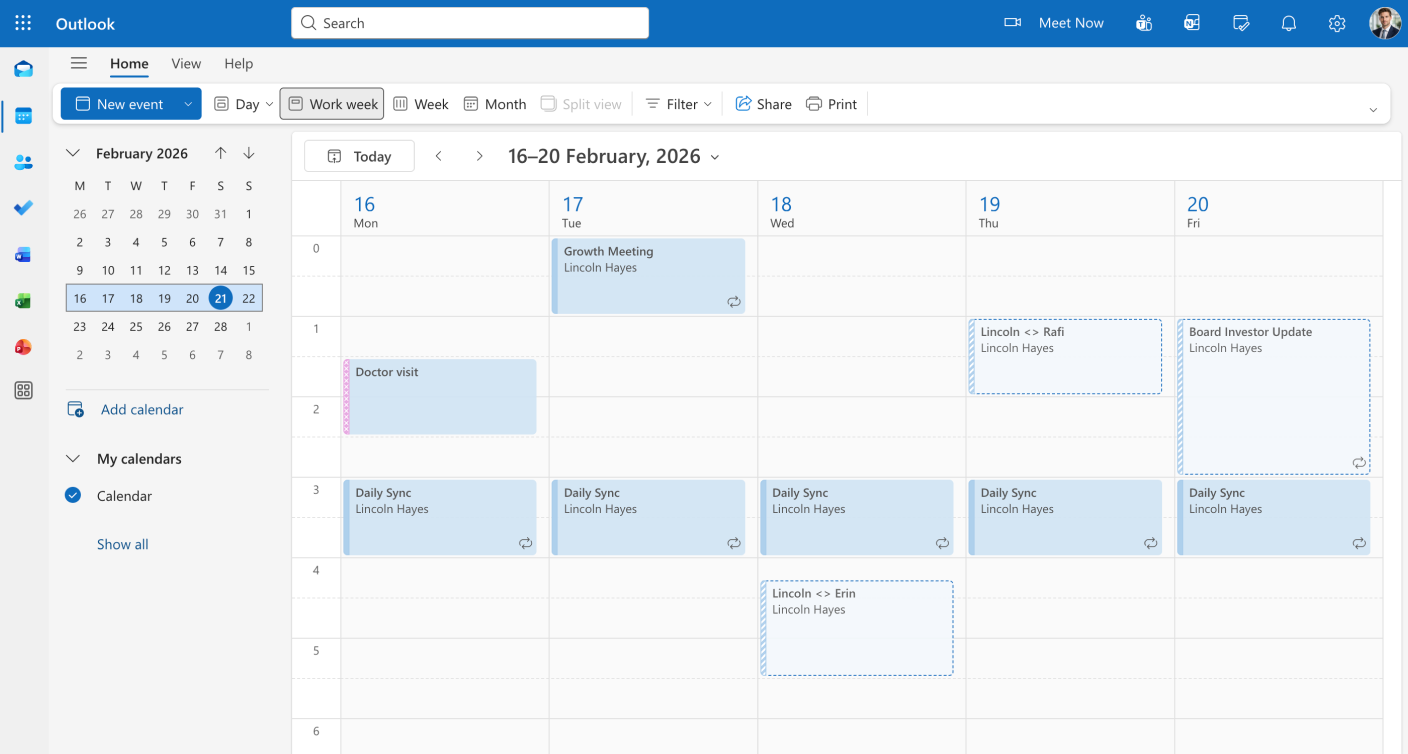
Frustrated with Outlook’s limited export options? You’re not alone. Whether you need to create reports, back up your schedule, or share it with others, getting your data out of Outlook Calendar can be a challenge. This guide will show you how TimeTackle makes it simple to export your Outlook Calendar to Excel, PDF, and more, and also explain the manual process.

24/7 Support • Cancel Anytime • Free Forever

How it helps

Explore Other Data Formats

Export to Excel

Export Outlook appointments to Excel for advanced reporting and detailed data analysis.

Export to CSV

Convert Outlook events to CSV for CRM integration and automated data processing.

Export to PDF

Save Outlook schedules as professional PDFs for easy sharing, printing, and archiving.

What is an Outlook Calendar?

Here’s the deal – want to keep track of your life, you want to manage your events, special dates and plan your day to day activities but don’t want to burden yourself with the use of physical calendars and notes?

Outlook Calendar is a time-management application and service created by Microsoft. It allows you to create calendars easily and intuitively. In an Outlook Calendar you can input different events and have the option to get a notification about them. Anyone who would like to plan their life should look at Outlook Calendar.

If you have a Microsoft account you can easily use Outlook Calendar to manage your life. Simply access the application via the web at Outlook.com or download it on your desktop. You can also sync it with your mobile device for on-the-go access.


How it helps

Why would you want to export Google Calendar using Tackle?

Professionals use Outlook Calendar to manage their schedules, create timesheets, and track their time. Executive Assistants use it to keep track of their boss’s time. Sales teams use it to manage client meetings and follow-ups. An Outlook Calendar could be exported to keep as a copy for yourself or to easily share it with the people you collaborate with.

Share as needed

You can easily view your Google Calendars online on their site or mobile via their app but what if you want to easily share you Google Calendars at other people? You can export your Google calendar to keep a copy for yourself or to give out to people.

Processing and reporting

If you want to take a long hard look at your calendar events for further processing and even for reporting purposes, exporting your Google Calendar is the right way to go about it. You can identify the kind of events that have been taking up your time. You can spot if you’ve been spending more time on certain events that were unnecessary. Or, maybe you’ve been investing less time in events that needed more input from you.

View all events together

When you have exported your Google Calendar, there’s no need to click on each event as all the events are visible all together after you have exported it. Moreover, you can see the details of the event like start and end times, the venue, and the total duration.

Generating timesheets

If employees of an organization work on an hourly or part-time basis, exporting their Google Calendar can easily generate timesheets. This saves time in calculating their pay as there’s no need to note down their hours individually from the calendar.

Offline accessibility

If you have a copy of your calendar in Google Sheets or Excel, you can access it and make changes in it in offline mode. You may not always have access to Wifi and therefore, if you export your Google Calendar, you can access it anytime.  Just export your Google Calendar using Tackle into the format that you want and give it out to your collaborators or keep it as a copy for yourself to easily manage your contractors.

How to Export Outlook Calendar with TimeTackle

TimeTackle is the fastest and most flexible way to export your Outlook Calendar data.

Step 1

Login with your Outlook account

Let's see how to do outlook calendar time tracking

Step 2

Select calendar and date range

Step 3

Preview your export

Preview export outlook calendar

Step 4

Export Calendar

Preview export

Why use Tackle?

Tackle has one of the simplest learning curves. Moreover, Tackle provides tons of customization and options to users. You can export your calendars as CSV, PDF, or in Google Sheets. The best feature of Tackle is it encompasses all your daily productivity and organizational tools.

You can integrate Slack, Google Calendar, Google Sheets, Asana, Jira, and many other apps. So, your team doesn’t have to jiggle with many things at different places.

How to Export Outlook Calendar with TimeTackle (The Automatic Method)

TimeTackle is the fastest and most flexible way to export your Outlook Calendar data.

Step 1

Login to Tackle

Go to Tackle and sign in with your Google account.

Step 2

Go to Data Sources

On the upper left, locate the Data Sources  and navigate to it.

Step 3

Select the calendars you want to export

In case the calendar(s) you want to export are not yet connected, feel free to hit “Connect new source” and choose the calendar(s) you’d like to export.

Step 4

Navigate to Timesheets

On the left side bar, under “Events”, choose any timesheet page or create a new one. In this view, you get to iterate on the template you’d like to export. If you only want to see certain calendar events in your export, feel free to use suitable filters.

Step 5

Choose the right format

In addition, you can select the format of your timesheet template. Here, you can choose the right time zone, how your dates should be listed, and much more.

Step 6

Choose the right columns

Depending on what you need to see, free to include or exclude columns like start and end date, create dates etc.

Step 7

Export your timesheet

Now that your template looks the way it should, you can export as Excel or Google sheets. In case you’d like to reuse this template in the future, hit “save” so you don’t have to adjust it again.

Frequently asked questions

Newer versions of Outlook have limited the direct export functionality, especially to formats like CSV. Microsoft has removed or hidden many export options over the years, which often forces users to use workarounds or third-party tools like TimeTackle for a seamless experience.

Yes, with TimeTackle, you can easily export any calendar you have access to, including shared calendars and delegated calendars, making it perfect for team reporting and analysis.


Exporting your Outlook Calendar creates a file containing all your event data (like titles, dates, times, locations, and descriptions). This file can then be used in other applications like Excel for reporting, analysis, or backup purposes.

Yes, your privacy and security are our top priorities. We use secure authentication and encryption to protect your data at all times. TimeTackle never stores your calendar data on our servers.

Visit our Calendar Exporter Hub

Check these tutorials to learn step by step guide to how to use these features.

Maximize potential: Tackle’s automated time tracking & insights