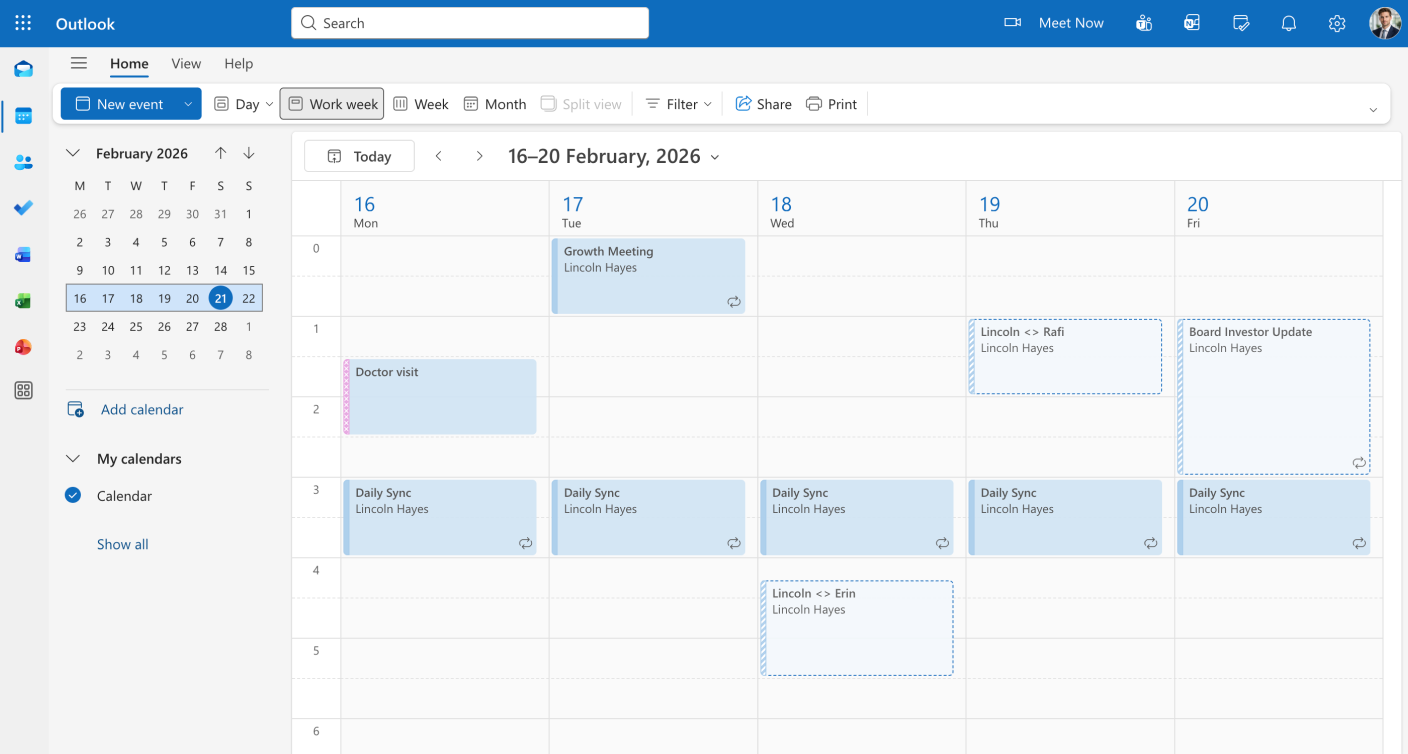
Export Outlook Calendar to PDF

Whether you need a printable version of your weekly schedule, a shareable report for a client, or a permanent archive of your appointments, exporting your Outlook Calendar to PDF is the perfect solution. This guide will show you two methods: the automated way with TimeTackle for a polished, professional result, and the manual "Print to PDF" method within Outlook itself.

24/7 Support • Cancel Anytime • Free Forever

Preview export
how to export outlook calendar to excel

Why Export Outlook Calendar to PDF?

Exporting your Outlook Calendar to PDF is incredibly useful for a variety of reasons. Whether you’re managing your personal schedule or coordinating team calendars, a PDF export gives you a professional, shareable, and permanent record of your calendar data.
 
Professional Sharing: Share a polished, read-only version of your schedule with clients, colleagues, or team members. A PDF is universally compatible and can be opened on any device without requiring Outlook access.
 
Printable Agendas: Create beautiful, printable agendas for meetings, presentations, or personal planning. A well-formatted PDF looks professional and is easy to reference during discussions.
 
Archiving and Record-Keeping: Keep a permanent, uneditable snapshot of your calendar for compliance, historical records, or personal reference. PDFs are stable and won’t change over time.
 
Offline Accessibility: Access your calendar data anywhere, anytime, even without an internet connection. A PDF copy ensures you always have your schedule available.
 
Client Billing and Reporting: For consultants and agencies, exporting your calendar to PDF makes it easy to create professional time reports and billing documentation.
 

How to Export Outlook Calendar to PDF?

You’ve already created your Outlook Calendar and you want to export it so that you have a copy for yourself to use or share. One website that does the work for you is TimeTackle. There is No installation required, no hassle!

Step 1

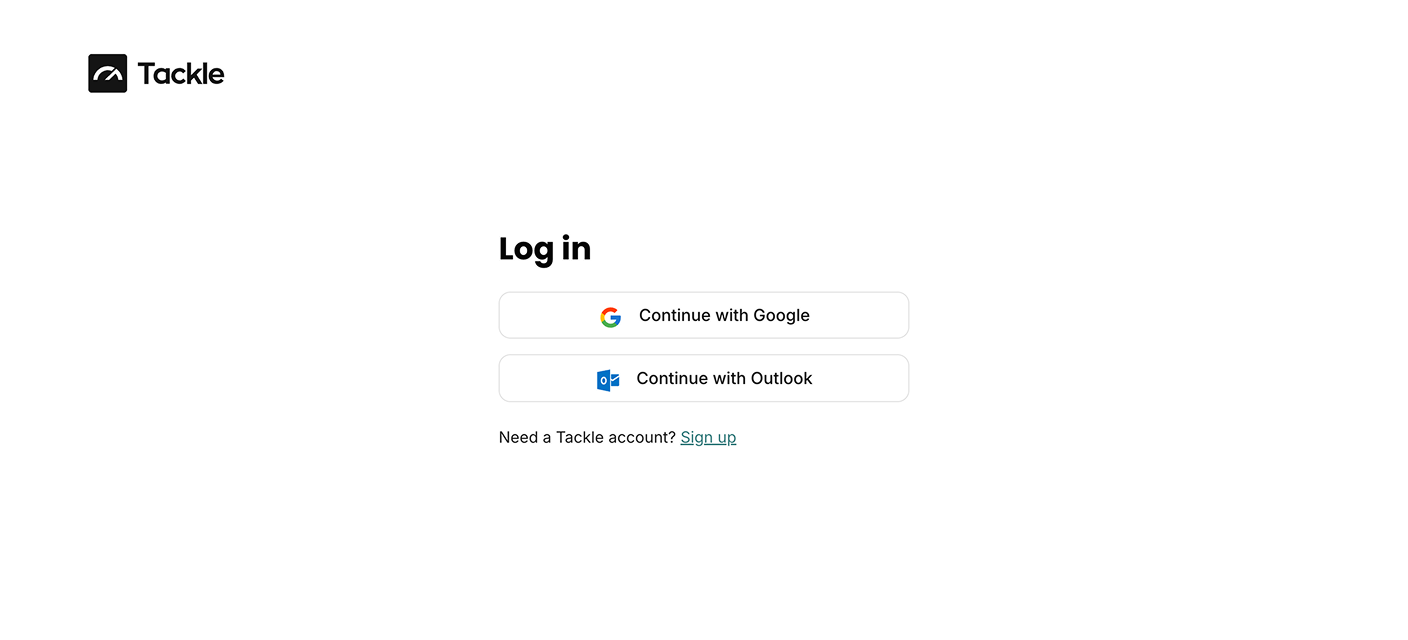
Login with your Outlook account

Let's see how to do outlook calendar time tracking

Step 2

Select calendar and date range

Step 3

Preview your export

Preview export outlook calendar

Step 4

Export Calendar

Preview export

Why use Tackle?

Tackle has one of the simplest learning curves. Moreover, Tackle provides tons of customization and options to users. You can export your calendars as CSV, PDF, or in Google Sheets. The best feature of Tackle is it encompasses all your daily productivity and organizational tools.

You can integrate Slack, Google Calendar, Google Sheets, Asana, Jira, and many other apps. So, your team doesn’t have to jiggle with many things at different places.

How it helps

Explore Other Data Formats

Outlook Calendar to Excel

Export Outlook appointments to Excel for advanced reporting and detailed data analysis.

Outlook Calendar to CSV

Convert Outlook events to CSV for CRM integration and automated data processing.

Frequently asked questions

Yes! TimeTackle allows you to select and merge multiple Outlook calendars into a single PDF report, making it perfect for team scheduling or comprehensive personal planning.


TimeTackle can handle large date ranges and calendars. For very large exports, the process may take a few minutes, but the result is a complete, professional PDF of all your data.

Absolutely! TimeTackle offers multiple professional PDF templates that you can customize to match your branding or preferences.

No, PDFs exported from TimeTackle are read-only, which ensures your calendar data remains secure and unaltered when shared with others.

Explore all Outlook Calendar export options

Check these tutorials to learn step by step guide to how to use these features.

Connect your calendar now and export your calendar to Excel in 5 minutes.