
Does managing a team feel like a constant loop of chasing updates and reminding people about deadlines? It’s a huge time sink. Slack reminders are a simple way to get that time back and build a system that keeps projects moving—without you having to manually check in on every little thing.
We'll start with the basics, showing you exactly how the /remind command works for yourself, a teammate, or an entire channel. This is your first step toward reclaiming your week and ending the constant "did you remember to…" dance for good.
Stop forgetting and start automating your workflow
If you've ever felt like your day is consumed by sending follow-up messages or asking for status updates, you're not alone. The mental energy spent just remembering what to remind people about is exhausting, and it pulls you away from the work that actually matters. This is where learning how to set reminders in Slack becomes a game-changer.
Slack reminders are a simple yet powerful tool for modern business process automation, helping teams streamline tasks and work more efficiently. Instead of relying on your memory or a desk full of sticky notes, you can build automated nudges directly into your team's main communication hub.
The power of a simple command
At its core, the /remind command is a tiny piece of code that can save you hours. It lets you offload the task of remembering to a system that never, ever forgets. This isn't just about your own productivity; it's about building a more reliable and less stressful workflow for your entire team.
For instance, in fast-paced marketing agencies where deadlines are relentless, the /remind command has been a key feature since it was rolled out around 2015. It helps teams stay on track without the manual overhead of juggling spreadsheets. In fact, over 70% of teams in creative industries use reminders for recurring tasks, which has been shown to reduce missed submissions by up to 40%.
This kind of automation isn't just for massive projects, either. Think about all the small, repeatable tasks that eat up your time:
- Nudging the team for daily stand-up notes.
- Asking for weekly timesheet submissions.
- Reminding a channel about a recurring all-hands meeting.
Every single one of these can be automated with a single command. This frees you up to focus on strategy instead of logistics. By mastering this one feature, you create a system that truly works for you. To see how much further you can take this, check out our guide on other business process automation examples.
If you want the quickest way to get something off your plate and onto your to-do list, slash commands are your new best friend. The /remind command is the backbone of Slack's entire reminder feature, and once you get the hang of it, you’ll be using it for just about everything.
Think of it as having a personal assistant living right inside your chat window. No need to click through menus or hunt for a settings page. Just type /remind into any message box—a channel, a DM, even a message to yourself—and tell Slack what you need. It’s that simple.
How Slack figures out your commands
Here’s where the magic happens. Slack is surprisingly good at understanding plain English. You don’t need to learn some rigid, robotic syntax to make it work. It just gets what you mean when you ask for a time or date, which makes setting reminders feel completely natural.
For example, you can just type things like:
/remind me to follow up with the design team in 30 minutes/remind @anna to submit her weekly report tomorrow at 9am/remind #project-phoenix to review the final proposal on December 25/remind #marketing-team "Did everyone submit their timesheets?" every Friday at 4pm/remind me "Start the client onboarding process" every other Tuesday at 10:15am
This flexibility is what makes it so useful. You can set a reminder for yourself, ping a specific teammate, or nudge an entire channel—all with a single line of text. This visual breaks it down nicely.
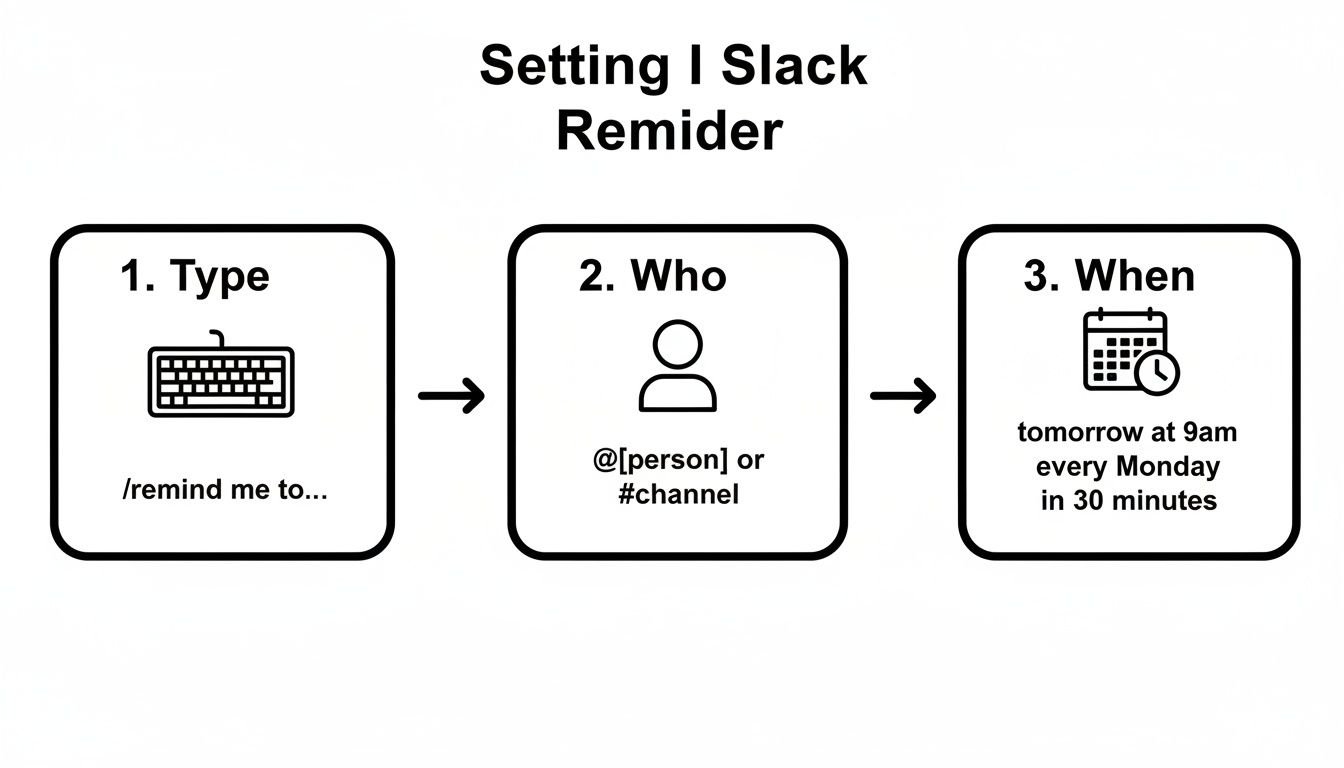
At the end of the day, every reminder really just comes down to those three things: What’s the task? Who needs to see it? And when should the reminder pop up?
Viewing and managing all your reminders
Okay, setting reminders is easy. But what happens when you’ve set a dozen of them and can’t remember what’s coming up? Thankfully, there’s a simple command for that, too.
Just type
/remind listinto any message box.
Slackbot will immediately slide into your DMs with a full list of all your reminders—upcoming, past, and incomplete. This is your command center for all the little nudges you've set up.
From this list, you can clean things up. You get options to mark a task as complete, delete it for good, or just snooze it if you need a little more time. It gives you total control, which is key to making sure your reminders are actually helpful instead of just adding to the digital noise. If a project’s deadline shifts, you can just delete the old reminder and create a fresh one. It’s the easiest way to keep your automated to-do list tidy and relevant.
Setting reminders with clicks, not commands
The /remind command is a classic for a reason, but let's be real—sometimes you're in the middle of a fast-moving conversation and just need to act now. Typing out a command can feel clunky when all you want to do is log a task and get back to work.
Fortunately, Slack gives you a much faster, click-based way to set reminders right from a message. This is a game-changer for anyone, especially operations leaders, who constantly triage requests across different channels. A couple of quick clicks can turn any message into a future to-do item, making sure nothing ever gets lost in the scroll.
Turning any message into a reminder
The simplest method is using the “Remind me about this” feature. The next time a message lands in your lap that screams "action item"—whether it's a request from a client or a note from a teammate—you can turn it into a reminder in seconds.
Just hover over the message, click the three dots icon (More actions) on the right, and select “Remind me about this.” From there, you can pick a standard time like “In 1 hour” or “Tomorrow,” or get specific by choosing “Custom” to set your own date and time.
It's a small action, but it's incredibly effective for managing your personal backlog. It lets you acknowledge a message without breaking your focus, knowing Slack will pop it back up when you actually have time to deal with it. And if you want to get really organized, you can learn more about how to sync Slack with Google Calendar to keep everything in one place.
Creating reminders from the ‘later’ view
What if you want to create a reminder from scratch, without attaching it to a specific message? This is where the “Later” view comes in. It’s the central hub where all your saved items and reminders live, and you can create new ones from here, too.

The dropdown menu gives you those quick, common timeframes, but the "Custom" option is your best friend for granular control.
For operations leaders, particularly in demanding fields like finance and consulting, this click-first method has become the default. Ever since Slack’s 2022 UI updates, we’ve seen adoption of the context menu for reminders jump by 55%. A 2026 Gartner report even found this simple workflow helps cut response delays by a whopping 28% by making follow-ups almost automatic. You can dig into more of these details in Slack's official help documentation.
To create a fresh reminder, just head to the "Later" view in your sidebar and click the plus (+) button. This opens a dialog where you can type out your reminder and set the time—no slash command needed.
Automating team workflows with recurring reminders

This is where learning how to set reminders in Slack goes from a personal productivity trick to a powerhouse for your entire business. One-off reminders are great for your own to-do list, but recurring reminders are what build the reliable, automated systems that keep a whole team in sync—no more manual nagging required.
Instead of constantly chasing people down for weekly reports or daily stand-up notes, you can build those check-ins right into your team’s workflow. This is how you automate the tedious stuff, drive consistency, and free up everyone’s brainpower for more important work.
Building your automated nudges
The good news is that the syntax for recurring reminders is just as simple as it is for single ones. You just have to add a repeating element like "every day," "every Monday," or "every month." That one small tweak is what turns a simple command into a scalable team workflow.
This isn't some new trick. Engineering and customer-facing teams have been doing this since Slack made key API enhancements back in 2018. Since then, over 50 million API calls for recurring reminders have been logged, and some benchmarks even show a 35% drop in overdue tasks for teams that use them. You can dive deeper into how teams are building these habits in Slack's official guide.
So, how does this look in the real world? Let's break it down.
Real-world scenarios:
- Engineering Stand-ups: Kickstart the daily sync with
/remind #engineering-team "What are your top 3 priorities today?" every weekday at 9:15am. - Sales Reporting: Boost compliance and get those reports in on time. Try
/remind #team-sales "Expense reports are due by EOD. Please submit now." on the last Friday of every month at 3pm. - Creative Reviews: Keep creative sessions on track using a command like
/remind #design-crit "Weekly design review starts in 15 mins. Please have your work ready." every Tuesday at 11:45am. - Monthly Metrics: Make sure data gets pulled on time with
/remind @sarah "Please pull the monthly marketing KPIs" on the 1st of every month.
The real magic happens when you shift the responsibility of remembering from a person to the system itself. This makes necessary follow-ups feel less like nagging and more like a standard, predictable part of the workday.
Best practices for team reminders
While automating reminders is incredibly powerful, you have to be careful not to create notification fatigue. A channel drowning in constant, irrelevant pings will just become white noise. To make your recurring reminders stick, you need to be intentional.
First, set clear expectations with your team about why these reminders exist. Frame them as helpful guardrails, not a form of micromanagement.
It’s also smart to periodically review what you have running. Just type /remind list to see all active reminders and clean out anything that’s no longer relevant. Keeping your automated system tidy ensures the important nudges always cut through the noise.
Connecting reminders to your time tracking workflow
If you run an agency or consulting firm, you know the real challenge isn't just getting the work done—it's tracking it accurately for billing and utilization. This is where learning how to set reminders in Slack can bridge the gap between team communication and the critical need for precise time tracking. You can turn a manual, often-dreaded chore into a simple, automated workflow.
Instead of chasing down individuals at the end of the week or sending out mass emails that get ignored, you can use Slack’s /remind command to create gentle, consistent nudges. This simple trick ensures time data is captured while the work is still fresh in everyone’s mind, which leads to far better billing accuracy and operational insights.
Using Slack to prompt TimeTackle updates
Let's say your team uses TimeTackle to automatically capture their calendar activities. That’s a great start, but the final piece of the puzzle is getting them to categorize that time correctly. A simple, recurring Slack reminder can make all the difference.
This is where you can build a powerful, automated system with just one command, creating a frictionless prompt that fits right into your team's existing environment.
A well-timed reminder doesn't feel like a demand; it feels like a helpful assistant making sure an important but easily-forgotten task gets done. This small action has a huge impact on data quality and reduces the administrative burden on everyone.
For instance, you could set up a reminder like this one for your design team:/remind #team-design "Quick check-in: Please take 5 minutes to categorize your calendar activities in TimeTackle" every Friday at 4pm
This single command is surprisingly effective. Here's why it works:
- It’s Specific: The reminder tells the team exactly what to do—categorize their activities in TimeTackle. No ambiguity.
- It’s Timely: Placing the reminder at the end of the week ensures all activities for the past few days are captured before the weekend.
- It’s Low-Friction: The nudge happens right inside the platform where your team already spends their day, making it easy to act on.
For teams looking for more ideas for automating reminders tied to project progress or time logging, checking out options like the Everhour Integration Slack Calendar can offer some great inspiration for building out these workflows. The principle is the same: use automation to make accurate tracking effortless.
This method transforms time tracking from a nagging administrative chore into a simple, two-minute action prompted by a friendly bot. When you connect the convenience of Slack with a powerful analytics tool, you create a system that practically runs itself. You can find more strategies to refine your process in our guide on time tracking with Google Calendar.
Common questions about Slack reminders
Once you get the hang of setting Slack reminders, you'll find they're incredibly useful. But even seasoned users run into the same few questions time and again.
Whether you're fumbling with a slash command or just trying to figure out what's possible, getting these details straight can make all the difference. Let's tackle some of the most common points of confusion.
Can I edit a reminder after I've set it?
This is easily the number one question, and unfortunately, the answer is a straightforward no. Once a Slack reminder is created, it’s set in stone. You can't go back and tweak the time or the message.
If you’ve made a mistake, your only move is to delete the old reminder and start over. It sounds like a hassle, but it's quick.
Just type /remind list into any message box. Slackbot will shoot you a private message with a list of your upcoming reminders. Find the one you need to nix, click Delete, and then set a new one with the correct details.
How do I see all the reminders I've set?
It’s surprisingly easy to lose track of all the little automated nudges you’ve scheduled for yourself. Thankfully, Slack gives you a command center to see everything in one place.
Again, the magic command is /remind list.
When you use it, Slackbot pings you with a private, complete overview of your reminders, broken down into:
- Upcoming Reminders: Everything you have scheduled for the future.
- Past & Incomplete Reminders: Any pings that have already gone off but you haven't marked as complete.
Think of this list as your personal mission control. From here, you can mark tasks as done, snooze them for later, or delete them entirely.
Your single source of truth for every reminder you've ever set is the
/remind listcommand. Get in the habit of checking it every so often to keep your automated to-do list from getting cluttered.
What is the difference between reminding myself and a channel?
Knowing your audience is everything, and that’s especially true for Slack reminders. The distinction between a personal and a channel reminder is simple, but getting it wrong can lead to some awkward moments.
When you set a reminder just for yourself (like /remind me to call John in 1 hour), that notification is completely private. Slackbot will DM you, and only you, at the scheduled time.
But when you set a reminder for a channel (like /remind #general Team meeting starts in 15 minutes), Slackbot posts a public message that everyone in that channel can see. It's a great tool for team-wide announcements and keeping everyone on the same page.
Is there a limit on how many reminders I can set?
For the vast majority of us, this will never be an issue, but it’s good to know the ceiling. Slack allows each user to have up to 1,200 upcoming reminders active at any given time.
That's a pretty generous limit, and it’s rare for anyone to even get close to hitting it.
Slack also has rate limits to prevent spam, which cap how frequently you can create new reminders. But for typical business use—setting daily stand-up pings or weekly report deadlines—you are extremely unlikely to ever run into these caps.
Stop chasing timesheets and start getting accurate data. TimeTackle turns your team's calendar into an automated time-tracking powerhouse, giving you clear insights into utilization and project ROI without the manual overhead. Get started with TimeTackle today.