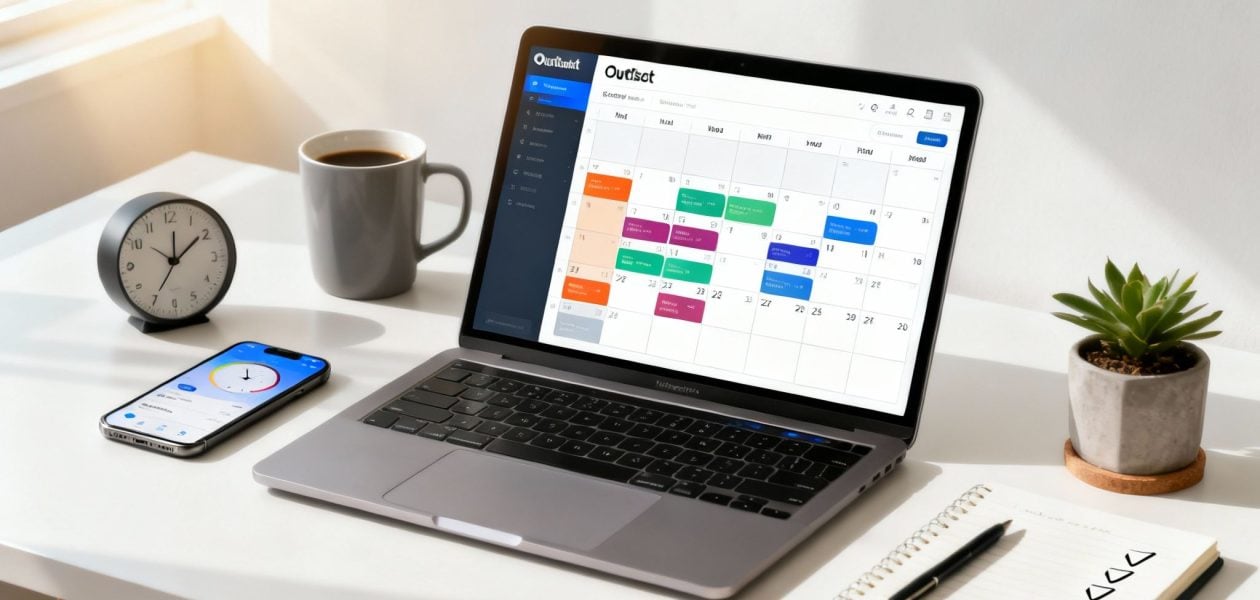
Your Outlook calendar is your professional command center, but let's be honest—relying on it for manual time tracking is a recipe for inaccurate timesheets and lost revenue. When you have to piece together your workweek from memory, you're not just being inefficient; you're opening the door to costly mistakes. For countless professional service teams, this manual grind is a quiet but serious drain on productivity.
The Hidden Costs of Calendar Chaos
For most agencies and consulting firms, the Outlook calendar is mission control. It dictates every client call, internal sync-up, and project deadline. But what happens when this critical tool becomes a major source of inefficiency? That’s the reality of "calendar chaos," a state where your team spends more time managing their schedule than doing profitable work.

The Grind of Manual Reconciliation
Picture a consultant at the end of a packed week, staring down a blank timesheet. They’re scrolling through dozens of meetings, trying to remember which call was for Project A and which workshop was for Client B. This isn't just frustrating; it's a direct hit to your bottom line. Every minute spent on administrative guesswork is a minute that can't be billed.
This problem is bigger than most people think. A recent report on Outlook usage found that employees spend an average of 4.2 hours per week just managing their schedules. That includes rescheduling an average of 4.7 appointments every single week. When you factor in personal calendars, the chances of conflicts and forgotten entries skyrocket, creating a massive operational drag.
Inaccuracy and Lost Revenue
When time is logged by hand, accuracy takes a nosedive. A 45-minute call gets rounded down to 30 minutes. A quick 15-minute check-in is forgotten entirely. These small oversights add up fast across a whole team, leading directly to under-billing and skewed project costing. This flawed data makes it impossible to get a true read on project profitability or client ROI. Our guide on tracking billable hours effectively dives deeper into how to plug these revenue leaks.
The real cost of manual time tracking isn't just the time spent filling out timesheets. It's the lost revenue from inaccurate entries, the poor resource planning based on flawed data, and the burnout from constant administrative overhead.
This manual process inevitably leads to "timesheet fatigue," draining your team's energy and morale. When filling out a timesheet feels like a punishment, compliance drops, and the data becomes even less reliable. It’s a vicious cycle that shows why native Outlook features are just a starting point. To really grow and gain operational clarity, automation isn't a luxury—it's essential.
Manual vs Automated Outlook Time Tracking
To put it into perspective, let's compare the traditional, manual approach using Outlook's native features against an automated solution. The differences are stark.
| Feature | Manual Tracking (Native Outlook) | Automated Tracking (e.g., TimeTackle) |
|---|---|---|
| Accuracy | Prone to human error, rounding, and forgotten entries. | Captures every calendar event automatically for near-perfect accuracy. |
| Time Investment | Hours per week spent on manual entry and reconciliation. | Seconds to set up rules; tracking happens in the background. |
| Data Granularity | Limited to what users remember to add; lacks detail. | Rich data with tags for clients, projects, and task types. |
| Reporting | No built-in reporting; requires manual export and analysis. | Generates instant, detailed reports and dashboards. |
| Compliance | Suffers from "timesheet fatigue," leading to inconsistent data. | High compliance as the process is automatic and non-intrusive. |
| Scalability | Becomes exponentially more chaotic as the team grows. | Scales effortlessly, providing consistent data for any team size. |
Looking at this side-by-side, the limitations of manual tracking become crystal clear. While Outlook is a great calendar, it was never designed to be a robust time-tracking system on its own. The manual process is not just inefficient; it provides weak, unreliable data that can’t support strategic business decisions. An automated tool, on the other hand, turns your calendar data into a powerful asset.
Start with Outlook's Built-In Features for Basic Time Tracking
Before you jump into specialized add-ins, it's worth seeing what you can accomplish with the tools you already have in Outlook. While they're no substitute for a fully automated system, Outlook's native features can offer a solid foundation for time tracking, especially if you're an individual or a small team just starting to get serious about where your hours go.
The trick is to be consistent. You need to establish a clear system from the get-go.
Your most powerful built-in tool is Outlook Categories. Think of them as digital highlighters for your calendar. You can create and color-code custom categories to tag events with client names, project codes, or the type of work you're doing. This gives you a surprisingly clear at-a-glance overview of your day.
Build a Cohesive Tagging System
A common mistake I see is people creating categories on the fly, which quickly turns into a confusing, inconsistent mess. Don't do that. Instead, sit down and define a standardized list that makes sense for your work.
For instance, a marketing agency could set up simple categories like these:
- Client Work – Billable: For all direct project tasks and client-facing meetings.
- Client Work – Non-Billable: Covers things like admin calls or unscheduled support.
- Internal – Business Development: For sales calls and strategy sessions.
- Internal – Admin: For your weekly team huddles and other operational tasks.
Once you apply colors to these, your calendar instantly transforms into a visual report. You can immediately see if a day is packed with billable work or getting bogged down by internal meetings.
Remember, the whole point of a native system is clarity, not generating complex reports. A simple, well-defined set of categories that everyone actually uses is far more effective than a dozen confusing ones that are ignored.
Simple Workflows for Better Data
Beyond just categories, a few other simple habits can dramatically improve your manual time tracking in Outlook. Adopting a standard naming convention for your appointments is a small change with a huge impact. For example, starting every meeting entry with a project code or client name (like "PROJ123 – Design Review") makes searching and filtering your calendar a breeze down the road.
Also, get in the habit of using the 'Show As' status field correctly. Differentiate between committed work time ("Busy") and potential commitments ("Tentative"). This small detail helps clarify your actual workload when you look back at your week.
While this manual approach offers a basic framework, you'll feel its limitations pretty quickly. Trying to export this data for any real analysis is a clunky, manual process that offers zero real-time insight. If you want to give it a shot, you can learn more about how to export your Outlook calendar to a CSV file in our dedicated guide.
Ultimately, this method is just a starting point. It lacks the accuracy, scalability, and powerful reporting needed for serious project costing or team management. This is exactly why dedicated tools are almost always the next logical step.
How Outlook Integrations Automate Your Workflow
Let's be honest, while Outlook's built-in features are a decent starting point, they rely on one thing that’s always in short supply: human memory. Your team still has to remember to categorize every single event, every single time. This is exactly where dedicated integrations and add-ins change the game, moving you from manual drudgery to intelligent automation.
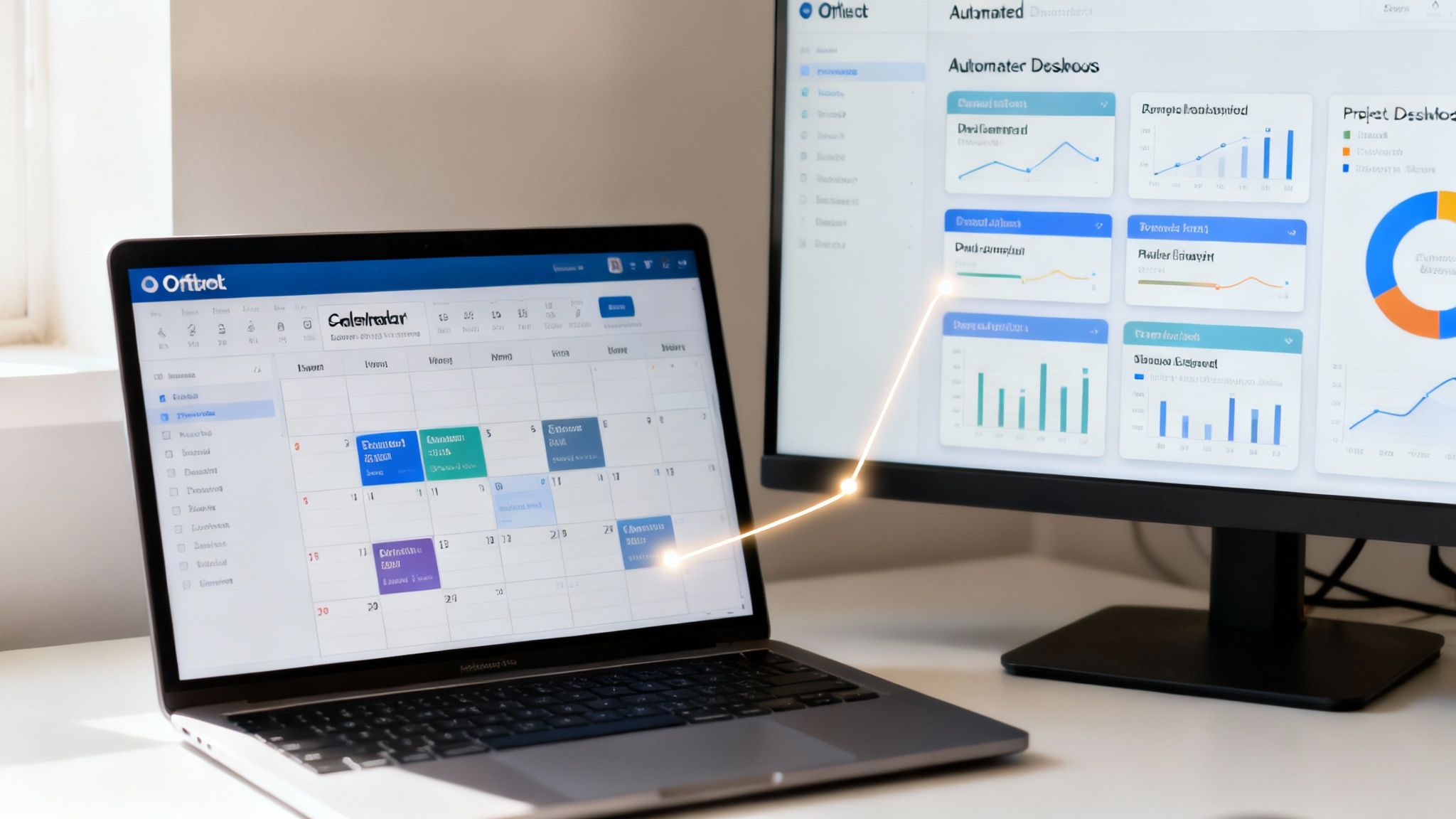
These tools plug directly into your Outlook calendars, automatically scooping up every event without anyone having to lift a finger. For project managers and operations leaders, this is a massive breakthrough. It completely wipes out timesheet guesswork and gives you a real-time, accurate picture of team capacity and project allocation.
Suddenly, your calendar is no longer just a scheduling tool; it’s a powerful source of business intelligence.
From Passive Calendar to Active Data Source
The main job of an integration is to read your calendar events—meetings, calls, focus blocks—and log them as time entries in another system. It all happens silently in the background, creating a perfect, objective record of how time is being spent across the entire organization.
Instead of asking your team to piece together their week from memory, the system uses their calendar as the undisputed source of truth. This shift brings some profound benefits:
- Unmatched Accuracy: It captures everything from a quick 15-minute sync to a three-hour workshop, ensuring no billable time ever slips through the cracks.
- Zero Manual Entry: Team members just keep using their Outlook calendar like they always have. The integration does all the heavy lifting.
- Real-Time Insights: Managers can see up-to-the-minute data on project health and team utilization without chasing down timesheets at the end of the week.
The Power of Rule-Based Automation
But true automation is more than just logging hours. Advanced platforms like TimeTackle let you build powerful rules that automatically categorize and tag your calendar data, making it instantly ready for reporting.
For instance, you could set up a rule that automatically tags any meeting with "Client ABC" in the title to the correct project and flags it as billable. Or maybe a rule that assigns any event containing the word "Interview" to your internal "Recruiting" project. Easy.
This is the kind of automation that transforms time tracking in Outlook from a chore into a seamless workflow. The demand for this is exploding, with research showing a staggering 78% of employees describe their schedules as messy. This chaos drives them toward tools that can pull calendar data for effortless insights. While tools like Timeneye and Timeghost are embedding tracking directly into Outlook, the native platform continues to lag, pushing more users toward powerful add-ins. You can discover more insights about maximizing Office 365 on timeneye.com.
By connecting your calendar to an intelligent platform, you’re not just tracking time. You’re building a rich, structured dataset that reveals exactly where your most valuable resource—your team’s time—is going.
Some integrations even sync up with your CRM. Imagine linking calendar events directly to sales opportunities or customer accounts, giving you a crystal-clear view of the time and effort it takes to win and retain business. This closes the loop between activity and outcome, handing you invaluable data for strategic planning. This automated approach is the real key to unlocking operational efficiency.
Turning Calendar Data into Actionable Business Insights
Capturing time is just the first step. The real magic happens when you turn that raw data into something you can actually use. Automated platforms are brilliant at this—they take all those scattered calendar events and transform them into dynamic dashboards and insightful reports, freeing you from the soul-crushing work of manual data crunching.
This is where you graduate from simply logging hours to making sharp, data-driven decisions. Instead of scratching your head and wondering where the time went last quarter, you can see exactly how your team's energy is being spent across different clients, projects, and internal tasks.
From Raw Data to Dynamic Dashboards
Let's get practical. Imagine you're a finance lead trying to figure out if Project X is actually profitable. The old way? Export a mountain of calendar data, wrestle with messy entries, and burn hours trying to make sense of it all in a spreadsheet.
With an automated system, you can instantly pull a report filtered for that specific project. In seconds, you'll see a clear breakdown of every hour invested by each team member.
Here’s a glimpse of what that kind of visualization looks like:
A chart like this immediately flags which projects are eating up the most resources, giving managers the intel they need to make sure the team's effort lines up with company goals.
Or think about an operations manager tracking team utilization. They can quickly see which clients are the most demanding and stack that effort up against the revenue each one brings in. This is the kind of clarity that's next to impossible to get when you're doing everything by hand.
Key Reporting Features for Deeper Analysis
The best time tracking in Outlook solutions don't just give you pretty charts; they offer powerful reporting features that let you slice and dice your data in truly meaningful ways. You should be able to:
- Filter by Project or Client: Instantly isolate the total time your team has sunk into any specific project or client account.
- Analyze by Team Member: Get a handle on individual workloads, spot potential burnout risks before they become a problem, and make sure work is distributed fairly.
- Drill Down by Task Type: Separate billable client work from internal meetings and admin time to find opportunities for optimization.
- Sync with CRM Data: Connect your calendar events to specific sales opportunities or customer records to get a true measure of your cost of acquisition and service.
This is so critical that even executives at Microsoft built their own custom solutions to get these kinds of insights. They rolled out a Power Platform tool that analyzes Outlook calendar data, giving them unprecedented visibility into how their time is being spent and closing huge gaps left by manual tracking.
Exporting and Syncing for Custom Insights
Built-in dashboards are great, but sometimes you need to go deeper. The top platforms give you flexible ways to export your data, like downloading reports as Excel or CSV files. This is perfect for when you need to run custom financial models or plug that time data into your existing business intelligence tools.
The ultimate goal is to liberate your leaders. Automated reporting removes the administrative burden of data collection, allowing them to focus on what they do best: analyzing trends, making strategic decisions, and guiding the team.
For real-time analysis, syncing directly with tools like Google Sheets or Power BI is a total game-changer. It sets up a live data feed, so your external reports are always current without anyone having to remember to export the latest numbers.
To learn more about what's possible, check out our deep dive into calendar analytics and insights. And if you're serious about making your Outlook a hub for business intelligence, don't miss these Top Tips for Calendar Success.
Best Practices for Launching Your New Time Tracking System
Successfully rolling out a new system for time tracking in Outlook is less about the technology and more about your people. I’ve seen it time and again: a thoughtful implementation plan is what separates a tool that gets adopted from one that gathers digital dust. Your real goal is to build trust and show everyone the value right from the start.
The most critical first step? Creating a clear, consistent tagging system. Before anyone logs a single minute, you absolutely must define a universal set of tags for projects, clients, and task types. This removes ambiguity down the line and ensures the data you collect is clean and comparable across the entire organization.
Start with a Pilot Program
Instead of a big, risky company-wide launch, always start with a small, enthusiastic pilot group. This approach lets you test your tagging system, identify potential workflow friction, and gather honest feedback in a low-stakes environment.
Think of your pilot team as your champions. They'll help you refine the process before it goes live for everyone. This phased rollout allows you to iron out any kinks. Maybe your initial project codes are too confusing, or a specific automation rule isn’t firing correctly. It’s far better to discover and fix these issues with a team of five than with a team of fifty.
Frame the Change for Your Team
How you introduce the new system is everything. It's essential to frame it not as a top-down mandate for surveillance, but as a shared tool to make everyone's work life better. I always recommend emphasizing the benefits that directly impact your team members:
- Eliminating tedious timesheets: Position it as a way to kill the dreaded end-of-week scramble to remember what they worked on.
- Ensuring fair workloads: Explain how accurate data helps managers balance assignments and prevent burnout.
- Justifying resources: Show how the data will be used to argue for more headcount or better project budgets.
The narrative should always be about reducing administrative headaches and gaining clarity, not about watching over shoulders. When your team sees the system as a tool that helps them, buy-in follows naturally.
This simple flow—from capturing raw calendar data to making smarter business decisions—is what it’s all about.
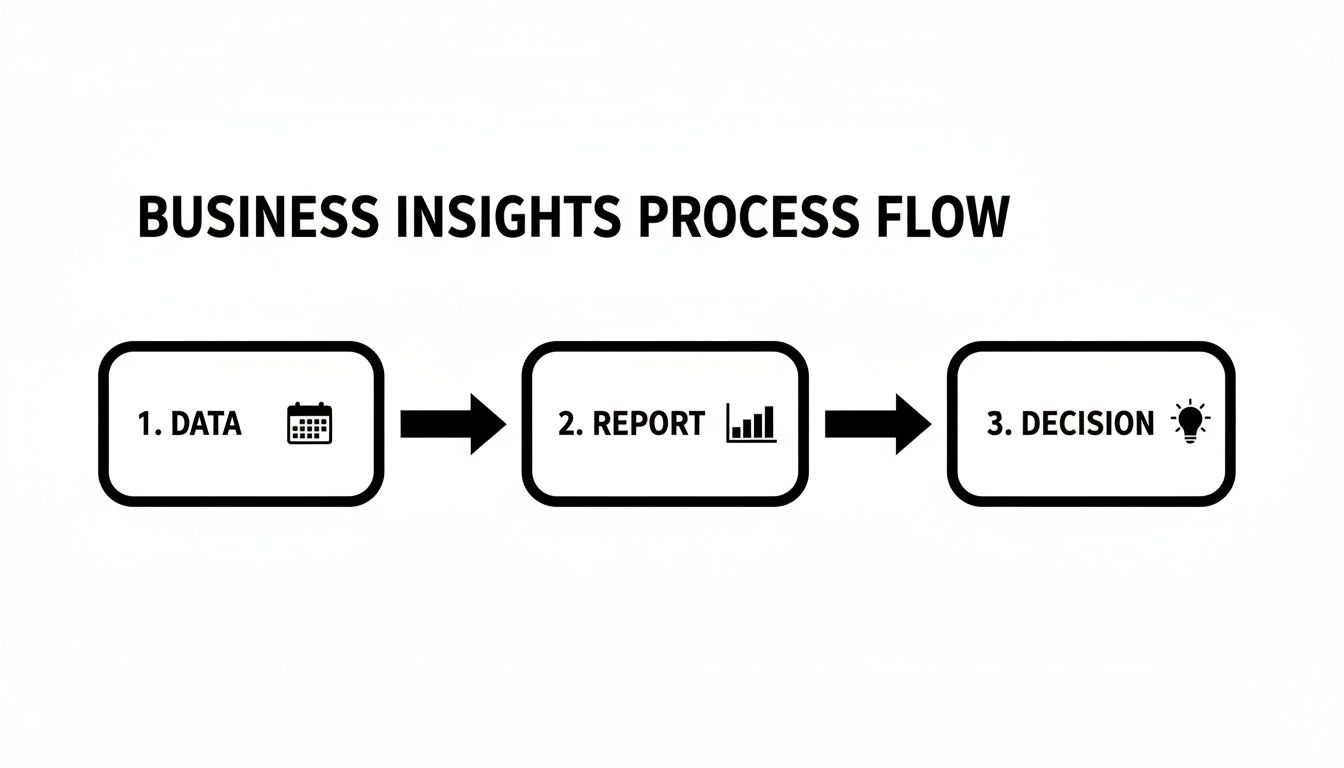
The process visualizes how your team's calendar data gets transformed into structured reports that empower strategic choices. By focusing on clear communication and a well-planned rollout, you build a foundation of reliable data that everyone trusts from day one. This is how you ensure your new system actually delivers on its promise of efficiency and insight.
Got Questions? We’ve Got Answers.
Jumping into a new way of working always brings up a few questions. When it comes to setting up time tracking in Outlook, you're not alone in wondering about the nuts and bolts. Here are some straightforward answers to the questions we hear most often, designed to clear up any lingering doubts.
Can I Really Track Time in Outlook Without Any Add-Ins?
You can, but it’s pretty basic. The built-in Categories feature lets you color-code calendar events for different clients or projects. At a glance, you can get a rough idea of where your day went.
The catch? It's entirely manual. This method is a recipe for human error and offers zero in the way of reporting. For any team that needs solid data for billing, payroll, or figuring out who’s working on what, this approach just doesn't scale and quickly becomes more trouble than it's worth.
How Do Integrations Make Tracking More Accurate Than Manual Timesheets?
Let's be honest, manual timesheets rely on memory and guesswork—both of which are notoriously unreliable. Automated tools like TimeTackle cut through the noise by pulling data directly from your Outlook calendar. This creates a perfect, objective record of where every single minute was spent.
By capturing everything straight from the calendar, you get data you can actually trust for critical things like invoicing, project costing, and payroll. It replaces those frantic end-of-week guesstimates with an undeniable source of truth, giving you real confidence in your numbers.
Is Setting Up Automated Time Tracking for My Team a Huge Hassle?
Not at all. Modern tools are designed to be up and running fast. An administrator just needs to grant secure, read-only access to the team's Outlook calendars. From there, they can set up workspace settings and tagging rules through a simple, intuitive dashboard.
The system just hums along in the background, so there’s barely any onboarding for the team—they just keep using their calendars like they always have. The real work isn't wrestling with software; it’s spending a little time upfront to define your internal tags and processes. Once that’s done, you're set.
Won't My Team Feel Like I'm Micromanaging Them?
This is a big one, and it’s a totally valid concern. It all comes down to how you frame it. It's essential to introduce the system as a tool that benefits everyone, not as a digital watchdog.
When you position it the right way, employees get it almost immediately. Explain that this is a tool to:
- Finally kill the tedious weekly timesheet for good.
- Give you the data to balance workloads and prevent burnout.
- Justify hiring more help or increasing budgets with cold, hard facts.
- Make sure every bit of hard work is billed correctly to the client.
When your team understands that the data is there to make their lives easier and the business stronger, they’ll see it as the powerful asset it is.
Ready to turn your Outlook calendar from a simple scheduling tool into a powerhouse of business intelligence? TimeTackle gives you the automation and insights you need to ditch timesheet fatigue and start making data-driven decisions. Start your free trial today and see the difference for yourself.