
Forget hunting for the perfect timesheet. We've got you covered with a downloadable timesheet XLS template that's ready to go right out of the box. It’s a straightforward tool for tracking employee hours, keeping tabs on project progress, or sorting out client billing—all inside a program you already know how to use.
Your Free Timesheet Template and Quick Start Guide
Why build a timesheet from scratch when you can grab one designed for efficiency? A solid timesheet is more than just a grid for logging hours; it's the bedrock of accurate payroll, clear project oversight, and fair client invoicing.
It's no secret that spreadsheets are still king in many offices. Even with all the fancy software out there, a 2019 Gartner survey revealed that around 67% of SMEs were still using spreadsheets for time tracking. That reliance on programs like Excel speaks volumes about their flexibility and accessibility. Our template leans into those strengths, giving you a clean, intuitive layout so you can start tracking time in minutes, not hours.
To help you hit the ground running, here’s a quick overview of what our downloadable XLS template includes right from the start.
Key Features of Your Downloadable XLS Template
| Feature | Description | Benefit |
|---|---|---|
| Clean, Organized Layout | Clearly defined sections for employee details, pay periods, and daily entries. | Reduces clutter and makes data entry fast and error-free. |
| Daily Time Columns | Dedicated columns for start time, end time, and unpaid breaks. | Ensures all necessary data is captured for precise hour calculations. |
| Automated Hour Totals | Pre-built formulas that instantly calculate daily and weekly hours worked. | Saves time and eliminates the risk of manual calculation mistakes. |
| Notes & Approvals Section | A space for task descriptions and a signature line for manager sign-off. | Provides context for the hours logged and simplifies the approval process. |
| Ready-to-Use Format | The template is fully functional upon download, no setup required. | Allows you to start tracking time immediately without any technical hurdles. |
This template is built to be practical from the moment you open it.
Getting Familiar with the Template Layout
When you open the file, you’ll see it’s designed for pure function. No fluff, just the essentials laid out logically.
- Employee and Date Information: Top-level fields for names, dates, and the current pay period.
- Daily Time Entries: Columns for clocking in, clocking out, and deducting unpaid breaks—the core components for accurate timekeeping.
- Automated Totals: Formulas are already in place to sum up the hours for each day and give you a weekly total automatically.
- Notes and Approvals: A simple section for jotting down what was worked on, plus a spot for a manager’s signature.
Think of this template as your starting point. It’s a solid foundation we're going to build on throughout this guide. Soon, we'll dive into customizing it with advanced formulas, reporting features, and other tweaks to make it perfectly fit your needs.
The main idea here is to remove the initial setup headaches. You can start logging hours right away without messing around with cell formatting or figuring out formulas. In the upcoming sections, we’ll get into the fun stuff: customizing every part of this timesheet XLS template, from adding dropdown menus to generating powerful summary reports.
Customizing Your Timesheet for Flawless Tracking
Alright, you've got the basic timesheet template. Now, let's turn it from a generic spreadsheet into a tool that actually works for you. Real customization isn’t about changing colors or fonts; it’s about building in reliability and efficiency from the get-go. This is how you transform a simple sheet into a powerful, error-proof system that fits your business like a glove.
A great place to start is by connecting the timesheet to data you already have. Why type everything out manually when you don't have to? A lot of teams I've worked with export their weekly schedules from a calendar app as a CSV file. You can just open that file in Excel, copy the data—like dates, team members, or project names—and paste it right into your timesheet. This one move can slash manual entry and the typos that come with it.
The whole point of a good template is to simplify the process: download it, plug in the hours, and let the formulas do the heavy lifting.
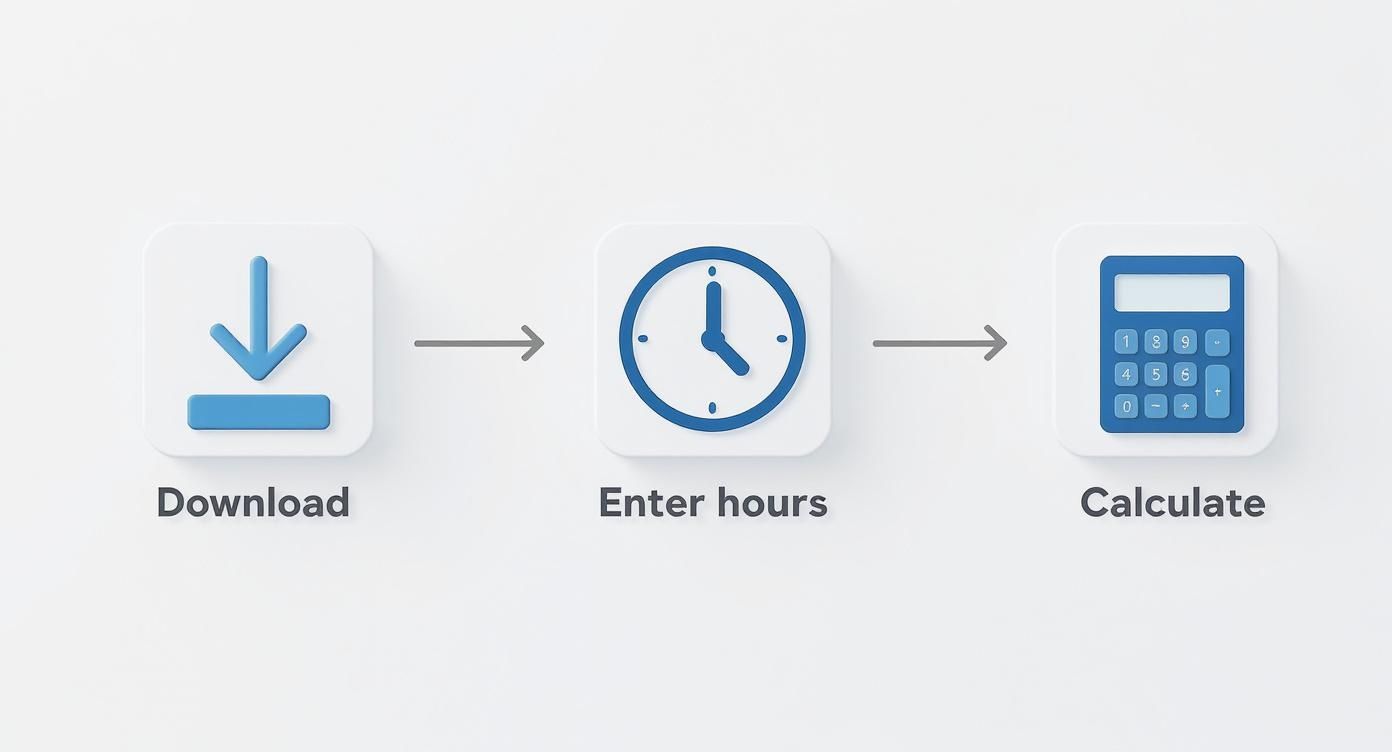
This workflow keeps things straightforward for your team, breaking time tracking down into three simple actions.
Making Your Timesheet Error-Proof
One of the biggest headaches with any shared spreadsheet is inconsistent data. If one person enters "Project Alpha" and another types "Project-A," your reports and summaries are going to be a mess. This is where data validation becomes your best friend.
Instead of letting your team type freely into cells, you can create dropdown menus that force them to pick from a predefined list. This simple step is an absolute game-changer for data integrity.
- Create a Master List: On a separate tab in your workbook (I usually name it "Lists" to keep things clean), create columns for employee names, project codes, client names, or task types.
- Apply Data Validation: Head back to your main timesheet tab. Select the cell where you want the dropdown, like the first cell in the "Project" column. Go to the
Datatab on the Excel ribbon and clickData Validation. - Set Up the Dropdown: A dialog box will pop up. Under the "Allow" dropdown, choose
List. For the "Source," click the little icon and select the range of cells from your "Lists" tab that holds your project names. ClickOK.
Boom. That cell now has a small arrow, letting users select from your official list. This ensures every single entry is spelled and formatted identically, which is mission-critical for accurate payroll and client invoicing down the road.
By controlling the input, you're not just making the sheet easier to use; you're building a reliable data collection system. Clean data in means trustworthy reports out.
Mapping Imported Data Effectively
When you import data from another system—say, an export from your calendar via TimeTackle—the columns probably won't line up perfectly with your template. This just requires a quick "mapping" exercise.
Imagine your calendar export gives you columns like "Event Title," "Start Time," and "Duration," but your timesheet is set up for "Project Name," "Time In," and "Time Out." No big deal. You'll just methodically copy the data from the source file and paste it into the right columns in your timesheet.
Taking a few moments to align your data this way ensures all the important information finds its correct home. It prevents a ton of confusion and preserves the integrity of your calculations, saving you from hours of cleanup work later on.
Automating Calculations With Essential Formulas
This is the part where your Excel timesheet stops being a static grid and really starts working for you. Adding up hours by hand is a classic recipe for errors, and those little mistakes can turn into costly payroll headaches. By embedding a few key formulas, you can put your calculations on autopilot, save hours of admin work, and trust that your data is spot-on every time.
The real power of an Excel timesheet isn’t just in logging hours; it’s in its ability to crunch the numbers for you instantly. In fact, a 2022 analysis found that Excel timesheets made up nearly 55% of all timesheet-related downloads. The most popular ones all had features for automatic hour calculations and overtime tracking, hitting that sweet spot between manual entry and a fully automated system.

Calculating Daily Hours With Breaks
Let's kick things off with the most fundamental calculation: total daily hours. A simple subtraction of the start time from the end time gets you part of the way there, but you absolutely have to account for unpaid breaks to keep things accurate.
Imagine your columns are set up like this:
- Time In: Cell
C5 - Time Out: Cell
D5 - Unpaid Break (in hours): Cell
E5(you’d enter0.5for a 30-minute break)
To calculate the total hours worked for that day, you’d pop this formula into cell F5:=((D5-C5)*24) - E5
The (D5-C5)*24 bit is crucial—it converts Excel's native time format into a simple decimal number of hours, making it easy to then subtract the break time. From there, you can just click and drag the formula down the column for each day of the week. Easy.
Tracking Weekly Hours and Overtime
Once you have your daily totals, getting the weekly figure is a simple sum. But what about overtime? This is where a slightly smarter formula can save you a world of pain. We’ll use the IF function to automatically separate regular hours from OT.
Let's assume your company pays overtime for any hours worked over 40 in a week.
- Get Total Weekly Hours: First, in a cell like
F12, add up the daily hours for the week with a formula like=SUM(F5:F11). - Calculate Regular Hours: In a separate cell, use this formula to make sure regular hours are capped at 40:
=IF(F12>40, 40, F12) - Calculate Overtime Hours: Finally, in another cell, this formula calculates only the hours that spill over the 40-hour mark:
=IF(F12>40, F12-40, 0)
These formulas do the heavy lifting for you, automatically checking if the total hours cross the threshold and splitting them up correctly.
Pro Tip: Formulas are the engine of a great timesheet. When you understand not just what to type but why it works, you can adapt your template to handle any pay rule or project need that comes your way.
Adding Billable Rates for Project Work
For freelancers, consultants, and agencies, a timesheet is more than just a log—it's the foundation of an invoice. By integrating billable rates directly into your sheet, you get an instant snapshot of project revenue. Just add a column for the hourly rate (let's say G5) and another for the daily total billable amount (H5).
The formula in H5 is as straightforward as it gets:=F5 * G5
Here, F5 is the cell containing the total hours worked that day, and G5 is the billable rate. Just like that, your time tracking sheet has become a revenue dashboard. For a deeper dive into more advanced functions, check out our guide on essential timesheet Excel formulas.
The skills you pick up building a solid timesheet are incredibly versatile. If you're interested in the broader applications of spreadsheets, you can see how similar principles apply to other financial models, like when building real estate analysis spreadsheets.
Turning Your Time Data into Actionable Reports
A long list of hours is just raw data. The real value comes when you turn that data into insights that help you make smarter business decisions. This is where we get to use one of Excel’s most powerful—and surprisingly simple—features: Pivot Tables. They let you transform thousands of rows of timesheet entries into clear, meaningful reports without writing a single complex formula.
Ever wanted to see, instantly, how many hours your team spent on "Project Phoenix" this month? Or maybe you need to spot which team member is getting close to their overtime limit. That’s exactly what Pivot Tables do. They take your flat list of time entries and let you slice and dice it from any angle you can imagine. This analytical power is a huge reason why so many teams still swear by spreadsheet-based systems.

This trend isn't just anecdotal. A 2022 survey found that 63% of remote teams used shared spreadsheets to track work hours and project time. The study also showed that organizations using collaborative templates cut down the time they spent on reconciliation by an average of 35% compared to those still manually merging separate files. You can find more of these remote work insights over at Coefficient.io.
Creating Your First Pivot Table Report
Let's walk through a real-world scenario. Imagine an agency needing to pull together a billing summary for three different clients—Client A, Client B, and Client C—based on a full month of timesheet data.
First things first, make sure your data is clean and organized in a table with clear headers like Date, Employee Name, Client, Task, and Hours Worked. From there, just click anywhere inside your data table, head over to the Insert tab in the Excel ribbon, and click PivotTable. Excel is smart enough to select your data range automatically and will offer to place the Pivot Table on a new worksheet. Just hit OK.
You’ll now have a blank Pivot Table on the left side of your screen and a "PivotTable Fields" pane on the right. That pane is your new command center.
Think of the fields pane as a set of building blocks. You simply drag and drop the data you want to see into four areas—Filters, Columns, Rows, and Values—to construct your report. There’s no coding, just intuitive dragging and dropping.
Summarizing Hours by Client and Task
Okay, back to our agency example. Let's build that client summary. Looking at the "PivotTable Fields" pane, you'd do the following:
- Drag the
Clientfield into the Rows area. Instantly, you’ll see a unique list of your clients pop up. - Next, drag the
Taskfield into the Rows area, placing it right underClient. Just like that, your tasks are now neatly nested under each client. - Finally, pull the
Hours Workedfield into the Values area. Excel will automatically sum the hours for each task and give you a subtotal for each client.
In just three clicks, you've turned a massive, messy list of time entries into a structured, easy-to-read summary that's ready for invoicing. This is the real magic of using a well-structured timesheet xls template—it sets the stage for powerful, lightning-fast analysis. To make these reports even more effective, check out our guide on data visualization best practices.
Building a Better Timesheet for Agency and Client Work
When you're juggling multiple clients and projects, a standard employee timesheet just doesn’t cut it. For agencies, consultants, and freelancers, it's not enough to know that someone worked; you need to know exactly what they worked on, for which client, and for how long.
This is where we move beyond a basic clock-in/clock-out system and adapt our timesheet template into a powerful tool for client billing and project management. The goal is to add layers of detail without making the timesheet a nightmare to fill out.
Key Fields for an Agency Timesheet
To turn your timesheet from a simple hour log into a detailed project tracker, you'll need a few extra columns. These are the non-negotiables for any client-facing work.
- Client Name: A dropdown menu works best here. It keeps naming consistent and makes filtering a breeze.
- Project Code: Essential for agencies handling multiple projects for the same client.
- Task Description: A short note explaining the work, like "Drafting ad copy" or "Client strategy call."
- Billable Status: A simple "Yes/No" dropdown to separate client work from internal, non-billable time.
Pro Tip: Track billable and non-billable hours in the same timesheet. Using separate sheets often means non-billable time—like internal meetings or admin—goes untracked. This gives you an incomplete picture of your team's actual workload and hides your true operational costs.
Structuring for Simple Invoicing
One of the most effective setups I've seen involves creating a single "master" data sheet where every time entry from every team member is logged. This becomes your single source of truth and the engine for all your reporting.
When it’s time to bill someone, you just use a Pivot Table to instantly filter the master list for a specific client and date range. No more painful copy-pasting to create invoices. This approach lets your timesheet do the heavy lifting, generating accurate billing summaries in seconds.
As you scale, you'll naturally look for more powerful tools. Learning about dedicated agency time tracking software can show you what’s possible beyond the spreadsheet.
This structured approach also lets you easily track project budgets against actual hours. You can set up a simple summary table that pulls the total hours for a project code and stacks it up against the budget, giving you a real-time view of profitability. This kind of data is gold when it comes to quoting future work with confidence.
Standard Employee Timesheet vs. Agency Project Timesheet
Not all timesheets are created equal. The information you need for internal payroll is fundamentally different from what's required for accurate client billing and project analysis. Here’s a quick breakdown of the key differences.
| Feature | Standard Employee Template | Agency/Consultant Template |
|---|---|---|
| Primary Goal | Calculate payroll and track attendance. | Track billable hours for invoicing and project profitability. |
| Key Fields | Employee Name, Date, Start Time, End Time, Overtime. | Client, Project, Task, Billable Status, Hours Logged. |
| Granularity | Daily totals are often sufficient. | Needs detailed entries for specific tasks (e.g., 1.5 hrs on 'Design Mockup'). |
| Reporting Focus | Total hours worked, overtime calculations. | Billable vs. non-billable hours, project budget tracking, client summaries. |
| Data Usage | HR and payroll departments. | Project managers, account managers, and finance for invoicing. |
Ultimately, an agency timesheet is a strategic tool. It not only ensures you get paid correctly but also provides the data needed to understand project health, team capacity, and overall business profitability. A standard template simply can't offer that level of insight.
Got Questions About Your Excel Timesheet?
Even the best timesheet xls template can bring up a few questions once your team starts using it day-to-day. It’s normal for some common challenges to surface.
This section is all about tackling those head-on. Think of it as your quick troubleshooting guide for everything from protecting your formulas to figuring out if a spreadsheet can keep up with a growing team.
How Can I Stop My Team from Accidentally Breaking the Formulas?
This is easily the most common worry we hear, and thankfully, Excel has a simple, built-in solution: sheet protection. The real trick isn't just locking the sheet, but strategically locking only the cells that contain your formulas.
Here’s the right way to do it:
- First, highlight all the cells where your team needs to enter their data—things like start times, end times, and project names.
- Right-click on your selection, choose "Format Cells," and head over to the "Protection" tab.
- You'll see a box that says "Locked." Uncheck it and click OK. By default, every cell in Excel is set to "Locked," so what you're really doing is unlocking just the input fields.
- Finally, go to the "Review" tab on the ribbon and click "Protect Sheet." You can add a password here for extra security, which is always a good idea.
This little maneuver keeps all your precious calculation cells safe from accidental edits or deletions while giving everyone the freedom to log their hours without a hitch.
Is an Excel Timesheet Still Practical for a Large Team?
Excel templates are fantastic for small to mid-sized teams. They’re flexible, don't require learning new software, and are generally pretty easy to manage.
But once your team starts pushing past 50 people, that administrative work can really start to pile up. You're suddenly juggling dozens of separate files, chasing people for submissions, and manually piecing all that data together for payroll. It’s not just a time-sink; it’s a recipe for errors.
For larger organizations, dedicated time tracking software is often a much better fit. These tools come with features like automated reminders, approval workflows, and direct integrations with payroll systems that solve these scaling problems.
A timesheet template is an excellent tool, but it's important to recognize when your team has outgrown it. The goal is efficiency, and at a certain point, manual consolidation becomes the bottleneck you're trying to fix.
Can I Connect This Timesheet to Other Software?
Absolutely. While you won't get a direct, live sync out of a standard Excel file, you can definitely make it play nice with other platforms, whether that's QuickBooks or your favorite project management tool.
The most common method is to set up a summary tab in your timesheet that’s formatted to perfectly match the import requirements of the other software. From there, it's as simple as exporting that tab as a CSV file and uploading it directly.
If you're looking for something more automated, you can look into tools like Power Automate (if your files are on OneDrive or SharePoint) or Zapier. These can build workflows that automatically push data from your spreadsheet into other apps, effectively bridging the gap between your simple template and the rest of your tech stack.
Still spending too much time chasing down timesheets and manually building reports? TimeTackle automates time tracking by connecting directly to your team’s calendars, eliminating manual entry and providing instant insights into project costs, team utilization, and profitability. See how it works at https://www.timetackle.com.