At month-end, the bottleneck in a service agency is rarely the work. It is billing. Hours live in calendars, meetings sit in a time-tracking tool, client terms sit somewhere else, and someone still has to turn all of that into an accurate invoice under deadline.
Excel can handle that job if you build more than a pretty template. A static invoice sheet is fine for occasional one-off billing. An agency needs a lightweight billing engine. The layout should stay clean, but significant value comes from linking it to client records, project rates, tax rules, and billable time pulled from tools your team already uses, including TimeTackle exports.
That distinction matters. Basic tutorials usually stop at logos, totals, and PDF export. They do not solve the handoff between tracked time and billed time, which is the part that breaks in everyday operations. If your team bills retainers, project work, meetings, and change requests in the same month, the invoice has to pull from live inputs instead of copied text.
A good Excel setup does exactly that. It separates presentation from data, uses formulas to calculate totals and taxes, and connects each invoice to a source of truth for hours worked. If you need a starting point for that structure, this invoice template for hours worked is a useful reference. If you bill Australian clients, you also need to understand what a tax invoice is in Australia before you finalize the layout.
The goal is not to make Excel do everything forever. The goal is to make it reliable enough that invoicing stops depending on copy-paste work and memory. That is the system covered here.
Stop chasing timesheets and start automating invoices
The ugly version of invoicing usually looks familiar. A project manager exports hours from one system, checks a CRM for client billing details, opens an old invoice file, changes the name, updates the date, pastes descriptions by hand, and then rechecks every total because one broken formula can throw off the whole document.
That process is common, and it’s expensive in ways people don’t always see.
Mid-sized marketing and consulting agencies report that 40% of project managers spend over 5 hours weekly on manual timesheet reconciliation, leading to 15-20% billing inaccuracies, according to TimeTackle’s analysis of timesheet fatigue. Those errors don’t always show up as obvious mistakes. Sometimes they show up as missed meetings, underbilled project work, or hours that never make it from the calendar into the invoice.
Why basic invoice tutorials fall short
Most tutorials teach the easy part. They show you how to add a logo, make a subtotal, maybe apply tax, and export a PDF.
That’s fine for a freelancer sending a few simple invoices a month. It breaks fast in an agency.
You’re not only billing line items. You’re reconciling work across people, projects, meetings, retainers, and ad hoc requests. Static templates don’t help much when the core issue is bad handoff between tracked time and billed time.
“The invoice isn’t the hard part. The hard part is getting clean, billable data into it.”
That’s why the better Excel setup looks more like a lightweight billing engine than a document. You keep the invoice page clean, but you feed it from structured sheets and imported time data.
Where Excel still makes sense
Excel is a good middle ground when you want control without buying a full accounting stack on day one. You can shape the layout to match your agency’s billing rules, use formulas your team already understands, and keep a clear audit trail inside one workbook.
It also works well when paired with exports from a calendar-first tracking tool. If your team is trying to cut manual reconciliation, a system built around automated timesheet software is a much better starting point than asking people to remember every block of work at the end of the week.
The same pattern shows up in other service businesses too. If you want to see how another niche handles recurring billing workflows, this guide on how to automate tutoring invoices is a useful comparison because it focuses on turning tracked sessions into billable records instead of formatting a prettier template.
What works is simple. Clean source data, repeatable structure, fewer manual touches.
What doesn’t work is copying from five places into one fragile sheet and calling that a process.
Build your reusable invoice template foundation
A reusable invoice template saves time only if it stays stable after the tenth client, not just the first one. For an agency billing from tracked hours, that means building a sheet that can accept imported time data later without the layout falling apart.
Start with a worksheet that looks like a document
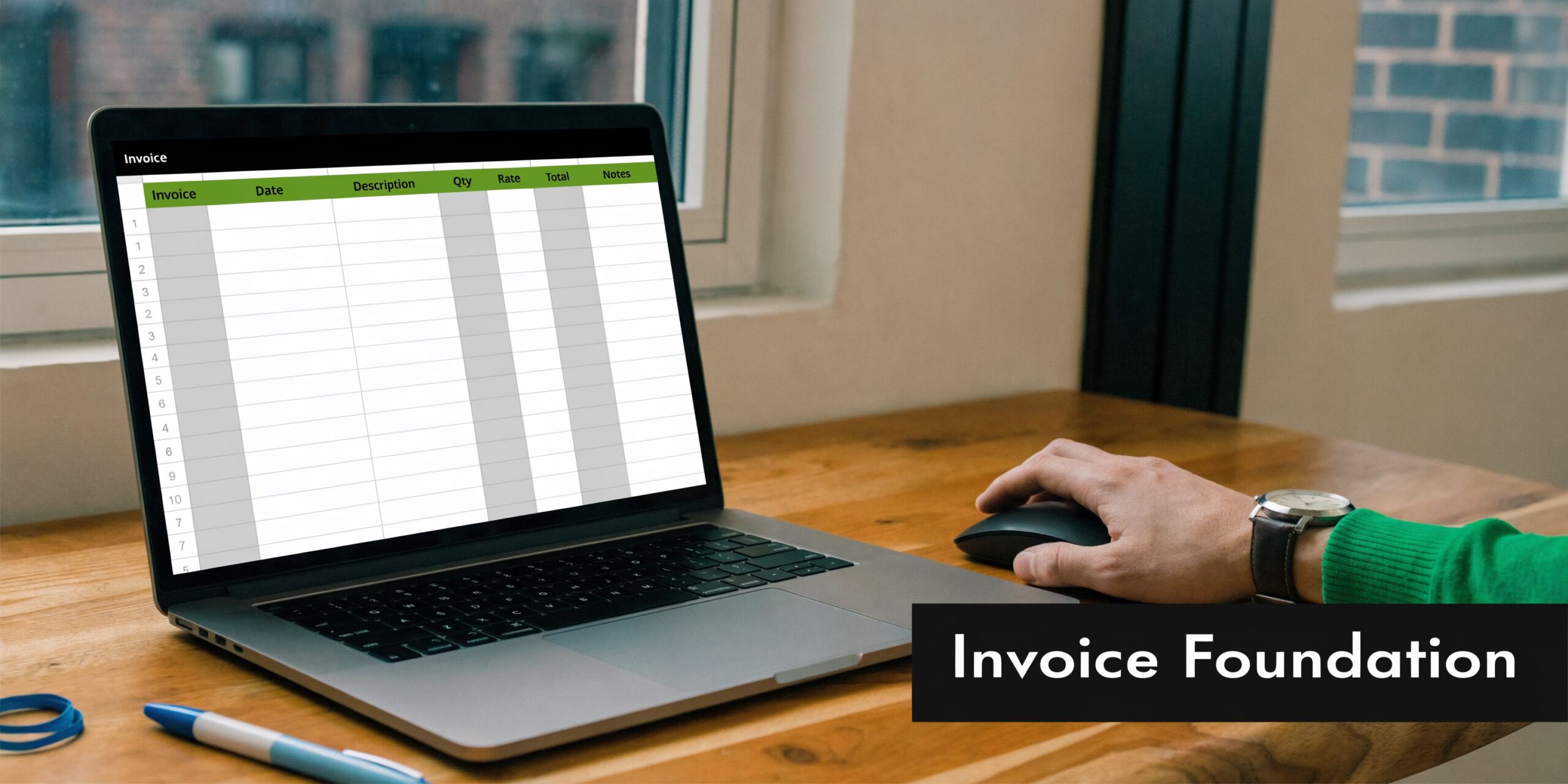
Open a blank workbook and rename the first sheet to Invoice. Keep this tab client-facing. Put your raw data, lookups, and imported time entries somewhere else later.
Use a simple structure:
| Area | What goes there |
|---|---|
| Top left | Company name, logo, address, email |
| Top right | Invoice number, invoice date, due date |
| Middle | Client name, billing contact, billing address |
| Main table | Description, quantity, rate, line total |
| Bottom right | Subtotal, tax, discount, grand total |
| Footer | Payment terms and notes |
Make one decision early. Will this template bill only hours, or will it also handle fixed-fee work, pass-through expenses, and tax-specific notes?
That choice affects the whole sheet. Agencies with mixed billing models usually need a line item area wide enough to hold detailed descriptions, especially once time entries from calendar and timesheet tools get grouped by project, person, or work type. If your clients operate in Australia, it’s worth checking what a tax invoice is in Australia so your template includes the required fields before you start duplicating the file.
Format it once so you don’t keep repairing it
A clean invoice wins over a fancy one.
Use one readable font. Keep currency columns right-aligned. Leave enough white space that a client can find the amount due in a few seconds. Avoid heavy styling, because every decorative choice becomes one more thing to fix when rows expand or print settings shift.
A few formatting choices save a lot of cleanup later:
- Use accounting or currency format: Rates and totals should display the same way every time.
- Keep line item headers plain: Description, quantity, rate, amount.
- Leave room for long service descriptions: Agency work often needs project names, date ranges, or sprint summaries.
- Set print margins early: If the sheet breaks across pages, fix that before formulas and data links go in.
- Use merged cells sparingly: They look tidy, but they often break sorting, filtering, and references.
A simple test works well here. Enter six to eight fake line items, export to PDF, and check whether the invoice still reads cleanly on one page.
Build for repeat use across clients
The underlying foundation is not the visible invoice. It is the structure behind it.
Keep one master template. Do not create a fresh workbook for each client and let every copy drift into its own version. That approach creates formula mismatches, inconsistent tax handling, and invoice numbers your team stops trusting after a few billing cycles.
Set aside a few helper inputs now, even if you wire them into formulas later:
- TaxRate in a dedicated cell
- DefaultTerms for payment terms
- DiscountRate if some clients get negotiated discounts
- CompanyBankDetails if you include payment instructions
- InvoicePrefix if you number by client, entity, or month
Turn those cells into named ranges. TaxRate is easier to read in a formula than $J$4, and it is much easier to audit when someone inherits the workbook six months from now.
For service agencies, the next layer matters even more. The invoice should eventually pull from structured time data, not from manual typing. If you want a practical reference for laying out billable hours, this invoice template for hours worked in Excel shows the kind of row structure that holds up better once time-tracking exports start feeding the sheet.
Use tables where the invoice will grow
Convert your line item area into an Excel Table before anyone starts using the file. Tables expand automatically, carry formulas down, and handle added rows much better than fixed ranges.
That matters when your source data comes from real-time tracking tools like TimeTackle. Imported entries rarely arrive in the exact number of rows you expected. One invoice might have four summarized items. The next might have twenty-two time entries split by project and role. A table gives you room for that variation without rewriting formulas or fixing print ranges by hand every month.
Keep the visible invoice restrained. Clear labels, predictable spacing, and enough structure to accept imported time data later.
That is the foundation that lasts.
Bring your invoice to life with essential formulas
The template starts paying for itself when the math stops being manual.
That marks the true line between a document and a system. If someone still reaches for a calculator while preparing an invoice, the sheet isn’t finished.
Manual Excel invoicing has an estimated 3-5% error rate, with VAT miscalculations occurring in up to 12% of cases, and agencies using formulas for totals plus conditional formatting for due dates can reduce payment delays by as much as 22%, according to the cited workflow summary at this YouTube reference. That lines up with what most ops teams learn the hard way. Small spreadsheet errors don’t stay small once invoices go out.
Build the line item math first
In the line item table, you usually need four columns that do actual work:
- Description
- Quantity
- Rate
- Line total
If quantity is in C12 and rate is in D12, your line total in E12 is:
=C12*D12
Copy that formula down the line-item rows. If you use an Excel Table, it will usually fill down for you.
Keep this formula simple. Don’t bury discounts, tax, and special cases inside each line unless you have to. That makes troubleshooting harder.
Add subtotal, tax, discount, and total
Under the line items, calculate each step separately so anyone reviewing the invoice can follow the logic.
A clean setup looks like this:
| Cell purpose | Example formula |
|---|---|
| Subtotal | =SUM(E12:E17) |
| Tax | =Subtotal*TaxRate |
| Discount | =Subtotal*DiscountRate |
| Grand total | =Subtotal+Tax-Discount |
If you haven’t named ranges yet, do that before you go further. Named cells make formulas readable, and they cut down on mistakes when someone else inherits the file.
If you need a worked example for more advanced timesheet math, this reference on timesheet Excel formula patterns is useful because it shows how billing math and time math intersect in one workbook.
Keep totals in separate rows, not nested inside one giant formula. When something goes wrong, you want to inspect one step at a time.
Use dynamic dates so the file updates itself
You should never type the current invoice date by hand if the workbook can do it for you.
Use:
- Invoice date:
=TODAY() - Net 30 due date:
=TODAY()+30
If your payment terms vary by client, you can swap the hard-coded 30 for a referenced cell later. But even the basic version saves time and avoids stale templates where last month’s date accidentally carries forward.
Learn absolute references before you touch lookups
This is the part people skip, then regret.
A relative reference changes when you drag a formula. An absolute reference stays locked. In Excel, you lock a row, column, or both with the $ symbol.
Examples:
A1changes when copied$A$1stays fixedA$1locks only the row$A1locks only the column
Why that matters for invoicing:
If your tax rate sits in J2 and you write =E12*J2, then drag the formula, Excel may shift the reference to J3, J4, and so on. If those cells are blank, your numbers break unnoticed.
Use:
=E12*$J$2
Or better, use the named range:
=E12*TaxRate
That’s clearer and safer.
Add visual checks with conditional formatting
A good invoice workbook warns you before a client does.
Use conditional formatting on the due date or status field so overdue invoices turn red. This isn’t fancy, but it keeps unpaid work visible if you also use the file as a tracker.
Examples that work well:
- Shade the due date red if it’s earlier than today
- Flag blank client fields
- Mark zero-value totals if an invoice should never be zero
- Flag missing rates in the line item table
This is one of those small Excel features that pays off because it catches oversight during review, not after sending.
Keep formulas readable
If you inherit a workbook and need ten minutes to decode each total, it’s too complex.
A few habits keep the sheet maintainable:
- Use helper rows: One row for subtotal, one for tax, one for discount.
- Label everything plainly: Don’t hide logic in unnamed cells.
- Avoid giant nested formulas unless necessary: Long formulas are harder to audit.
- Protect formula cells once they work: Leave input cells editable, lock the rest.
The point isn’t sophistication. The point is trust. When someone exports hours, selects a client, and sends an invoice, they need to know the workbook didn’t invent a number along the way.
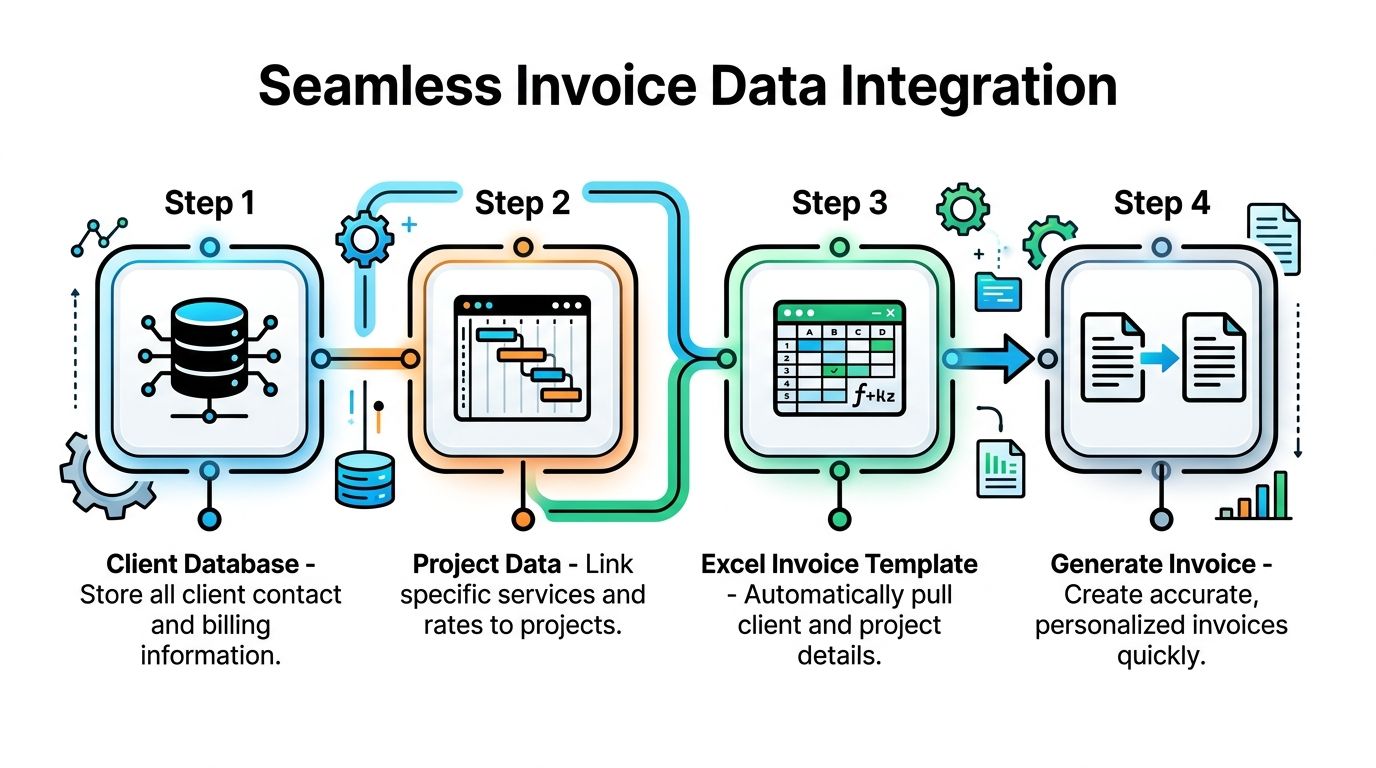
Connect your invoice to project and client data
Typing the client address and service rate into every invoice is where Excel starts to feel like busywork.
The file also gets much better at this stage. Once your invoice pulls from dedicated data sheets, you stop rebuilding the same information over and over.
For agencies, using XLOOKUP or INDEX/MATCH to pull client and service data from dedicated sheets can reduce manual entry by up to 70% per invoice, and forgetting absolute references causes 40% of drag-fill errors, according to this Excel invoicing walkthrough.
Create simple source sheets
Add three sheets to your workbook:
- Clients
- Services
- Projects
- Optional Tracker
Keep them plain. These are database tabs, not presentation tabs.
A practical setup looks like this.
Clients sheet
Include columns like:
| Client ID | Client name | Billing contact | Address line 1 | City | Payment terms |
|---|
Give every client one unique ID if possible. Names can change. IDs are safer.
Services sheet
List your standard billable items:
| Service code | Service name | Unit type | Default rate |
|---|
Examples might be strategy hours, creative production, media planning, implementation support, or reporting.
Projects sheet
If rates vary by project, keep a separate sheet that maps project to client and billing structure.
| Project code | Project name | Client ID | Billing type | Default service |
|---|
This keeps one-off pricing logic out of the invoice page.
Use dropdowns instead of free typing
On the invoice sheet, set up Data Validation so the user can pick a client from a dropdown. That prevents spelling mismatches and keeps lookups reliable.
If your client names are in Clients!B2:B100, create a dropdown tied to that range in the invoice’s client selector cell.
This one change solves a lot of #N/A headaches before they happen.
Free typing is fine for notes. It’s bad for keys that formulas depend on.
Pull client details with XLOOKUP
When someone selects the client name, the invoice should fill in the rest.
If the selected client is in B6 on the invoice sheet, and the client name sits in Clients!B:B, you can pull the billing contact with:
=XLOOKUP(B6,Clients!B:B,Clients!C:C,"")
You can use similar formulas for address, city, or payment terms.
If you don’t have XLOOKUP, use INDEX/MATCH instead. It’s older, but still dependable:
=INDEX(Clients!C:C,MATCH(B6,Clients!B:B,0))
Keep each pulled field in its own cell. Don’t concatenate everything too early, or edits get harder.
Pull rates the same way
The same pattern works inside your line-item table.
Set the service column as a dropdown from the Services sheet. Then use a lookup formula to pull the rate when a service is selected.
For example:
=XLOOKUP(B12,Services!B:B,Services!D:D,"")
Where B12 is the selected service and Services!D:D contains the default rate.
That gives you a cleaner workflow:
- Pick a service.
- Excel fills in the default rate.
- Quantity comes from hours or units.
- Line total calculates automatically.
This setup is much more stable than asking someone to type “Paid Search Management” exactly the same way every single month.
A small detail that saves a lot of pain
Lock lookup ranges when needed.
If you drag formulas across rows and references shift unexpectedly, your invoice can start pulling the wrong rate or the wrong address. That’s where the $ symbol matters again.
A lot of Excel frustration comes from files that are technically automated but not stable. Stable means your formulas still work after duplication, sorting, and row insertion.
Keep source data tidy
The invoice will only be as reliable as the sheets feeding it. That means:
- No duplicate client names if you can avoid it
- No merged cells in source tables
- No blank rows in the middle of ranges
- No mixing notes into structured columns
When the source sheets stay clean, the invoice becomes boring in the best way. Select a client, select a service, confirm the quantity, and most of the document fills itself.
That’s usually the point where Excel stops feeling like manual admin and starts acting like an ops tool.
Automate your workflow from time tracking to PDF
Here, the spreadsheet begins doing significant work.
A polished template is nice. A formula-driven invoice is better. But the true gain comes when billable hours flow into the file with minimal hand entry, the invoice number increments cleanly, and one action gives you a finished PDF ready to send.

For operations leaders, an Excel invoice tracker that uses SUMIFS to aggregate hours from an external data source and a simple macro to generate a PDF can cut reporting overhead by 40% and reduce timesheet fatigue, according to this workflow example.
Import time data into its own sheet
Create a sheet called TimeData.
This sheet should hold exported time entries from your tracking system. Keep the raw data raw. Don’t manually reformat every column unless you have to. The point is to preserve the export and build formulas around it.
A practical column structure looks like this:
| Date | Team member | Client | Project | Task | Hours | Billable tag | Rate class |
|---|
If you export to CSV, import it into Excel and convert the range into a table. Name the table something obvious, like TimeData.
If your exports happen often, Power Query is worth using because it gives you a repeatable import path. Instead of pasting fresh data into the sheet each month, you refresh the query and update the workbook from the source file.
Aggregate hours with SUMIFS
Once the time data is in the workbook, stop typing quantities by hand.
If your invoice is for one client and one project, use SUMIFS to add only the billable hours that match those conditions.
A pattern like this works well:
=SUMIFS(TimeData[Hours],TimeData[Client],B6,TimeData[Billable tag],"Billable")
That tells Excel to sum hours where the client matches the selected client and the tag says the work is billable.
If you want a line item for a specific project or service category, add more criteria:
=SUMIFS(TimeData[Hours],TimeData[Client],$B$6,TimeData[Project],A12,TimeData[Billable tag],"Billable")
In that example:
B6is the selected clientA12is the project or service label tied to the line itemTimeData[Hours]is the quantity source
This is the point where agencies usually see significant operational gain. You’re no longer reconciling line items manually. You’re pulling hours from recorded work.
The cleaner your tagging is upstream, the less cleanup you do before billing.
Add an invoice tracker so numbering stays sane
Never rely on memory for invoice numbers.
Create another sheet called Tracker with fields like:
| Invoice number | Date | Client | Project | Amount | Status | PDF filename |
|---|
Use a formula in the tracker to generate the next invoice number from the highest existing value. A simple version is:
=MAX($A$2:$A$1000)+1
Then reference that next number on the invoice sheet.
This works much better than naming files “Invoice Final v3” and trying to reconstruct the billing trail later. The tracker also gives finance and ops one place to check what’s pending, sent, or paid.
Record a macro for PDF export
You don’t need advanced VBA to save time here. A simple recorded macro is enough for many teams.
Typical macro flow:
- Select the invoice sheet
- Export it as PDF
- Use a file name based on invoice number and client
- Save the PDF to your billing folder
- Clear only the input cells needed for the next invoice
The filename convention matters more than people think. Keep it predictable. Something like invoice number plus client name is easy to search later.
A few rules make macros safer:
- Only clear input cells: Don’t wipe formulas.
- Test on a copy first: Recorded macros can be clumsy.
- Store the template separately: Keep one master file intact.
- Document the button action: Someone else should know what happens when they click it.
If your team doesn’t want macros, you can still export manually and get most of the benefit from the data-driven setup. The macro just removes one more repetitive step.
Use Power Query when exports become routine
If you’re importing the same kind of file every cycle, Power Query is worth the learning curve.
It helps when:
- time data arrives in the same CSV structure each week or month
- you need to clean fields in a repeatable way
- multiple teams contribute billing data
- you want one refresh step instead of manual copy-paste
With Power Query, you can pull in the export, standardize column types, filter for billable rows, and load the result into the TimeData sheet. That makes the invoice workbook less fragile because the import process becomes repeatable.
What works and what doesn’t
The workflow that usually holds up has four parts:
- Structured input data: one TimeData sheet, one Clients sheet, one Services sheet
- Formula-based aggregation:
SUMIFSfor quantities, lookups for rates and details - Tracker log: invoice numbers and statuses in one place
- One-step output: PDF export after review
What usually breaks is a half-automated setup where someone still edits exported hours by hand before every invoice. That defeats most of the gain.
If you’re serious about how to generate invoice in excel for an agency, this is the part that matters most. Not the border style. Not the logo placement. The handoff from tracked work to billed work.
Four common excel invoicing mistakes and how to fix them
Even good invoice workbooks break in familiar ways. Most problems aren’t random. They come from a small set of avoidable mistakes.
Circular totals and broken references
If your grand total formula points at a range that includes the grand total cell itself, Excel will throw a circular reference error. This usually happens when someone expands a range without checking the end row.
Fix it by checking each total formula one row at a time. Keep subtotal, tax, discount, and grand total in separate cells, and make sure the final cell doesn’t include itself.
If you see #REF!, a referenced cell or range probably got deleted or moved. Trace the formula precedents and rebuild the broken pointer instead of patching around it.
Dragged formulas that shift
A formula can look correct in the first row and fail in every row below it.
That usually happens because a fixed value, like a tax cell or lookup table reference, was left as a relative reference. Once the formula gets dragged, the reference moves. Then totals drift, going unnoticed until the invoice is reviewed.
Use $ where a reference must stay put. If the same constant appears in many formulas, named ranges are safer and easier to read.
Lookup errors that make the sheet look broken
#N/A from XLOOKUP or VLOOKUP usually means one of three things:
- the selected value doesn’t exist in the source sheet
- there’s a spelling mismatch
- the lookup range is wrong
Wrap the formula in IFERROR if you want a cleaner result, such as a blank cell instead of an error message. For example:
=IFERROR(XLOOKUP(B6,Clients!B:B,Clients!C:C,""),"")
That doesn’t fix bad data, but it makes the invoice page easier to use.
A clean source table fixes more lookup problems than a smarter formula does.
PDFs that print badly
A file can look fine on screen and still export badly.
If the invoice splits across pages, cuts off totals, or shifts columns in PDF, check these settings:
- Set the print area: Limit the exported range to the actual invoice.
- Use Scale to Fit: Keep the layout on one page when possible.
- Review page breaks: Don’t let Excel decide blindly.
- Test with long client names: Edge cases usually expose layout problems first.
This is worth testing before you put the template into real use. A client never sees your formulas. They see the PDF.
Knowing when to graduate beyond excel
Excel can take you surprisingly far.
For many agencies, a well-built workbook is enough to standardize billing, cut manual rework, and create a reliable bridge between tracked time and invoicing. If the file has structured data tabs, solid formulas, a tracker, and a repeatable PDF workflow, it can handle a lot more than a basic template ever will.
But Excel still has limits.
Once multiple people need to edit billing data at the same time, approval flows get more complex, or finance wants live visibility across the whole team, spreadsheets start to feel heavy. You can keep extending the workbook, but there’s a point where maintaining it becomes its own admin job.
That’s usually the signal. When your team spends more time managing the invoicing system than using it, you’ve outgrown the spreadsheet.
Excel is a strong operational bridge. It isn’t a full billing platform, and it doesn’t need to be.
If your agency is tired of chasing calendars, cleaning timesheets by hand, and rebuilding invoice inputs every month, TimeTackle is worth a look. It helps teams capture time from Google or Outlook calendars, apply rules and tags automatically, and export cleaner billing data into Excel, CSV, or PDF so invoicing starts with better inputs instead of more admin.