
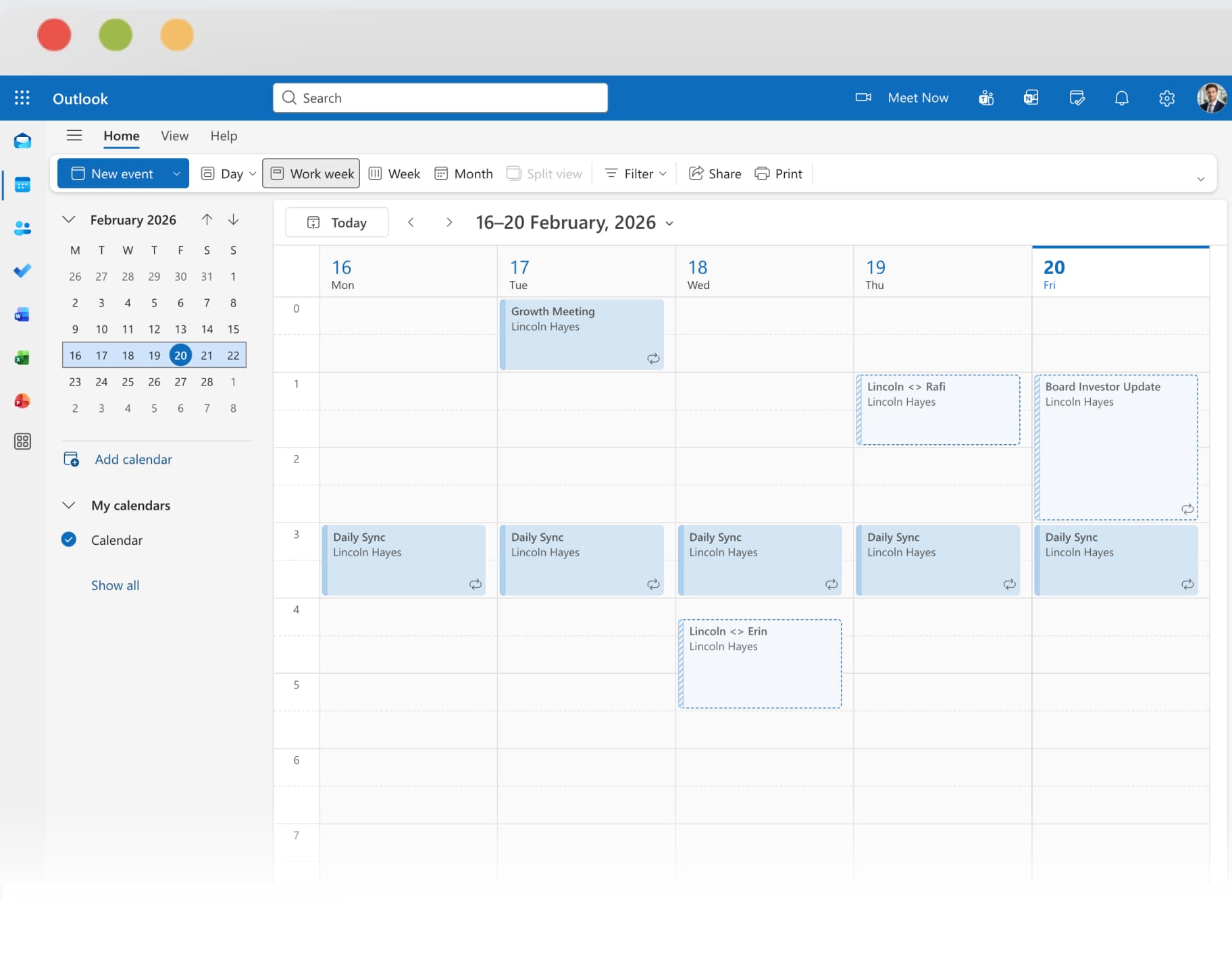
Your Outlook Calendar already records your workday. Tackle reads that data and turns it into timesheets, billable hours, and project reports - without you changing a single habit.
Trusted by users and teams at






Connect your Microsoft 365 or Outlook.com account in under 2 minutes. No IT involvement, no admin approval required.
Step 1
Sign up for Tackle and authorize your Microsoft account via OAuth. Tackle syncs your calendar events – past, present, and future – without touching your email, contacts, or files. Only calendar data is accessed.

Step 2
Tag events with custom fields – project code, client name, billable/non-billable. Build auto-tagging rules: any event with “Contoso” in the subject auto-tags to the Contoso project. Tackle’s AI also suggests tags based on event patterns.
Step 3
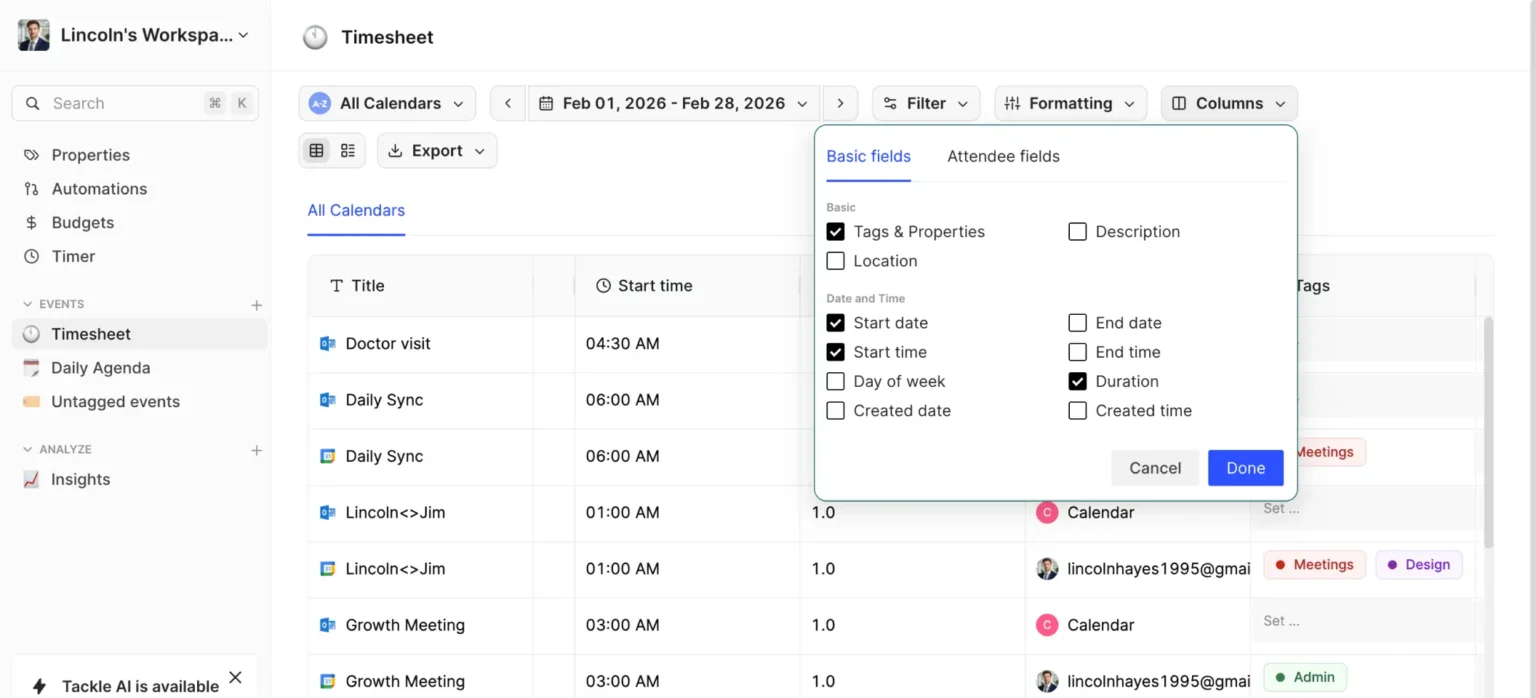
Generate timesheets grouped by project, client, or team member. Export to Excel, Google Sheets, or CSV. Set up automated reports that land in your inbox every Monday morning – no manual work required.

Export events from your desired Calendar into Excel, CSV, PDF, or Google Sheets.


Microsoft Viva Insights (formerly MyAnalytics) is already in your M365 license. So why would you need Tackle? Because they solve completely different problems.
Included in M365 E1/E3/E5 · Wellbeing & productivity tool
Free trial · Calendar-to-timesheet tool
From connecting your M365 account to exporting your first timesheet in 60 seconds.
Which approach makes sense depends on your team size and what you need the data for.
Create Outlook events for every task. Use Outlook’s category colors to group by project. At week’s end, scroll through your calendar and tally hours in a spreadsheet.
Work if: You're a solo consultant tracking fewer than 10 hours/week and don't need formatted timesheets or billing exports.
Breaks when: You manage a team, need to separate billable from non-billable hours, want to export data for invoicing, or spend more than 5 minutes a week on admin.
Viva Insights runs in the background of your M365 account and surfaces meeting analytics: time in meetings vs. focus time, after-hours work, and collaboration patterns. Available on E1/E3/E5 plans.
Work if: You only want a high-level view of meeting load for wellbeing purposes and already have an enterprise M365 license.
Breaks when: You need project-level tracking, timesheets, billable hours, client-level reporting, or any export for billing/payroll. Not available on M365 Business Basic/Standard or personal Outlook.com accounts.
Connect once and every Outlook event syncs automatically. Custom tags for projects and clients. Auto-tagging rules. One-click timesheets. Billable hour tracking with rates. Export to Excel/Sheets/CSV. Dynamic dashboards. Automated weekly reports. Works with all Outlook account types.
Work if: You need actual timesheets, billing, team reporting, or project time analytics from your Outlook Calendar data.
Free trail available. Team plans start after trial.
Several tools integrate with Outlook for time tracking. Here's how they actually compare.
Auto-sync Outlook events
Timesheet generation
Billable hour tracking
Custom project tagging
No manual timers needed
Meeting analytics
Export (Excel/Sheets/CSV)
Works with Google Calendar too
Free plan available
Best for
Calendar-first teams who hate timers
Auto-sync Outlook events
Timesheet generation
Billable hour tracking
Custom project tagging
No manual timers needed
Meeting analytics
Export (Excel/Sheets/CSV)
Works with Google Calendar too
Free plan available
Best for
Budget-conscious teams who don’t mind manual tracking
Auto-sync Outlook events
Timesheet generation
Billable hour tracking
Custom project tagging
No manual timers needed
Meeting analytics
Export (Excel/Sheets/CSV)
Works with Google Calendar too
Free plan available
Best for
Agencies that need invoicing built in
Auto-sync Outlook events
Timesheet generation
Billable hour tracking
Custom project tagging
No manual timers needed
Meeting analytics
Export (Excel/Sheets/CSV)
Works with Google Calendar too
Free plan available
Best for
Managers monitoring collaboration patterns
Several tools integrate with Outlook for time tracking. Here's how they actually compare.
Auto-sync Outlook events
Timesheet generation
Billable hour tracking
Custom project tagging
No manual timers needed
Meeting analytics
Export (Excel/Sheets/CSV)
Works with Google Calendar too
Free plan available
Best for
Calendar-first teams who hate timers
Budget-conscious teams who don’t mind manual tracking
Agencies that need invoicing built in
Managers monitoring collaboration patterns
Teams using Tackle
Chrome Web Store rating
Average setup time
Type II certified
Director, Pre-Sales & Sales Engineering
EMEA at Neo4j
“We needed a simple reporting solution to provide real-time transparency into the operations of our pre-sales team. With Tackle, we’re able to measure and enhance our team’s efficiency, delivering a higher impact to both our organization and our customers.”
Independently audited security controls for data handling, access, and encryption.
Tackle never sees or stores your Microsoft password. Authentication uses Microsoft's standard OAuth flow.
Tackle requests the minimum Microsoft Graph permissions - calendar events only. No access to email, files, or contacts.
Compatible with Microsoft 365 admin policies and conditional access. IT admins retain full control.
Outlook has no built-in time tracking. You have three options: (1) Create calendar events manually for each task and tally hours in a spreadsheet. (2) Use Viva Insights for high-level meeting analytics (included with M365 E-plans). (3) Connect a calendar time tracking tool like Tackle, which automatically syncs your events and generates timesheets. The right choice depends on whether you need just a rough time log or actual project/billing data.
Not in the traditional sense. Viva Insights provides meeting analytics and focus time metrics, but it’s a wellbeing and productivity tool – it doesn’t generate timesheets, track billable hours, or categorize time by project. Microsoft Project has some time tracking features, but it’s a separate product designed for project management, not calendar-based time tracking.
The manual way: export Outlook events to a CSV file, then reformat in Excel. This is tedious and loses context like attendees and recurring event details. With Tackle, your Outlook events are already categorized by project and client – click “Export” and get a formatted timesheet in Excel, Google Sheets, or CSV. You can also automate this to run weekly.
Different tools for different problems. Viva Insights analyzes collaboration patterns – meeting load, focus time, after-hours work, network connections. It’s designed for employee wellbeing. A time tracker like Tackle converts calendar events into structured data: timesheets by project, billable hours with rates, client-level reports. If you need to bill clients or run payroll, Viva Insights won’t get you there.
Outlook has no native concept of billable time. Tackle adds this: tag any calendar event as billable or non-billable, assign hourly rates per project or client, and export billing-ready timesheets. Set up auto-tagging rules so recurring client meetings are always marked billable without manual intervention.
Yes. Tackle supports both Google Calendar and Outlook Calendar — simultaneously. If your team is split across platforms, everyone’s time data appears in a single unified dashboard. This is especially useful for organizations that acquired another company or work with external contractors on different platforms.
Step-by-step guide for raw calendar data export.
All export options for Outlook Calendar (Excel, CSV, PDF).
Turn your Outlook events into a spreadsheet.
Using Google Calendar instead? See
New to calendar-based time tracking? Read

Connect your Microsoft 365 or Outlook account and generate your first timesheet in under 5 minutes.


