
Yes, you can absolutely use Google Calendar for time tracking. You're probably picturing a complicated workaround, but it's simpler than you think. By treating the tool you already use for scheduling as a source for logging work hours, you can build a real-time timesheet without the pain of manual entry.
It all comes down to creating events for every task and meeting as you go.
Why Your Agency Should Use Google Calendar for Time Tracking

If you work at an agency, you know the Friday afternoon scramble all too well. Staring at a blank spreadsheet, trying to remember every single thing you did four days ago… it's not just annoying, it's a recipe for bad data. This old-school approach is slow, riddled with errors, and a huge administrative drag on teams who just want to do good work for clients.
The real issue is the duplicated effort. Your team already lives and breathes in their calendars, blocking out focus time, scheduling client calls, and planning project sprints. Every single appointment is a piece of data. Forcing them to manually copy all of that information into a separate timesheet is just redundant.
The True Cost of Manual Time Entry
That lost time adds up faster than you'd think. Manual timesheet entry in a traditional spreadsheet can drain over 70% more employee time compared to an automated approach using Google Calendar. For operations leaders, this means hours vanish every single week just to duplicate information that was already there. You can dig into these time tracking efficiency findings on timewatch.com.
This isn't just about clawing back a few minutes here and there. It's about fundamentally changing how your agency understands and captures its own value. When you adopt a time tracking Google Calendar workflow, you turn a simple scheduling tool into a source of powerful business intelligence.
By treating your calendar as the single source of truth for how time is spent, you eliminate guesswork, improve billing accuracy, and gain real-time visibility into project profitability without adding extra work for your team.
This approach gives you a clear path to reclaiming those lost hours and finally getting a precise look at where your team’s energy is actually going. Instead of chasing down timesheets, you can focus on what really moves the needle:
- Boosting Productivity: Free your team from mind-numbing admin work so they can concentrate on high-value, billable tasks.
- Improving Accuracy: Time gets logged as it happens, not days later from memory. This leads to much more reliable data for invoicing and project costing.
- Enhancing Visibility: Get an at-a-glance view of team utilization and project allocation, which allows for smarter, proactive resource management.
- Simplifying Workflows: You're removing a step everyone hates. It's a simple change that can genuinely improve team morale.
Let's break down the old way versus the new way.
Manual Spreadsheets vs Google Calendar Time Tracking
The difference becomes crystal clear when you compare the two methods side-by-side. One is a relic of the past, creating friction and inaccuracies, while the other leverages a tool your team already uses every day.
| Feature | Manual Spreadsheets | Google Calendar Tracking |
|---|---|---|
| Data Entry | Manual, retrospective entry requires remembering tasks. | Real-time, events are created as work is planned or happens. |
| Accuracy | High potential for errors, forgotten tasks, and guesstimates. | High accuracy, based on actual scheduled blocks of time. |
| Time Investment | Time-consuming; requires dedicated admin time weekly. | Minimal; integrated into the daily scheduling workflow. |
| Team Adoption | Often met with resistance and procrastination. | High, as it uses a familiar tool without adding a new process. |
| Visibility | Delayed; data is only available after timesheets are submitted. | Instant; provides a real-time view of resource allocation. |
| Reporting | Cumbersome; requires manual data compilation and analysis. | Streamlined, especially when synced with analytics tools. |
The table says it all. Moving your time tracking source to Google Calendar isn't just a minor tweak—it's a strategic upgrade to your agency's entire operational workflow.
This guide will walk you through exactly how to set up, automate, and analyze your time using the tools you already have. To dive even deeper into how this method can drive operational excellence, check out our complete guide on time tracking for agencies.
How to Set Up Your Calendar for Flawless Time Tracking
If you want to turn your Google Calendar into a serious time-tracking tool, it's not about finding some complicated life hack. It's about building a solid, consistent framework from the ground up. This setup is the bedrock for accurate data, clean reporting, and powerful automation. Without it, you’re just left with a colorful but ultimately chaotic schedule.
The first move is to stop treating your primary calendar as a dumping ground for absolutely everything. Instead, the trick is to create separate, dedicated calendars to wall off different streams of work. This gives you an immediate layer of organization that makes filtering and reporting a breeze later on. To get started, you'll want to get comfortable with the basics of how to add tasks to Google Calendar.
A simple, effective structure could look something like this:
- Client A Calendar: A dedicated space for every meeting, task, and deadline related to Client A.
- Client B Calendar: All events and work blocks for Client B get logged here, keeping them completely separate from other projects.
- Internal Projects Calendar: Perfect for non-billable work like team meetings, training, and internal initiatives.
- Admin & Personal Calendar: This can house everything from administrative tasks to personal appointments you need to block off.
Just by doing this, you instantly clarify where your time is going at a high level.
Create a Consistent Naming Convention
Okay, so you've got your separate calendars. What's next? You need to standardize how you name your events. A calendar entry titled "Meeting" is completely useless for tracking. A clear naming convention, on the other hand, turns every single entry into a valuable piece of data.
For agencies, this formula is both powerful and scalable: [ClientCode]-[ProjectName]-[Task].
Let's see how that plays out in a real-world scenario for a creative agency:
[ACME]-Q3Campaign-DiscoveryCall: This is clearly a billable discovery call for Acme Corporation's third-quarter campaign.[ACME]-WebsiteRedesign-Wireframing: This represents a four-hour work block dedicated to wireframing for Acme’s new website.[INT]-WeeklySync-TeamMeeting: An internal, non-billable weekly team sync meeting. No guesswork needed.
This system makes your calendar instantly scannable. More importantly, it ensures that when you export the data, every entry is already pre-categorized, which makes automated reporting incredibly powerful and cuts out all the ambiguity.
Use Strategic Color Coding
This is where your calendar goes from a simple schedule to a visual dashboard for your productivity. By assigning specific colors to different categories of work, you can see how your day, week, or month is balanced with just a quick glance.
Here’s a great example of a Google Calendar that’s been properly organized with events, tasks, and colors.
The visual separation between meetings, deep work, and reminders makes it so much easier to assess where your time is actually going.
Pro Tip: Don't go overboard with color categories. Keep it simple and focused on what actually matters for your business analysis. Too many colors can become just as confusing as having none at all.
I recommend starting with a few core categories that align with what your agency needs to report on:
- Green: All billable client work.
- Blue: Internal meetings and non-billable project work.
- Gray: Administrative tasks (like catching up on email or planning).
- Red: Urgent tasks or important deadlines.
This kind of visual system gives you immediate feedback on how your time is being invested. If you look at your week and see a sea of blue and gray, that might be a signal that you need to re-prioritize billable activities, giving you the insight to make adjustments on the fly.
Automating Your Time Tracking Workflow
A perfectly organized calendar is a great start, but the real magic happens when you make the process almost entirely hands-off. If you’re constantly making manual tweaks, you're missing the point. True efficiency comes from smart automation that links your calendar to a seamless time-tracking system, one that captures your time with minimal daily effort.
Google Calendar itself offers some basic features to get you started. The most obvious one is creating repeating events for recurring tasks. Got a weekly client sync every Tuesday at 10 AM? Set it as a recurring event. Just like that, it's always on your calendar and, therefore, always tracked. This is your first and simplest layer of automation, and it's perfect for the predictable parts of your week.
The core setup that makes all this possible is pretty straightforward.
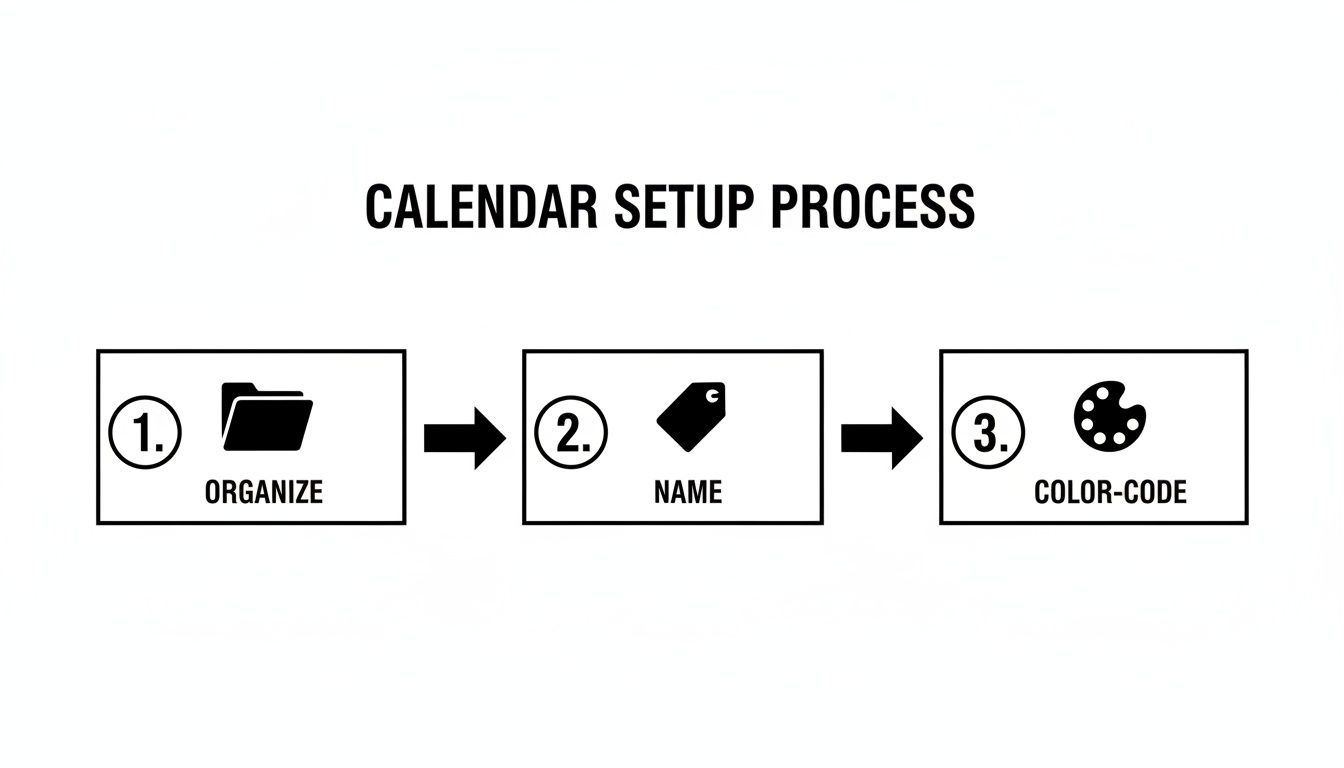
This flow—organize, name, and color-code—is the foundational logic that smarter tools use to automate how everything gets categorized and reported later on.
Integrating with Your Existing Tools
The next step is to connect Google Calendar to the other apps your team lives in every day. This is where integration platforms become your best friend.
To really get things humming, you can use no-code tools to build powerful automations. For instance, by mastering Zapier automation, you can create some seriously useful connections. Imagine a new task is assigned to you in Asana or Jira. A "Zap" could automatically create a corresponding "focus time" event on your Google Calendar, proactively blocking out the time and logging the work before you even start.
Think of these integrations as digital assistants, making sure your project management tools and your time tracking are always perfectly in sync without you lifting a finger.
Advanced Rule-Based Automation
While basic integrations are useful, dedicated calendar analytics tools take automation to a whole new level with intelligent, rule-based systems. A platform like TimeTackle doesn't just sync events; it actually analyzes and categorizes them for you based on rules you define.
The big idea here is to teach your system how to think. By setting rules based on keywords, attendees, or even calendar colors, you can completely automate tagging and categorization. This turns raw, messy calendar data into structured, report-ready insights.
For example, you could easily set up rules like these:
- Rule 1: If an event title contains "[ClientCode-ACME]," automatically tag it as "Billable" and assign it to the "Acme Project."
- Rule 2: If an event is on the "Internal" calendar and has more than three internal team members, tag it as a "Team Meeting."
- Rule 3: If an event is color-coded red, automatically flag it as "High Priority" in your reports.
This is exactly how you scale a time tracking Google Calendar system. Let's face it, professionals spend a staggering 30-40% of their workweeks in meetings, but Google's native tools offer zero team-scale analytics. This gap is why 75% of agencies turn to advanced tools that can automate up to 80% of routine tasks, slashing administrative overhead.
By setting up these kinds of automated workflows, you shift from simply scheduling your time to building an intelligent time-capture ecosystem. If you're ready to go deeper, our guide on how to automate repetitive tasks is packed with more practical strategies.
Turning Calendar Data Into Actionable Insights

So, you've started blocking time on your Google Calendar. That's a great first step, but it's only half the battle. Raw data, no matter how accurate, is just noise until you can shape it into real business intelligence. This is the crucial leap from simply logging hours to making smart, strategic decisions that actually impact your agency's bottom line.
Google Calendar does have a native feature called "Time Insights," which gives you a personal breakdown of how you spend your own time. It’s a nice little feature for self-reflection, but for an agency that needs to understand team capacity, project profitability, and client ROI, it falls critically short.
Frankly, it was never designed for the kind of team-level analysis that operations leaders need to do their jobs effectively.
Beyond Basic Calendar Analytics
This is precisely the gap that dedicated calendar analytics platforms are built to fill. Instead of giving you a static, personal view, a tool like TimeTackle connects directly to your team's calendars to create a dynamic, living dashboard of your entire operation's time investment.
Just imagine being able to filter all your team's calendar data in seconds to answer questions like:
- How many billable hours did we log for Client X this month versus last month?
- Which projects are consistently blowing past their time budgets?
- What is our team's true utilization rate on billable versus non-billable work?
This level of visibility is just impossible with Google Calendar alone. When you're only using basic calendar tools, executives and professionals can waste a staggering 23 hours per week in meetings, and the native tools can't spot this low-value activity at a team scale. In contrast, agencies that automate this analysis report up to a 70% reduction in timesheet prep, bridging the gap with dynamic dashboards that track project ROI automatically. You can explore a deeper comparison of Google Calendar's limitations on worklytics.co.
By connecting your Google Calendar to an analytics platform, you transform it from a simple scheduling tool into a powerful engine for business intelligence. You stop guessing where time goes and start knowing.
This shift means you can track project profitability in near real-time and assess team capacity without ever sending a single nagging timesheet reminder. There are tons of creative ways to use this information, and our guide on ten things to do with your Google Calendar data offers even more ideas to get you started.
Reporting Capabilities Google Calendar vs TimeTackle
While Google Calendar provides a basic overview for individual users, a specialized platform like TimeTackle offers much deeper, team-oriented analytics. Here’s a quick look at how they stack up.
| Reporting Feature | Google Calendar (Native) | TimeTackle Platform |
|---|---|---|
| Data Scope | Individual user data only | Full team and multi-calendar aggregation |
| Customization | Limited, pre-set categories | Fully customizable tags, projects, & clients |
| Team Analytics | None | In-depth team utilization & capacity reports |
| Project Profitability | Not supported | Direct tracking of billable vs. non-billable hours |
| Data Export | Not available | Export to CSV, Excel, and custom dashboards |
| Automation | Manual review | Automated tagging rules and report generation |
The difference is clear: for any serious operational analysis, you need a tool built for the job.
Generating Custom Reports for Leadership
Actionable insights are only valuable if they reach the right people in a format they can actually use. The final piece of the puzzle is exporting your analyzed calendar data into clear, concise reports for your leadership team.
A robust platform lets you slice and dice the data however you need and then export it into familiar formats like CSV, Excel, or custom dashboards. This is what gives your agency's leaders the high-level visibility they need to make truly informed decisions about resource allocation, client profitability, and strategic planning.
Without it, you're just flying blind.
Driving Team Adoption of Calendar Time Tracking
Let’s be honest: a new system is only as good as the team that actually uses it. Rolling out a calendar-based time tracking process is less about the tech setup and more about the people. It demands a human-first approach, one that’s built on clear communication and showing people what’s in it for them.
If your team sees this as just another top-down mandate, it’s dead on arrival.
The key is to frame this change as the solution to a problem everyone hates—filling out manual timesheets. You're not adding more administrative work; you're killing the Sunday Scaries that come from trying to piece together a week's worth of work every Friday afternoon. The new way? Time is captured automatically from the tool they already live in all day.
Start with a Pilot Program
Don't go for a big-bang, company-wide launch. Instead, start small with a motivated pilot team. This could be a single project crew or a department that’s usually open to trying new things. This gives you a safe space to test your naming conventions and color-coding rules in the real world and gather feedback before things get messy.
This pilot phase really does two things for you:
- You find the friction points. You'll quickly see what works and what’s a complete pain, letting you smooth out the process before everyone else has to deal with it.
- You create internal champions. When the pilot team has a good experience, they become your best advocates. Their genuine "Hey, this is actually pretty great" will do more to convince their peers than a dozen memos from management.
This phased approach builds momentum organically and proves the system’s value.
The goal here is to show, not just tell. When other teams see the pilot group spending less time on admin and more time on actual work, adoption starts to feel less like a requirement and more like an opportunity.
Develop a Simple and Clear Guide
Consistency is everything. For this to work, everyone needs to log time the same way. The best way to achieve this is with a straightforward, one-page guide that outlines your agency’s standards. Forget the dense, technical manual nobody will ever read. This guide needs to be visual, scannable, and something people can pull up in two seconds.
Your guide should clearly lay out:
- The Naming Convention: The exact
[ClientCode]-[ProjectName]-[Task]format, complete with a few crystal-clear examples. - Your Color-Coding System: A simple legend showing which colors map to billable, non-billable, and internal work.
- The “Why”: A quick bulleted list reminding the team why you're making this change—less admin, more accuracy, and better insights for everyone.
By giving your team simple, clear guardrails, you make it easy for them to do the right thing. This kind of proactive communication is the foundation for successfully implementing time tracking with Google Calendar and making sure the new process actually sticks.
Here are some of the most common questions we get when agencies start using their Google Calendar for time tracking. It’s a simple concept, but it’s a big change from old-school timesheets, so it's natural for your team to have a few things on their mind.
Getting these concerns ironed out from the start is the best way to get everyone on board and comfortable with the new workflow.
How Do I Track Time for Non-Meeting Tasks?
This is a big one. So much of the real, valuable work happens outside of meetings and calls. The best way to handle this is through "time blocking." It’s simple: you just create a calendar event for a chunk of focused work, exactly like you would for a meeting.
For instance, if you're blocking out three hours to draft a client proposal, create a 3-hour event on your calendar named something like [ClientCode]-Proposal Writing. This does two things at once: it logs those hours perfectly for your reporting, and it signals to your team that you're in deep work mode and shouldn't be disturbed. When your analytics tool syncs up, it'll grab these blocks and categorize them automatically.
Is My Personal Data Safe with Third-Party Tools?
Security is non-negotiable, and any reputable platform that connects to your Google Calendar gets this. These tools are built with serious security measures and privacy controls, often backed by certifications like SOC 2 Type II.
You get complete control over what syncs. You can choose to only connect your work calendar, keeping your personal one totally separate and private. On top of that, most tools can be set to ignore any event you mark as 'Private' in Google Calendar, meaning your doctor's appointments stay your business and never show up in company reports.
The best practice here is just to keep separate calendars for work and personal life. It creates a clean line that security-first tools can easily respect, giving you total peace of mind.
What If I Forget to Add an Event?
It happens. We're all human, and no system is foolproof. The great thing about using your calendar is how forgiving it is. If you get to the end of the day and realize you spent two hours on a task you never blocked out, you can just add the event retroactively.
Simply create a back-dated event on your calendar for the time it actually happened. The next time your analytics tool syncs—which is usually pretty often—it will pick up that new entry and slot it right into your reports. Some of the more advanced tools can even spot gaps in your day and suggest entries for you.
How Does This System Handle Billable Hours?
This is where calendar-based tracking really pulls ahead for agencies. The easiest way to split billable from non-billable hours is to lean on the naming conventions or color-coding you’ve already set up.
Maybe you decide all billable client work gets a 'Green' event color, while internal, non-billable stuff is 'Blue'. When you connect a tool that reads your calendar data, you can set up simple rules based on those colors or on keywords in the event title. This puts categorization on autopilot, making it dead simple to pull reports that show your agency’s true utilization and profitability without any manual number-crunching.
Ready to stop chasing timesheets and start getting real-time insights from the tool your team already uses? TimeTackle connects seamlessly with Google Calendar to automate time capture, categorize work with intelligent rules, and deliver the actionable dashboards you need to drive profitability.
See how TimeTackle can transform your agency’s workflow today.