
Let’s face it—if your agency is still running on scattered sticky notes and mental reminders, you don't have a system. For many teams, a simple, shared to do list google docs template is that first real step toward getting organized. It’s a free, familiar way to start tracking tasks.

Why your agency needs a better to-do list
When you're a marketing or creative agency juggling dozens of clients and impossible deadlines, a central task list isn't just nice to have; it's necessary for survival. It's no surprise that a Google Docs to-do list often becomes the first tool people reach for.
After all, it’s free, everyone already has a Google account, and there’s zero learning curve. It's the path of least resistance for any project manager trying to bring a little order to the chaos. For remote teams, it provides that single source of truth everyone can see and update, no matter where they are.
But that simplicity can be deceiving. A 2024 Smartsheet survey found that over 70% of project managers in creative fields stick with basic tools like these. While cloud access is a huge win, a ProjectManager.com study found a major drawback: 62% of users burn through 2-3 hours every week just on manual updates.
For teams larger than 50 people, that manual work leads to errors in a staggering 40% of cases.
The real killer isn't the list itself—it's the hidden admin work that comes with it. All those hours spent ticking boxes, nudging teammates, and manually updating statuses are hours you can't bill to a client. A solid weekly work plan is key to success, but if keeping it updated becomes a full-time job, you're losing money.
Using a Google Docs to do list at a glance
So, is a Google Docs template the right move for your team, or have you already outgrown it? This quick breakdown should help you decide.
| Feature | What you gain | What you lose |
|---|---|---|
| Accessibility | Instant access for anyone with a Google account—no new software to learn. | No real permission controls. Anyone can accidentally delete or change information. |
| Cost | It's completely free to create, share, and use. | Zero advanced features. No automation or reporting without a ton of manual work. |
| Simplicity | So easy to use that anyone can jump in and start updating tasks without any training. | The list quickly becomes cluttered and unmanageable as projects or your team grows. |
| Reporting | You get a basic, shareable document showing all the tasks in one place. | No automated insights. You can't see team productivity, project progress, or resource allocation. |
Ultimately, a to do list google docs template is a fantastic starting point for getting organized. But for agencies with their eyes on growth, it's usually a temporary fix before the need for a smarter, automated system becomes too obvious to ignore.
How to create a custom template in minutes
You don't need to be a spreadsheet wizard to build a functional to do list google docs template. With just a few basic steps, you can create a powerful, shareable tool for your whole team.
Now, while you could just throw a simple table into a Google Doc, I’d strongly recommend using Google Sheets instead. It gives you so much more flexibility, especially when it comes to handy features like dropdown menus and automated formatting.
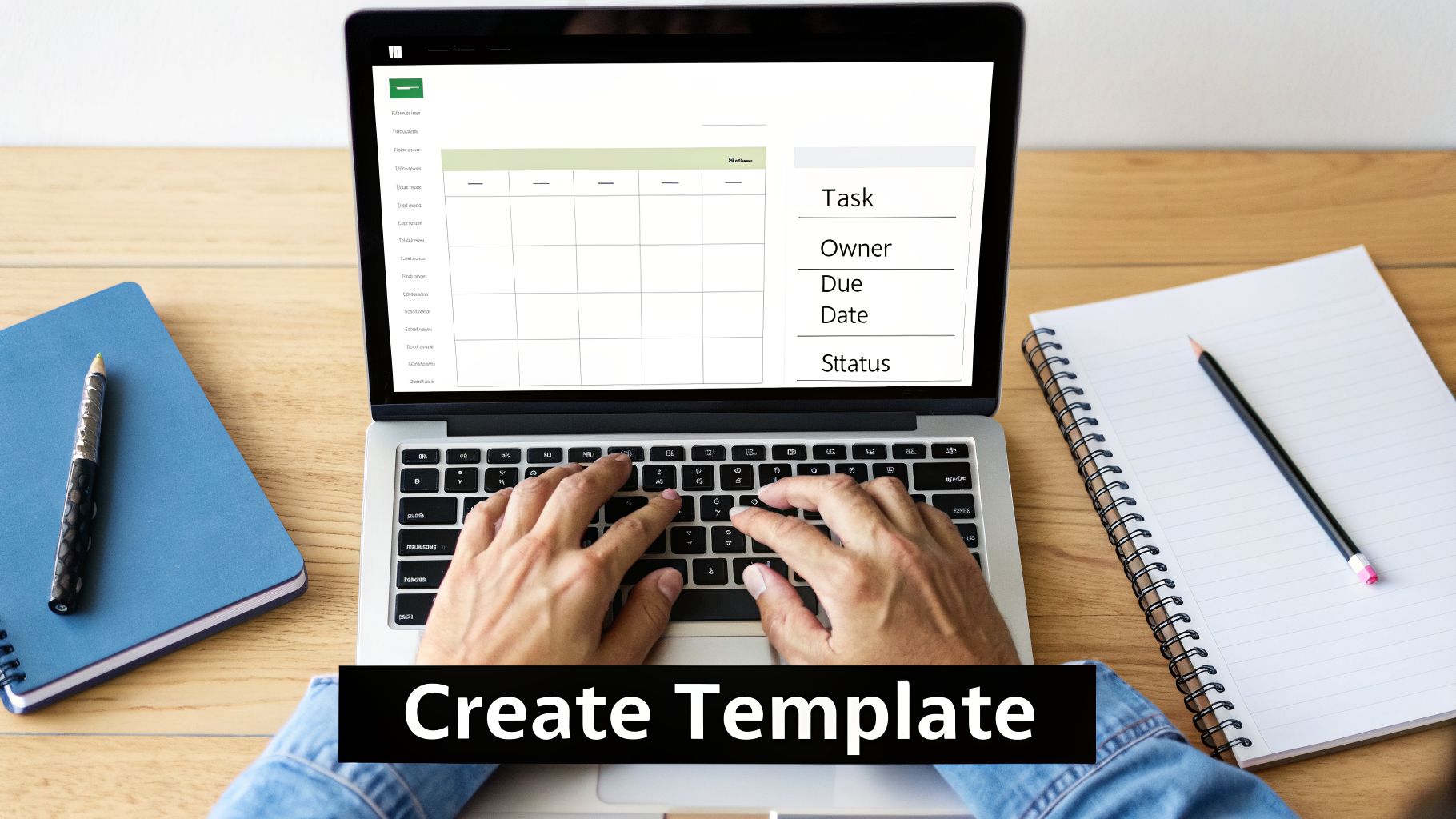
Let's start by firing up a new Google Sheet. The very first thing you'll want to do is set up your columns—these are the absolute building blocks of your to-do list.
Set up your essential columns
Every solid task list needs to track a few core pieces of information. In your new sheet, go ahead and label the first row with these must-have headers:
- Task: A clear, straight-to-the-point description of what actually needs to be done.
- Owner: Who is on the hook for this task? This one simple column clears up so much confusion.
- Due Date: When does this absolutely need to be finished?
- Status: What’s the current state of the task? We’ll turn this into a handy dropdown menu next.
You can always add more columns down the road, like ‘Priority’ or ‘Link to Asset’, but these four are the perfect foundation for any team's list.
Add dropdown menus for quick updates
Manually typing “Done” or “In Progress” over and over is a recipe for typos and wasted time. A dropdown menu is way cleaner and much faster. To get one set up, select your entire ‘Status’ column by clicking the column letter ‘D’ at the top.
- Navigate to the Data menu and choose Data validation.
- In the window that pops up, click Add rule.
- Under the ‘Criteria’ section, select Dropdown.
- Now, just type in your status options: ‘Not Started’, ‘In Progress’, and ‘Done’. You can even give each option its own color to make your sheet more visual.
- Click Done.
Just like that, anyone on your team can click a cell in the ‘Status’ column and pick the right status from the list. It keeps everything consistent and moving quickly.
Pro Tip: Keep your header row from disappearing as you scroll down a long list. Just go to View > Freeze > 1 row. This locks your column titles at the top, which is a total lifesaver.
Use conditional formatting to see progress
Okay, this is where the real magic happens. Conditional formatting can automatically change how a row looks based on what's in it. For our list, we can make an entire row turn green and get a strikethrough as soon as a task is marked ‘Done’.
To do this, select your entire data range (for example, A2:D100).
- Go to the Format menu and click on Conditional formatting.
- Under the ‘Format rules’ dropdown, pick Custom formula is.
- In the formula box that appears, type
=$D2="Done". (This formula assumes your ‘Status’ column is column D). - Next, choose your formatting style. I’m a fan of setting the background to a light green and adding the strikethrough option.
- Click Done.
Now, whenever someone changes a task's status to ‘Done’, the whole row will update instantly. It's a simple, powerful visual cue that lets everyone see progress at a single glance.
For teams that need more detailed scheduling, you might also find that using time blocking templates alongside your to-do list can be a huge help for mapping out daily and weekly work.
Free downloadable templates for agency needs
Building a to do list google docs template from scratch is one way to go, but why start from zero when you don't have to? Sometimes, you just need a reliable solution that works right away. Starting with a pre-built template saves you a ton of time and gives you a solid foundation you can always tweak later.
For a busy agency, this isn't just a convenience—it's a massive advantage. You might need one layout for daily stand-ups, another for tracking monthly project milestones, and a completely different one for client-facing updates. A good collection of templates gives you that flexibility without the upfront effort.
Templates for general task and project management
For most of your day-to-day agency work, a straightforward, well-organized list is all you really need. These templates are all about clarity and ease of use, making them perfect for tracking internal tasks and keeping everyone on the same page.
- Simple Daily To-Do List: Think of this as your daily driver. It typically has columns for tasks, deadlines, and status, making it ideal for individual team members planning their day or for small teams coordinating immediate priorities.
- Weekly Project Tracker: This one's a step up, often including a weekly calendar view. It helps project managers map out the week's tasks and spot potential bottlenecks before they cause real problems.
- Kanban Board Style: If your team thinks visually, a Kanban-style template—often built in Google Sheets—is a fantastic option. It uses columns like ‘To Do’, ‘In Progress’, and ‘Done’ to give a quick, at-a-glance overview of where every task stands.
- Team Task Delegation List: This one is built for managers. It adds columns for ‘Assigned To’, ‘Priority’, and ‘Notes/Blockers’, which makes it incredibly easy to delegate work and see who's responsible for what.
Specialized templates for financial and consulting agencies
When you're in finance or consulting, a simple task list just won't cut it. You need to track performance metrics, show tangible progress to clients, and tie tasks back to bigger business outcomes. This is where advanced templates, usually built in Google Sheets, come in with built-in dashboards and charts.
A great example is the Daily, Weekly, and Monthly To-Do List Template from TEMPLATE.NET. Since it was launched in 2022, it's become a huge hit, racking up over 1.2 million downloads. It’s not just a list; it includes separate sections for different timelines, a dashboard that summarizes performance, and a trend graph that updates instantly as you complete tasks.
User feedback shows this structure has led to a 55% improvement in short-term task adherence. You can export it to Excel if needed. You can get more details on how setups like this boost productivity by checking out the latest insights on Google Sheets to-do lists.
These specialized templates bridge the gap between a simple list and a true reporting tool. They are perfect for agencies that need to provide clients with regular, data-driven progress reports without spending hours manually creating charts.
Adapting your template for specialized teams
A generic to-do list just won't cut it for most teams. A marketing squad has a completely different set of priorities than a property management group, and neither of them works like an engineering team. This is where customization transforms your to do list google docs template from a simple checklist into a tool that genuinely fits your workflow.
The whole point is to make the template a perfect match for how your team already operates. We're not just talking about changing a few column names; we're talking about weaving the template so deeply into your process that it becomes second nature. Sometimes, one small tweak is all it takes.
Making templates work for niche roles
For a real estate or property management team, a generic task list is almost worthless. The minute you add a “Property Address” column, everything changes. Tasks like “Schedule quarterly inspection” or “Contact plumber for leak” suddenly have the context they need to be actionable. The list is no longer an abstract set of chores but a concrete plan for each specific location.
It's the same story for an engineering or software development team. They live and breathe in sprints. A standard to-do list doesn't reflect that rhythm. By adding a “Sprint Number” or “Feature ID” column, you immediately tie individual tasks back to the bigger picture. This helps everyone on the team see exactly how their work contributes to the current sprint and the overall product roadmap.
The key is to add columns that reflect the nouns of your business. For architects, it might be “Project Number” or “Drawing ID.” For a legal team, it could be “Case File Number.” These small changes anchor the to-do list in your team's world.
These specialized teams often deal with unique headaches. A 2025 CalendarLabs usage report noted that property managers and engineering teams in mid-sized companies frequently hit a wall with resource planning. In response, 62% have started using Google Docs templates for specific needs, like property checklists and project sprints.
Take TheGooDocs Weekly To-Do List Template, which is known for its flexibility. It's been edited over 800,000 times since 2022. It has helped teams, from architecture firms to creative agencies, track complex checklists, leading to 65% faster task completion. You can dig into more of these trends in the full planner report on CalendarLabs.com.
Customizing with color and categories
Beyond adding new columns, a few visual adjustments can make a world of difference in how your team uses the list. Color-coding and custom categories help everyone scan for what they need in seconds.
- Color-Code by Priority: Use the highlighting tools in Google Docs or Sheets to give tasks a clear visual priority. Red for high-priority, yellow for medium, and green for low. It’s a simple system that lets the team zero in on what's most important without having to read every single line.
- Create Custom Categories: Ditch the generic “Status” column and create categories that use your team’s actual language. A creative team might prefer statuses like "Concept," "Drafting," "In Review," and "Client Approved." This makes the list feel like it was built specifically for them, which goes a long way in getting them to use it consistently.
When your Google Docs template is not enough
That simple to do list google docs template feels like a win at first, doesn't it? It’s free, easy to share, and finally gets everyone looking at the same document. But for any growing agency, there's a moment when that simple tool stops being a helper and starts being a hindrance.
This is the point where the hidden costs of a “free” template start to show up.
Every team eventually hits a wall with a manual system. You start noticing the little cracks—a missed deadline because someone forgot to update their status, or a project manager spending half of Monday just chasing people for updates. These aren't just minor annoyances; they're symptoms of a system that can’t keep up with your growth.
I remember working with a financial consulting agency that was over the moon with their shared Google Sheet. It worked perfectly when they had five clients. But by the time they hit 20 clients, the weekly reporting had become an absolute nightmare. The time their senior consultants were burning just to manually compile progress reports started to cost more than a dedicated project management tool.
The pain of manual reporting
The single biggest time-suck is manual reporting. Someone on your team, usually a project manager or an operations lead, is wasting hours every single week just trying to answer a simple question: "What did we get done?"
They're stuck in a cycle of copying and pasting data, manually counting completed tasks, and trying to spin a cohesive story from a messy, static document. This isn’t just inefficient; it’s a huge risk. Human error is practically guaranteed when you're pulling data by hand. A single typo can throw off an entire client report, leading to awkward conversations and slowly eroding the trust you've worked so hard to build.
The real problem with a manual to-do list is that it only tracks effort, not impact. You can see a long list of completed tasks, but you have no idea if those activities actually moved the needle on your company’s goals.
Beyond a simple checklist
A basic Google Docs template can't give you the insights you need to make smart business decisions. You're left guessing on critical questions:
- Are we spending too much time on low-value clients?
- Which projects are actually giving us the best return on investment (ROI)?
- How do our day-to-day tasks even connect to our big-picture company objectives?
When you can’t answer these questions easily, you're essentially flying blind. The time spent just maintaining the list and creating manual reports becomes a massive operational cost. This is the turning point where you realize your simple to do list google docs template has reached its limit, and it’s time for a system that delivers automation and real insights.
Moving from manual lists to automated workflows
So, your Google Docs to-do list has served its purpose, but now it feels like a roadblock. You're ready to get those hours back each week, but how? This is the point where you move beyond a simple, static to do list google docs template and into a truly efficient, automated system. It’s about making your processes work for you, not the other way around.
When your team starts hitting a wall with manual tracking, it’s a clear sign you need a system that cuts out the busywork. Instead of sinking hours into chasing updates and piecing together reports, your team’s activities can be captured automatically. This is exactly what platforms like TimeTackle are built for. By plugging directly into your team’s calendars, activities are logged without any extra effort.
This single shift can finally put an end to timesheet fatigue. It also means you get clean, accurate data for things like project costing and team utilization reports—all without hassling your staff. Sticking with a manual process for too long often leads to the same old problems.
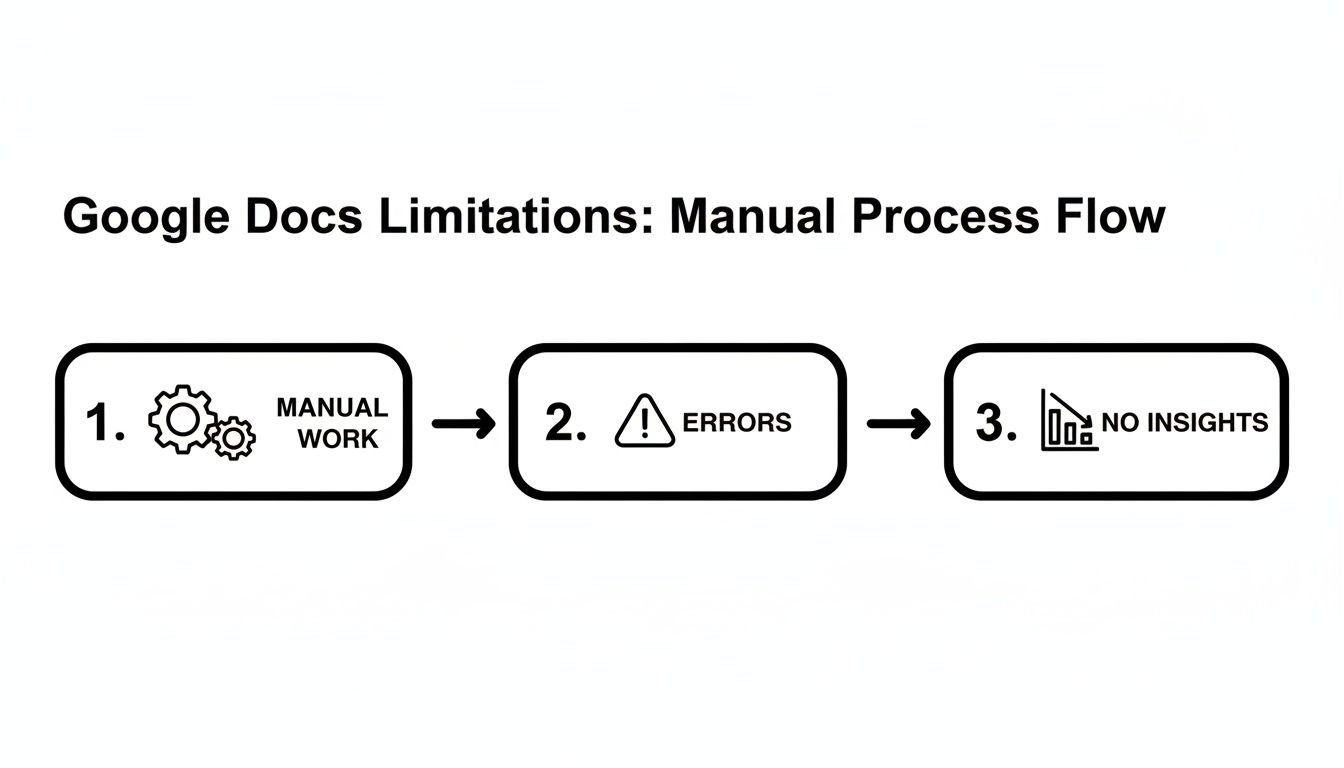
Relying on manual work doesn’t just invite errors; it completely misses the chance to gain real performance insights. The goal isn’t to scrap your process, but to supercharge it.
This transition is all about gaining visibility. For a marketing agency, it means freeing up creative talent to focus on billable client work. For a consulting firm, it provides the clear, data-driven oversight needed to manage complex projects effectively.
Ultimately, automation isn't a replacement for your workflow—it’s the engine that powers it. It connects your team's daily efforts directly to tangible business outcomes, giving you the insights to grow smarter. For a deeper dive into this, check out our guide on how to automate repetitive tasks and reclaim your team's time.
Frequently asked questions
As you start using a to do list google docs template for team tasks, a few common questions almost always pop up. Let's tackle them head-on.
Can I connect my Google Docs to-do list to my Google Calendar?
The short answer is no, not directly. You can't set up a real-time, two-way sync between a Google Doc and Google Calendar without bringing in third-party scripts or automation tools like Zapier.
Sure, you can manually paste links to calendar events into your document. But checking off a task in the Doc won’t automatically update anything on your calendar. This manual disconnect is one of the biggest reasons teams eventually start looking for a more integrated platform.
What is the best Google Docs to-do list template for a team?
Honestly, the "best" template is whichever one actually fits your team's workflow. For simple, day-to-day tasks, a basic table with columns for Task, Owner, and Status often works beautifully.
But if you're trying to manage larger projects, you’ll be better off with a Google Sheets template that can handle multiple tabs and conditional formatting.
Based on what we've seen, once a team grows to more than 20 people, any manual template starts to become a real headache to manage. At that scale, a dedicated tool is almost always a better choice because it slashes the administrative overhead.
How do I share a template without letting others edit my original?
This is a simple but important trick for protecting your master template. It’s a common mistake to just share the regular editing link. Don't do that.
Instead, click the blue “Share” button in your Google Doc and copy the link. Look at the end of the URL, where you'll see /edit. All you have to do is change that part to /template/preview.
Now, when someone opens your new link, they won’t be able to touch your original file. They’ll get a prompt to “Use Template,” which creates a fresh copy right in their own Google Drive.
Stop wasting hours on manual updates and get real-time insights into your team's productivity. TimeTackle automates your workflows by connecting directly to your calendar, so you can see what's getting done without ever needing another spreadsheet. Find out how it works at timetackle.com.