


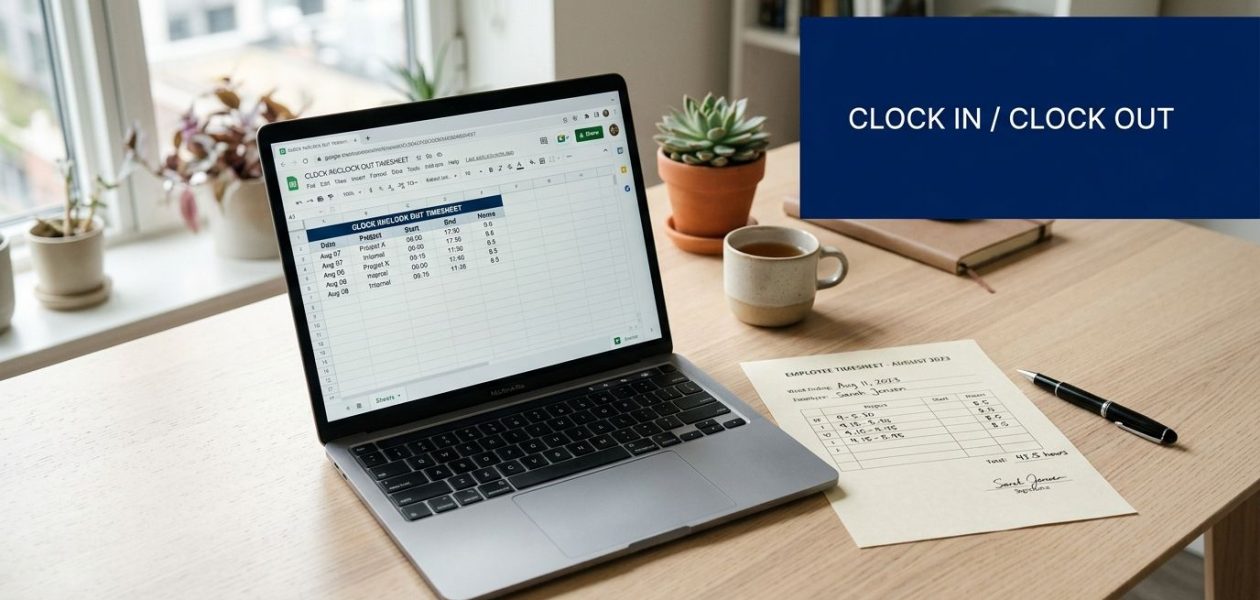
You're probably here because time tracking already feels messy.
A few people text their start times. Someone emails hours at the end of the week. One manager keeps notes in Slack. Another trusts memory. Payroll day arrives, and now someone has to turn all of that into something clean enough to approve and pay. That's usually when businesses start looking for a simple clock in clock out sheet.
That instinct is right. A basic sheet is often the first useful system a team puts in place. It's cheap, easy to share, and far better than chasing hours across inboxes and chat threads. But it also has limits, and if you build it badly, it creates a new kind of mess instead of fixing the old one.
Why you still need a simple clock in sheet
Small teams rarely start with polished time tracking. They start with whatever works for the next payroll run. I've seen teams use notebooks at a front desk, paper sign-in sheets, and shared spreadsheets with half-complete rows. None of that is unusual. It's how many businesses get by until admin work starts eating real time.

A simple digital sheet still matters because it gives you one place to record who worked, when they started, when they finished, and what needs review. That alone cuts confusion. It also gives managers something they can inspect instead of relying on memory and goodwill.
Why a spreadsheet feels like a big upgrade
For many businesses, moving from paper to Google Sheets or Excel is a real operational step forward. Approximately 38% of U.S. employees still use paper timesheets according to Factorial's time tracking statistics roundup. That matters because paper slows everything down. Someone still has to read it, re-enter it, check it, and fix mistakes.
A good sheet solves a few immediate problems:
- One shared record: Everyone works from the same file, so payroll isn't pieced together from five channels.
- Cleaner review: Supervisors can scan missing entries, odd hours, or duplicate rows faster.
- Basic history: You keep a record instead of relying on “I think I worked late on Tuesday.”
- Fewer handoffs: Admin staff don't need to decode handwriting or retype every line.
A manual sheet is fine as a starter system. It stops the bleeding. It doesn't remove the cause.
Where the trouble starts
The problem isn't that spreadsheets are bad. The problem is that they depend on people entering time correctly, every day, in the right format, without shortcuts. That rarely holds for long, especially once the team grows, shifts vary, or client billing gets involved.
If your business needs a first workable process, build the sheet. Just don't confuse “better than paper” with “good enough forever.”
Building your clock in sheet template
A workable clock in clock out sheet should survive real use on a busy week, not just look tidy on day one. If supervisors are chasing missing entries every Friday, or payroll is correcting time formats by hand, the template is doing part of the job and creating another one.
Build the first version for control. Then leave yourself a clear path to replace manual entry later, because every field people touch by hand becomes a source of delay, fatigue, and payroll risk.
Start with two tabs. One tab is for daily entries. The other is for setup data such as employee names, pay rates, departments, and approved dropdown values. That separation keeps the main sheet cleaner and cuts down on accidental edits.
Use columns that support payroll review
A manual sheet needs enough detail to calculate hours, explain exceptions, and stand up if someone questions a pay run later. If the business is small, that can be a simple layout. If managers approve edits or your team works across sites, add a few control fields now instead of bolting them on after the first dispute.
Use a layout like this:
| Column | What to store | Notes |
|---|---|---|
| A | Employee name | Use a dropdown from the setup tab |
| B | Date | One work date per row |
| C | Start time | Enter the actual clock-in time |
| D | End time | Enter the actual clock-out time |
| E | Break duration | Keep one format for everyone |
| F | Total hours | Formula column |
| G | Hourly rate | Optional if payroll sits in the same file |
| H | Overtime hours | Optional |
| I | Total pay | Optional |
| J | Notes | Missed punch, correction reason, travel, site change |
| K | Manager review | Approved, pending, corrected |
If you want a starting point instead of building from scratch, a simple timesheet template for manual tracking gives you a usable base. Keep it narrow at first. The more fields you add, the more training and checking the sheet needs.
If rates and total pay live in the file, treat that tab carefully. Payroll errors are not just admin mistakes. They affect employee trust, tax reporting, and downstream processing, which Steingard Financial's payroll guide explains well.
Set formatting rules before the team touches the file
Formatting problems cause more sheet failures than formula problems. One employee types 8:00, another types 8, and a manager adds "late start" in the same cell. The spreadsheet accepts all of it. Payroll cannot.
Set the rules first:
- Employee names as a dropdown: Pull from the setup tab so names stay consistent.
- Date as a locked date format: Avoid free-text dates.
- Start and end as time fields: Use one time format across the whole sheet.
- Breaks as one defined unit: Minutes, decimal hours, or time format. Pick one and document it.
- Formula columns protected: Staff should enter inputs, not overwrite totals.
- Notes limited to exception handling: Keep this field short and purposeful.
That discipline matters. Manual systems break at the edges. Small formatting differences turn into bad calculations, and bad calculations turn into payroll corrections.
Record actual worked time
A useful clock in sheet captures what happened, not what was scheduled. If someone started at 8:07 and left at 4:41, enter those times. Rounding and pay rules can happen later, based on policy.
That distinction becomes important fast. Planned shifts belong in the rota. Worked time belongs in the timesheet. Mixing the two is one of the fastest ways to create disputes over lateness, overtime, and missed breaks.
Keep the starter version simple enough to maintain
Teams often overload the first template. They add project codes, mileage, client billing fields, multiple approval stages, and color-coded exception rules before staff have formed the habit of entering time daily. That usually leads to partial completion and more manager follow-up.
A better first version usually includes:
- one row per day or work period
- one notes field for exceptions
- one review column for manager signoff
- protected calculations
- a setup tab that only admins edit
That is enough to get a small operation under control.
It is also where the limits of a manual process start to show. Once people are copying shifts from calendars, re-entering recurring work, or fixing missed punches every pay period, the sheet has done its job as a starter system. The next step is a calendar-driven process that captures time with less manual effort and fewer compliance headaches.
Essential formulas for calculating hours and pay
Payroll errors usually start in small cells. One wrong time format, one overwritten formula, or one missed break entry is enough to turn a simple sheet into a pay dispute.
A manual clock in clock out sheet earns its keep when it calculates time consistently. If it does not, managers end up checking totals line by line before every payroll run. I have had to do that cleanup, and it is slow, repetitive work that usually traces back to a loose template.
Keep the calculation columns locked. Let staff enter clock-in time, clock-out time, break time, and notes. Keep formulas and summary cells protected so the math stays intact.
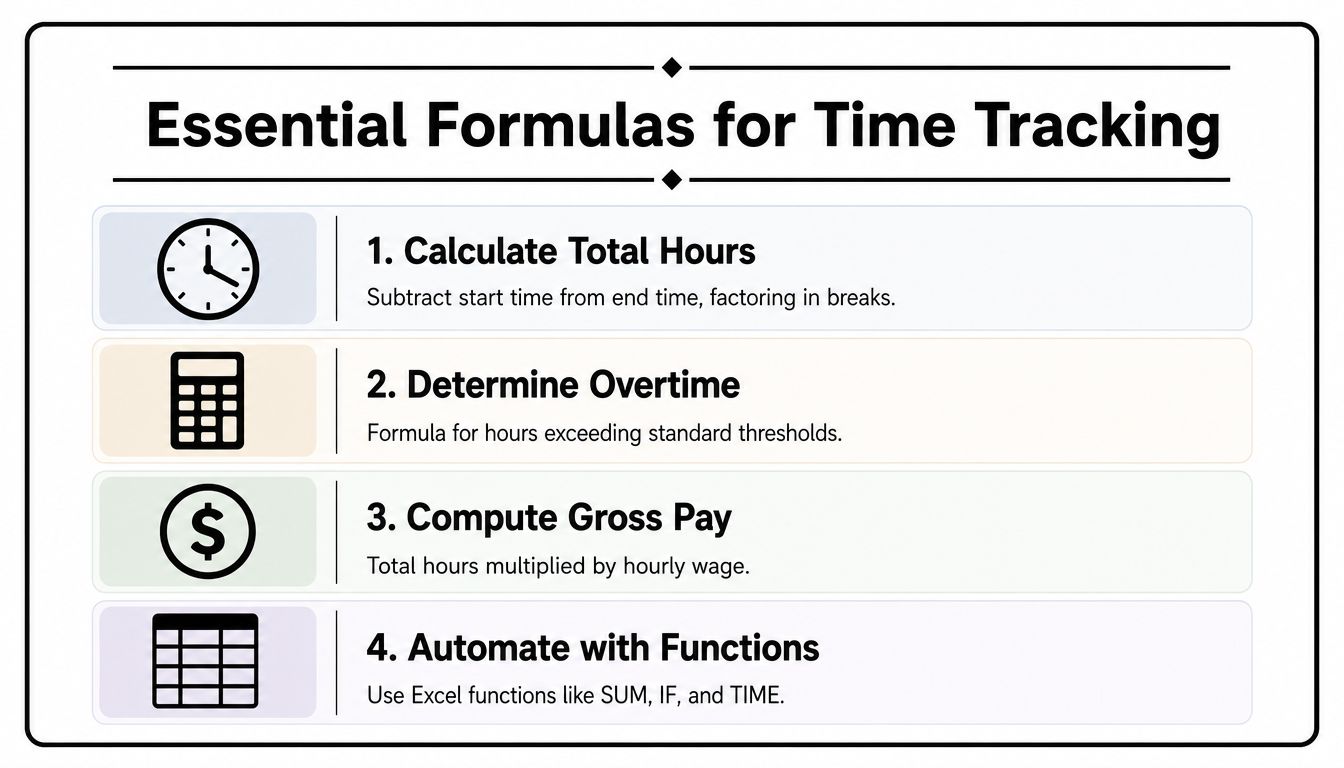
Basic hours worked formula
If Start Time is in column C, End Time is in column D, and Break Duration is in column E, use:
=((D2-C2)-E2)*24
That formula converts spreadsheet time into decimal hours. Without *24, the result stays in day fractions, which is fine for Excel but awkward for payroll.
The formula also assumes your break field uses a time format such as 0:30 for a 30-minute break. If your team enters breaks as plain minutes, use a formula that converts those minutes first. Mixed break formats are one of the fastest ways to get bad totals.
For overnight shifts, the basic formula may return a negative result if the end time falls after midnight. In that case, use a version that accounts for date rollover, or store full date and time stamps instead of time alone. Night teams, care workers, security staff, and hospitality businesses run into this problem quickly.
Overtime and gross pay
For daily overtime above 8 hours, a simple formula is:
=MAX(F2-8,0)
If column F already holds total hours, this returns only the overtime portion. It is easy to audit, which matters when a supervisor needs to explain a pay line later.
Gross pay is usually just hours multiplied by rate:
=F2*G2
That works if column F is already in decimal hours and column G is the hourly rate. If rates change by role, site, or shift premium, a manual sheet gets more fragile. You can still build it, but each extra pay rule adds another place for an error to hide.
If payroll is new territory for your team, Steingard Financial's payroll guide gives a useful plain-English overview of how hours, wages, deductions, and approvals fit together. It helps when you're trying to make your sheet work with a real payroll process instead of in isolation.
Weekly overtime needs more care. The rule depends on your payroll week, local labor requirements, and whether you apply daily, weekly, or blended overtime logic. In practice, I recommend calculating daily hours on the main sheet and using a separate weekly summary tab for review before payroll is approved.
Matching clock-ins and clock-outs from forms
Some teams collect separate "in" and "out" records through forms, then match them in the spreadsheet. That setup creates a timestamped log and cuts down on free-typed entries, which usually improves accuracy.
A common structure looks like this:
- form records employee name and submission time
- sheet stores separate in and out events
COUNTIFSchecks how many entries already exist for that person on that date- lookup formulas pair the first in with the first out
The trade-off is complexity. Matching entries is harder to maintain than a single-row daily sheet, especially when someone forgets to clock out or submits duplicate entries from a phone. Formula logic can identify exceptions, but a manager still has to investigate them.
If you want to build that logic out properly, this timesheet formula reference for Excel and Google Sheets is a useful companion.
Formulas do not fix bad time records
A spreadsheet can calculate hours. It cannot verify that the input is complete, approved, and compliant with your pay rules.
That is the ceiling on any manual sheet. It works as a starter system, especially for a small team that needs basic control fast. Once managers are spending payroll day correcting missed punches, checking overtime logic, and chasing approvals, the actual cost is no longer the template. It is the admin time, error risk, and timesheet fatigue that come with staying manual too long.
Best practices for accuracy and compliance
A clock in clock out sheet is not just an admin file. It is part of your wage record. That changes how seriously you need to treat it.
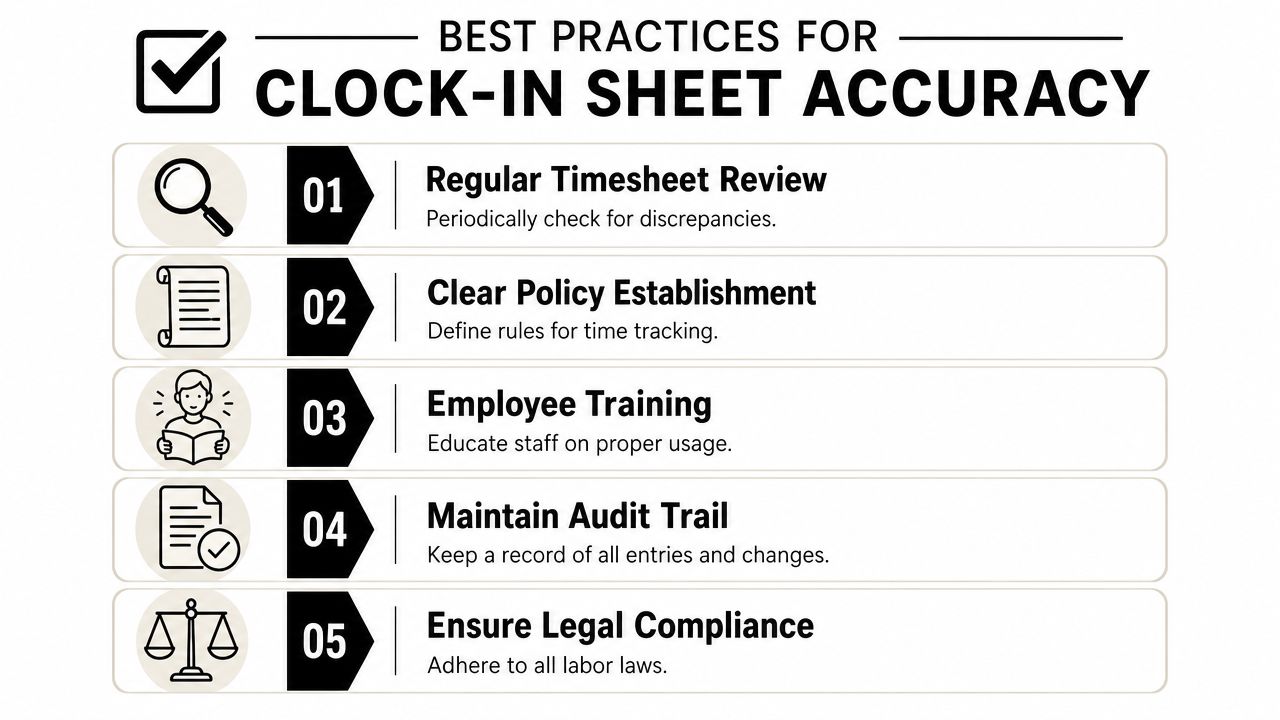
The sheet itself won't keep you compliant. Your policy, training, and review habits do that. If any one of those is weak, errors stay in the system until payroll or a dispute exposes them.
Write the rules down
Every team needs a written timekeeping policy. Keep it short and direct. Staff should know when to clock in, when to clock out, how to record breaks, what to do if they forget an entry, and who approves corrections.
That policy should also answer small but common questions that create friction later:
- Late edits: Who can request them and who approves them
- Break handling: Whether breaks are required to be recorded separately
- Remote work: How staff record time when they're not on site
- Travel or client visits: Whether those hours belong on the same sheet
- Rounding: Whether your payroll process rounds or tracks exact minutes
Track to the minute if you can
The ADP timekeeping dos and don'ts guide notes that the FLSA permits rounding to the nearest 15 minutes, but tracking to the minute is best practice, and employers must keep payroll records for at least three years. That should shape how you build and store your sheet.
If you operate in California, there's another layer to keep in mind. TimeWave's Labor Code 1174 summary states that employers must maintain accurate time records for non-exempt employees, record actual times rather than scheduled times, capture minutes instead of just hours, and avoid rounding practices that systematically disadvantage employees. Even if you're not in California, that's a strong standard to work from.
A sheet should make review easier, not hide errors behind neat-looking totals.
Train managers, not just staff
Most timekeeping breakdowns are management breakdowns. Employees follow the path of least resistance. If no one reviews entries, late fixes become normal. If managers approve anything without checking, the sheet loses credibility fast.
Use a simple review rhythm:
- Daily check for missing punches
- Weekly approval before payroll cutoff
- Documented corrections with notes
- Archived copies after approval
That routine sounds basic because it is. Basic routines are what keep a manual system usable.
Common clock in sheet problems and how to fix them
Manual time tracking always gets messy in the same ways. Someone forgets to clock out. A manager edits a row and doesn't note it. Two employees share a login. A weekly sheet comes back half-finished. None of this means the sheet failed. It means the sheet needs guardrails.
Missed punches and off-the-clock work
The biggest risk isn't a typo. It's missing time. Almost 28% of U.S. employees who track time admit to working off the clock, according to QuickBooks time and attendance statistics. That creates wage risk fast, especially if your sheet depends on end-of-week recall.
When someone forgets to clock out, don't let them type in a number later with no review. Use a correction process:
- Employee submits the missing detail: Date, estimated end time, and reason
- Manager reviews and approves: No self-approved edits
- Sheet keeps a note: Record who changed it and why
- Payroll checks repeat patterns: Frequent missed punches usually signal a process problem
Buddy punching and unauthorized edits
A shared spreadsheet is weak if everyone can edit everything. Protect formula columns. Limit edit access where possible. If staff shouldn't change totals, don't leave totals unprotected.
If your team works on site, have supervisors review attendance against presence. If your team is remote, require same-day entry instead of Friday afternoon reconstruction. When disputes about rounding come up, state-specific guidance can matter, and this guide for Mississippi time clock issues is a useful example of how rounding questions can turn into legal ones.
Duplicate rows, wrong dates, messy names
The smaller problems waste the most admin time because they happen constantly. “Jon” and “Jonathan” become two employees in a pivot table. A date gets entered as text. Someone adds two rows for one shift.
Use simple controls:
| Problem | Fix |
|---|---|
| Name variations | Dropdown list only |
| Wrong date format | Date validation |
| Formula overwritten | Protect columns |
| Duplicate entries | Add a review filter or duplicate check |
| Unclear corrections | Require notes |
A manual sheet never becomes perfect. It becomes manageable.
When to move beyond a manual timesheet
A spreadsheet is a fair starter system. It isn't a mature system. You'll know you've outgrown it when keeping the sheet accurate starts taking more effort than the sheet saves.
That usually shows up in ordinary ways. Managers chase timesheets every Friday. Payroll fixes exceptions by hand. Project leads can't trust utilization numbers. Client billing takes longer because the source data needs cleaning first.
Signs the sheet is now the bottleneck
If any of these sound familiar, your process has likely moved past what a manual sheet can do well:
- You spend hours chasing missing entries: The tool depends on memory and follow-up.
- You need project or client detail: A basic attendance log doesn't answer billing questions well.
- Your team hates filling it out: Timesheet fatigue shows up as late, vague, or copied entries.
- Leadership wants better reporting: Sheets can store time, but they struggle to explain how work time was spent.
Those aren't edge cases. They're normal growth problems.
What a better next step looks like
The next step is usually less manual input, not a more complicated spreadsheet. Calendar-driven time tracking cuts out a lot of the weakest part of the process, which is asking people to recreate their day from memory.
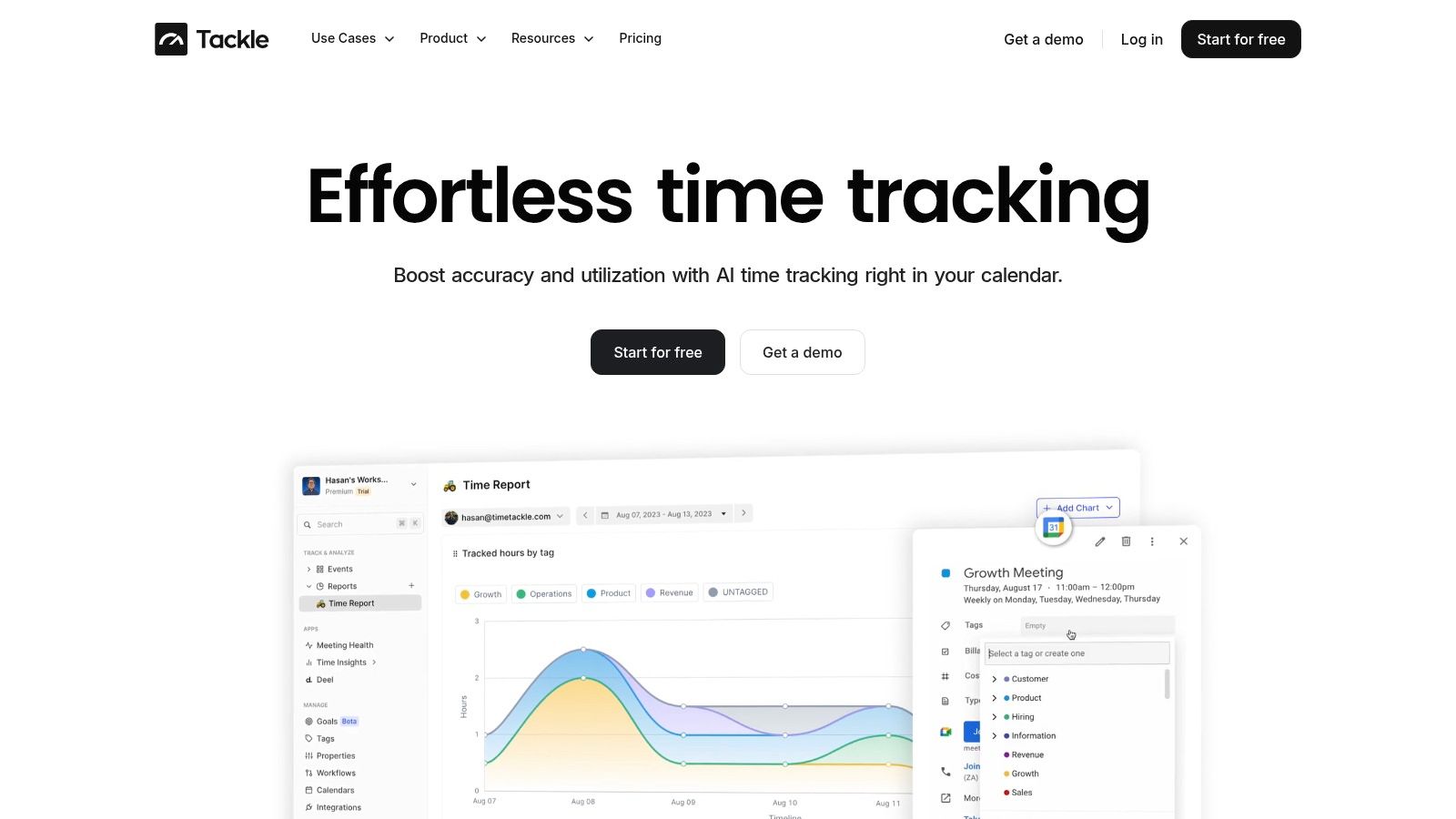
Instead of asking staff to fill rows one by one, automated systems can pull activity from calendars and connected tools, then turn that into reviewed, categorized time records. If your team is dealing with adoption problems as much as process problems, resources like Turn On Work's employee engagement hub can help you think through the people side of the change, not just the software side.
For teams that are ready to stop relying on manual entry, automated timesheet software is usually the cleaner move. Not because spreadsheets are bad, but because they ask people to do too much repetitive admin to stay accurate at scale.
The right time to upgrade is before payroll review turns into detective work every week.
Frequently asked questions
Can I use a clock in clock out sheet for field workers who struggle with reading or tech?
Yes, but a standard spreadsheet is often the wrong front end. In field operations, the cleaner approach is a very simple input method that feeds a back-end sheet. That might mean large visual buttons, supervisor-assisted entry, or a form with audio or image cues.
Many guides skip it entirely. The ODK forum discussion on timesheets for illiterate farmers and task management notes that 30% of agricultural and manual labor teams struggle with timesheet accuracy due to literacy barriers. If that's your environment, don't start with a dense spreadsheet grid. Start with the easiest possible capture method, then send the data into a reviewed sheet.
How do I handle healthcare or other high-compliance attendance needs?
A plain sheet usually isn't enough. Some environments need QR scans, location checks, patient or client confirmation, and stronger proof that the right person clocked in at the right place. Those controls sit outside what a normal spreadsheet can reliably do on its own.
A sheet can still act as the record store or export layer, but the actual clock event often needs to come from a more controlled form or app workflow.
Should employees enter time directly in the sheet or through a form?
If your team is small and disciplined, direct entry can work. If accuracy is already shaky, form-based submission is usually safer because it creates a cleaner timestamp trail and reduces accidental edits.
I'd use direct sheet entry only when supervisors are active reviewers and the employee group is stable. If not, use a form and let the sheet do the matching and calculations.
Do I need hourly rate and total pay in the same file?
Not always. Some teams prefer one sheet for attendance and another for payroll calculations. That's often cleaner for privacy and safer for managers who only need attendance visibility.
If you do keep pay in the same file, lock those columns down tightly and limit access.
If your team has outgrown manual entry and you want time tracking that starts from the calendar instead of a blank sheet, take a look at TimeTackle. It's built for teams that want less timesheet chasing, cleaner reporting, and a more accurate view of where work time goes.