


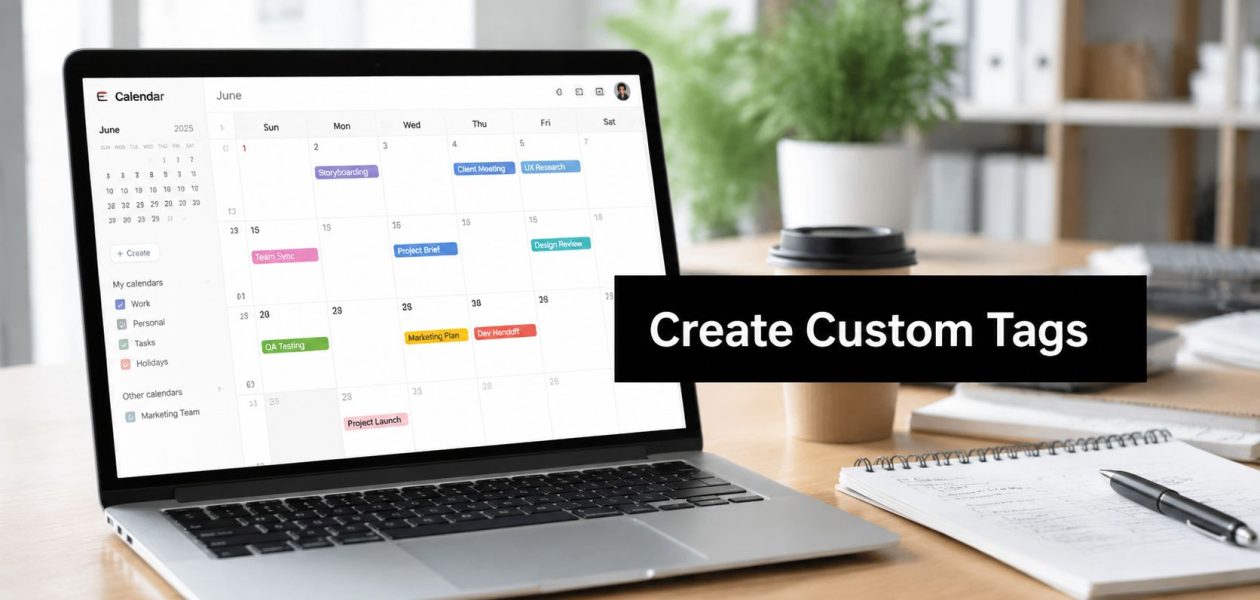
Friday afternoon usually exposes bad tagging. A project manager pulls a report for a client meeting, finds half the calendar entries labeled “misc,” and then spends an hour guessing what each block of time was really for. Billing gets delayed, utilization looks wrong, and nobody trusts the numbers.
That's why custom tags matter. They turn messy calendar entries into a clean set of labels you can filter, sort, and report on without rebuilding the whole tracking setup every time a new client, project, or service line appears. In practice, that means fewer cleanup loops, tighter billing, and reports that don't collapse the moment someone changes a meeting title.
Why your agency's timesheets are failing and how tags fix it
A bad timesheet usually is not bad because people skipped the work. It is bad because the record came in loose and stayed loose. One person writes “client call,” another writes “Acme sync,” and a third drops in “internal review,” so the same kind of work gets split across too many buckets.
A tagging system fixes that by giving the team one shared way to mark work. Reports stop depending on memory, creative wording, or a PM cleaning up entries after the fact. Custom tags are built as a key-value system, which keeps the label separate from the value so filtering and segmentation stay consistent.
Practical rule: if two people would describe the same task in two different ways, you need a tag, not another free-text field.
For agencies, that consistency affects billing and utilization directly. If a designer logs time under one project name and a strategist logs the same client under another, the report can look cleaner than it is. Tags let you group work by client, service line, or billable status without changing the underlying setup every time the team enters time.
That structure also protects the data later. Once people tag work the same way every day, the calendar stops acting like a pile of notes and starts functioning as a record you can trust. If your team uses a calendar-event tagging workflow, TimeTackle's custom tag feature gives you a practical way to keep those labels tied to reporting needs instead of random wording.
Planning your tag system before you create anything
A lot of teams jump straight into setup and regret it later. They create one tag for clients, another for tasks, a third for anything they forgot to name, and then six months later nobody knows which one to use. Planning first keeps that from happening, because the tag system should mirror how you report on work, not how people feel like typing on a busy day.

Start with the questions your reports need to answer
Before you create anything, list the questions leadership asks most often. That usually means things like which client drove the most billable work, which service line eats the most time, or where the team is losing hours to internal work. If a tag won't help answer one of those questions, it probably doesn't deserve a place in the system.
Use that list to define a small set of tag groups. For most agencies, I'd start with client, project, work type, and billable status. That gives you enough structure for reporting without forcing people to choose from ten tags every time they open a calendar event.
NetSuite's documentation is a good reminder that tag design is a governance decision, not just a UI task. It shows that a custom tag can include a default value and must follow a strict naming format, all caps with no spaces, which is the kind of rule that keeps reporting clean when multiple teams touch the same data (NetSuite custom tag guidance).
Prefer predefined values over free-form tagging
Free-form tags feel easy at the start and messy almost immediately. One person types “Acme,” another types “ACME,” and a third adds “Acme Corp,” so the same account ends up split three ways. A predefined list keeps that from happening because people pick from approved values instead of inventing new ones on the fly.
That's the setup I'd use for any tag you plan to report on later. If the tag drives billing, utilization, or client reporting, lock it down. If the tag only helps one person track a personal note, free-form may be fine, but that's not the kind of tag most agencies need.
For a deeper view of how event-level tagging maps into product workflows, I'd also point junior PMs to the calendar event tag feature overview because it shows how tags behave once they live inside a broader calendar workflow.
Tags get messy when they start solving every problem. Keep each one tied to a report you'll actually use.
Decide the naming rule before the team starts using it
Pick a single naming pattern and keep it boring. “Client, Project, Task” is easy to scan and easy to sort. If you let each team invent its own pattern, you'll spend more time cleaning reports than reading them.
I also recommend deciding early whether tags are required or optional. If a tag matters for reporting, it should be required at the point where the work gets logged. That's a pain for a day or two, then it saves hours every month.
A step-by-step guide to creating custom tags in TimeTackle
The practical workflow is simple enough, but the details matter. A tag should do one job, show up in the right place, and stay consistent after the first person uses it. That's why I treat creation like setup for a reporting system, not like adding a label.
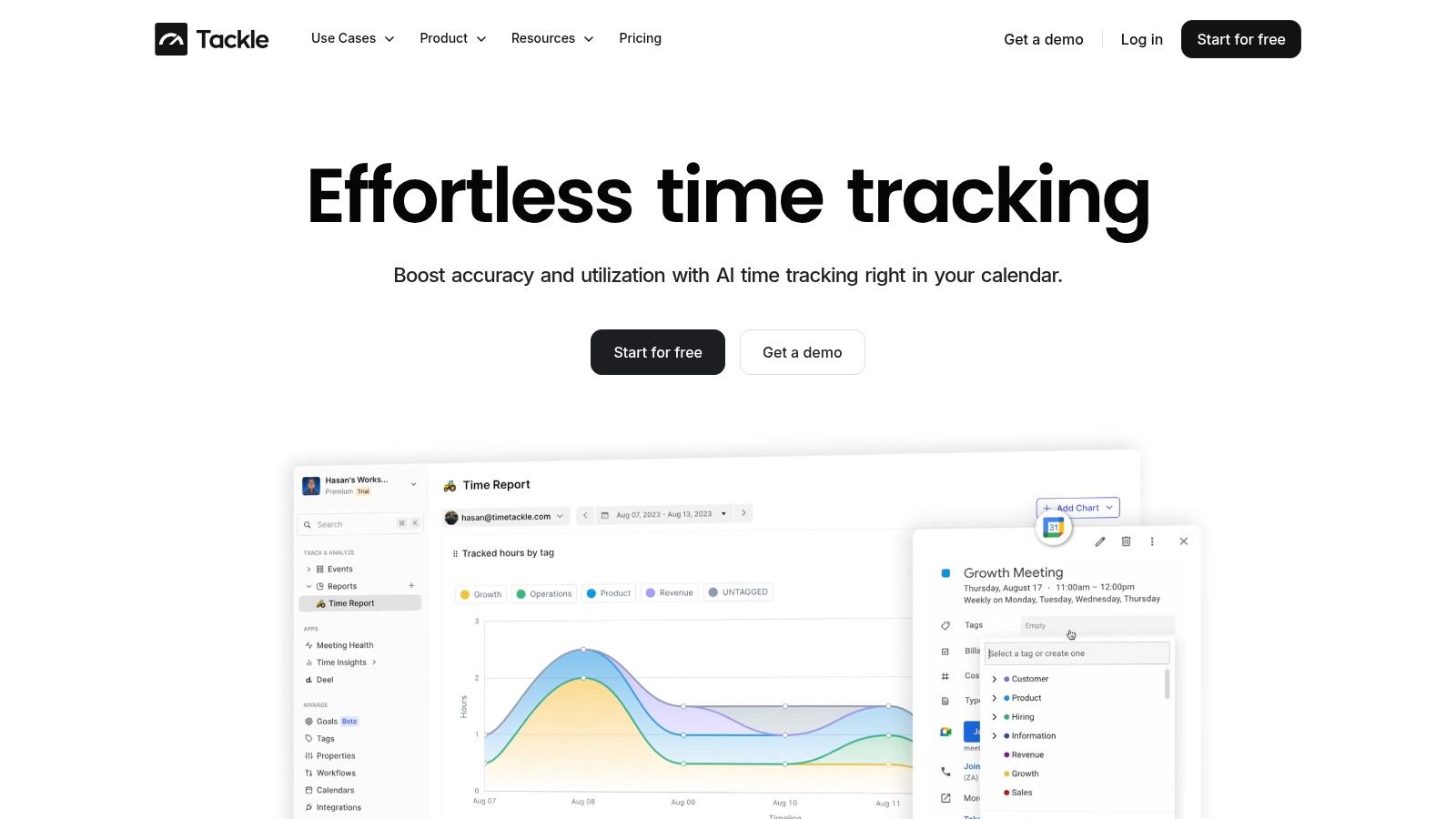
Build the first set around real reporting needs
Start with the tags that will show up in almost every report. For agencies, that usually means client names, project names, and billable status. Keep the first list short so the team can learn it fast, because a system nobody remembers doesn't help anyone.
In TimeTackle's tag setup, the useful move is to create label-style tags for broad categories and option-type tags for fixed values. That gives you control over consistency without making the process slow. The same general idea appears in other tools that treat tags as structured objects, not loose labels, including Foundry Nuke's multi-step tag creation flow where a new tag lives inside the selected project rather than globally by default (Foundry Nuke custom tags).
Set properties that help the team use the tag correctly
Once the tag exists, define the properties that make it useful in daily work. If a tag should always be present, mark it required. If a tag needs a color so people can spot it on a crowded calendar, use that as a visual cue. If a tag only applies to one kind of work, keep it scoped there so it doesn't turn into noise.
The point isn't to decorate the calendar. The point is to make the right choice the easy choice. A good tag setup should reduce mistakes before anyone exports a report.
For teams that also manage marketing and attribution, the LinkedIn Insight Tag guide from Click Click Bang Bang is a useful reminder that tag systems work best when they're treated as part of a broader tracking plan, not as one-off bits of code or naming logic.
Treat the tag library like a shared operating asset
A tag library should age with the business, not drift away from it. That means one owner, one naming rule, and one place to review new tags before they get added. If you skip that control point, every team starts solving the same problem in its own way.
I'd also keep a short note next to each tag that explains when to use it and when not to. That sounds small, but it prevents the most common mistake I see, which is people using a familiar tag because it “feels close enough.”
For teams using a calendar-first system, TimeTackle's custom tag properties documentation is the kind of reference worth keeping handy because it shows how tag behavior can be shaped after the tag exists.
Putting your tags on autopilot with rule-based automation
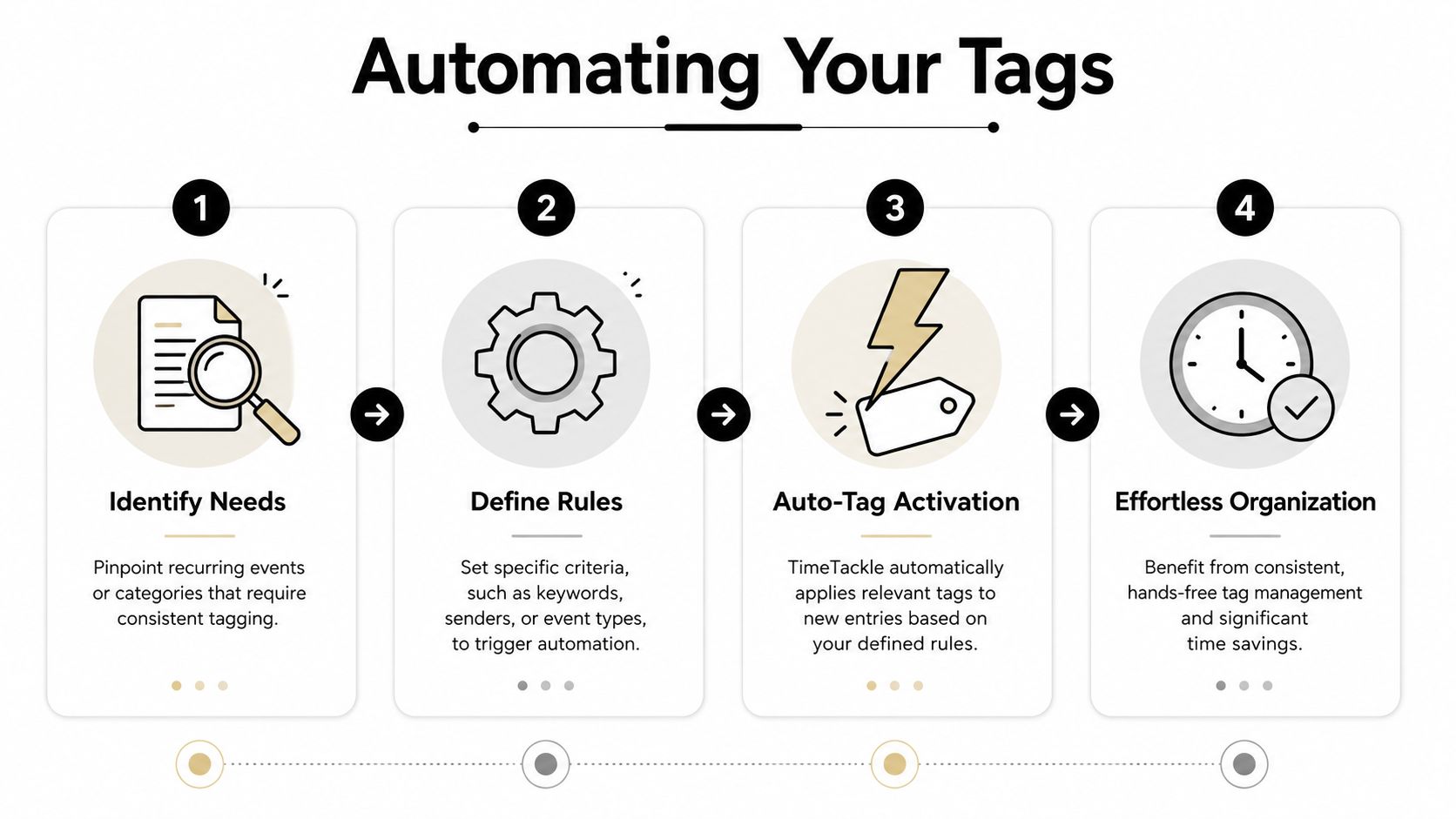
Manual tagging works until the team gets busy. Then people forget, rush, or guess, and reporting starts to drift. Automation fixes that by applying the tag the moment the event is created or recognized, so the process does not depend on someone remembering a rule after a long day.
Use simple if-then logic first
The cleanest automation rules match obvious patterns. If the event title contains a client name, apply that client tag. If the meeting is internal, apply a non-billable tag. If the calendar item belongs to a certain project template, assign the right project tag before anyone edits the entry.
This kind of rule-based setup is more than a convenience. Google Tag Manager's server-side model shows the same shift toward governed automation, with tag templates, configuration fields, and logic that processes event data before a request gets sent (Google Tag Manager server-side tag building). The operating idea is the same, even if the tool is different.
Practical rule: if a tag can be assigned from a clear signal in the event title, organizer, or type, automate it.
Automate the boring tags before the expensive ones
Start with tags that never need debate. Internal meetings, client calls, sales pitches, and admin work are usually easy to identify, so those are the best candidates for automation. Once those run cleanly, move into project-specific rules that need a little more care.
A tool like TimeTackle can fit into a broader operations stack, and its workflow automation overview helps show how tagging can sit alongside other calendar and reporting processes instead of becoming a separate manual step. That matters when the goal is accurate time data and clean billing, not extra admin work.
Keep automation rules narrow
Broad rules create bad data fast. If a rule is too loose, it will tag the wrong work and teach the team not to trust the system. I would rather have five narrow rules that work every time than one clever rule that needs constant fixing.
Automation should lower admin load, not replace judgment where judgment still matters. If a meeting title is ambiguous, leave it for review. If it is obvious, let the rule handle it. The best setup is the one that keeps tagging consistent without turning your calendar into a pile of exceptions.
Common tag structures that drive agency profitability
The best tag systems don't try to capture everything. They capture the things that change the report. For agencies, that usually means whether the time is billable, what phase the work sits in, and which service line owns it.
| Tracking goal | Tag type, key | Example values |
|---|---|---|
| Billable status | Billable status | Billable, Non-Billable, Internal |
| Client tracking | Client | Acme Corp, Northwind, Atlas Health |
| Project phase | Phase | Discovery, Design, Development, Launch |
| Service line | Service | SEO, PPC, Content, Strategy |
| Work category | Task | Sales Pitch, Client Call, Admin, QA |
Billable and non-billable work
This is the first tag structure I'd set up for almost any agency. It tells finance and operations what time should be billed, what time should be absorbed, and what time belongs in internal overhead. Without that split, you end up arguing about the report instead of acting on it.
A good example is “Billable: Project Alpha” for client work and “Non-Billable: Sales Pitch” for pre-sales time. Those labels are simple, but they make a real difference when someone needs to explain variance at the end of the month.
Project phase tracking
Phase tags help you see where work is getting stuck. If a project spends too long in discovery or keeps bouncing between design and review, the tag trail makes that visible. That's useful for PMs because it gives them a better read on scope drift than a plain hours total ever will.
The trick is to keep phase names stable across accounts. If one team uses “Build” and another uses “Development,” your report starts lying by omission, so pick one and stick with it.
Service-line tracking
Service tags let you see which offers are carrying the business and which ones create too much drag. That matters for agency profitability because not all work looks the same in a calendar. A strategy call, a content sprint, and a paid media review may all happen in the same week, but they don't cost or bill the same way.
Use the service tag for the commercial layer, then use the task tag for the day-to-day activity. That gives leadership one view and the delivery team another, which is a lot better than forcing everyone into one messy label.
From raw data to client-ready reports and insights
Once tags stay consistent, the report stops looking like a meeting log and starts working like a business view. You can filter by client, project, service line, or billable status and answer questions that would otherwise send someone into a spreadsheet cleanup and a pile of Slack messages. The primary gain is faster decisions backed by cleaner reporting.
Use tags as report filters, not just labels
Custom tags matter because they separate the name from the value, which makes filtering and segmentation much easier in systems built around key-value logic. A tag like userType: premium gives you a clean way to slice data without changing the report structure itself, and the same idea applies when you filter agency time by client or work type.
That gives operations and finance a faster way to answer practical questions. Which client received the most billable time last month. Which team spent the most hours on development work. Which internal meetings are consuming capacity that should have gone to client delivery.
Keep the system clean over time
Tags need light maintenance, not a constant rebuild. When a project ends, archive the tag if it no longer has reporting value. When a new service line launches, add the tag before work starts, not after the first month of data has already gone into the report. That keeps the system from filling up with old names and half-used categories that make exports harder to trust.
I also like to review tag usage on a regular schedule with operations and finance together. They usually catch problems faster than delivery teams do, because they feel the pain when the report misses something obvious or splits the same work into two names.
Use the report to make the next decision easier
A good tag system should help you answer one more question every time someone opens a report. If leadership wants to know where the time went, the tags should point there fast. If a client asks for a clean breakdown, the tags should make that export straightforward.
That is the practical payoff of how to create custom tags the right way. You are not just labeling work, you are building a data structure that keeps reporting honest and gives the team a cleaner path from raw activity to client-ready insights.