



Every ops lead knows the moment. You pull a time export for billing, open it in Excel, and the file looks fine for about two seconds, until dates flip, commas split client names, and a few rows seem to vanish into nowhere. That kind of mess is why CSV data export still matters. It's not glamorous, but it keeps agency reporting, reconciliation, and audit work moving when the source system and the spreadsheet don't speak the same way.
CSV won't save you from bad inputs, though. It will faithfully move bad structure downstream, which is why the significant work starts before you click export and keeps going after the file lands in someone else's hands.
Why CSV remains the backbone of agency data exports
CSV keeps showing up in agency operations because it moves tabular data between tools that do not share a native format. The file is plain, the structure is obvious, and rows become rows without forcing a receiving system to understand a proprietary schema. That makes it easy to drop into spreadsheets, databases, and analytics tools, which is still the handoff many billing, reporting, and ops teams need. Tempo's own guidance on CSV export reflects that basic row-and-column model, which is part of why the format stays useful across systems.
For agencies, portability matters because the work does not stay inside one app. Time records, utilization logs, milestone histories, and audit trails often need to leave the source system and land in a finance workbook, a reporting layer, or a review file for account teams. CSV keeps that handoff simple, especially when different groups need to inspect the same export without waiting on a connector or custom integration. If you want a practical view of how agencies structure export-heavy reporting around client work, manage Amazon ads for agencies is a useful reference point.
What CSV does better than fancy formats
CSV is plain in a useful way. It does not require the receiving system to interpret a full app schema, a proprietary sync model, or a custom API payload. It moves rows and columns, which is enough for reconciliation, utilization checks, and finance reviews.
Practical rule: if the next step is spreadsheet review, a clean CSV usually works better than a more complex format because analysts can inspect it quickly and fix issues without waiting on engineering.
That is why CSV still appears in administrative workflows across major software categories. Microsoft documents an Export-Csv command for PowerShell automation, and that tells you something about how often teams still need a simple file handoff instead of a live integration. CSV remains the standard bridge between a live system and downstream reporting, and it is still the format many operations teams rely on when they need to keep the process predictable.
The trade-off is just as important. CSV carries structure, not meaning. If the source system produces sloppy dates, unclear units, or vague field names, the export will carry those problems downstream unchanged. That is also why teams that care about reporting quality read exports the same way they would read a billing file, with an eye on interpretation, column labels, and how the data will be read after it leaves the source system. Why data needs to sit at the center of operations is a good reminder of that shift in thinking.
Filtering and field mapping before you export
Most CSV problems start before the file is generated. Export too much, and the file becomes harder to review. Export too little, and billing and utilization teams ask for another pull, which creates more work and more room for mismatched numbers.
Start with the report question
Decide what the file has to answer before you export anything. A client billing report usually needs account names, project names, date ranges, hours, and the tag or property that drives rate logic. A utilization dashboard often needs a different field set, more grouping, and less detail.
That is the schema decision. If the receiving spreadsheet expects Client, Project, and Billable Hours, map the source labels to those columns before export. If the source system uses shorthand tags, translate them into names that downstream users can read without a glossary.
Filter early, not after the file lands
Scope the export to the question at hand. A file built for a monthly billing review should not carry every historical record, because extra rows make reconciliation slower and hide the values people need to check.
The same applies to calendar exports. A clear Google Calendar export workflow shows how the fields chosen up front shape whether the CSV lands as a useful handoff or another cleanup task for the next team. The point is not just getting a file out of the system, it is making sure the file still makes sense after it leaves the source app.
A clean export usually comes down to a few choices:
- Choose the smallest useful field set. Keep the columns that answer the business question, drop the rest.
- Rename fields for the audience. Internal tags can stay internal in the source system, but the exported headers should make sense in Excel.
- Check repeated values before export. If a property behaves like a category, make sure it stays consistent across rows.
- Watch for text fields with commas. Client names, notes, and labels can split badly if the export rules are loose.
- Keep row logic simple. One record per row is still the least painful format for downstream work.
The practical goal is a file that analysts, finance staff, and ops reviewers can read without guessing what each column means. If the export only works for the person who created it, the reporting pipeline is already fragile.
Formatting rules that keep your CSV portable
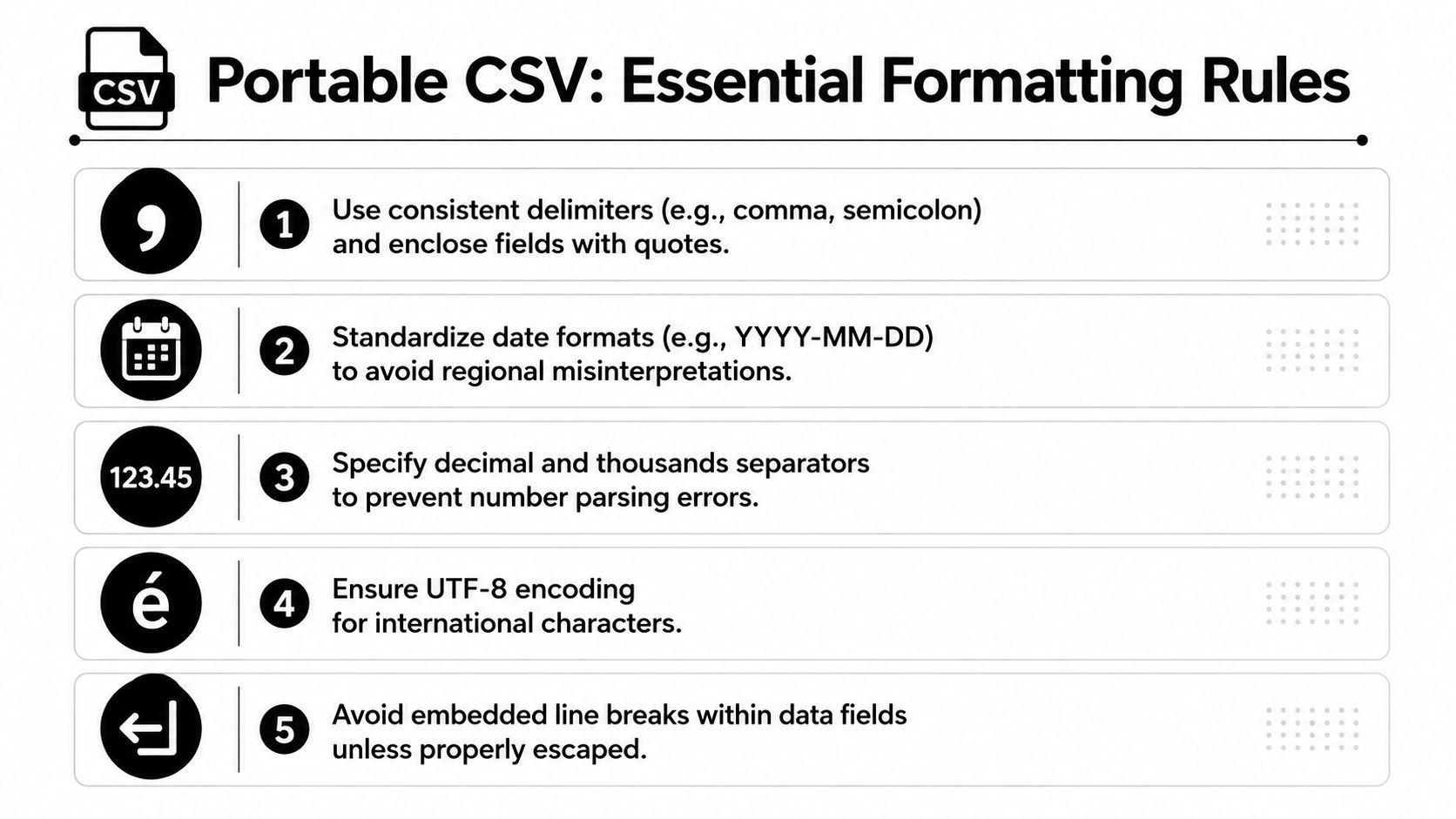
A file that opens fine on your machine can still fail on someone else's laptop. That's usually not because CSV is broken, it's because the export settings were loose and the receiving tool guessed wrong. Government guidance is clear about the basics, use UTF-8 encoding, one agreed delimiter, one header row, and proper quoting for any field that contains delimiters, quotes, or line breaks (UK CSV guidance).
The settings that matter most
Delimiter choice is one of the fastest ways to ruin a handoff. A comma works in many cases, but some platforms expect semicolons, and some regional setups read decimal commas differently. One enterprise export guide exposes controls for header naming, text qualifiers, field delimiters, line delimiters, date separators, decimal separators, and decimal precision, which tells you CSV is really a family of dialects, not one universal output (Angles for SAP CSV export documentation).
That means the safest choice depends on the target system. If the receiving team opens the file in Excel, test the exact delimiter and date format they use. If the downstream system expects fixed column names, don't improvise the headers. If you send international names or notes, UTF-8 keeps the text readable instead of turning it into junk.
IBM's file format examples add another practical rule, the first row must contain column headers, each row must carry the required data in the right place, and the file must be UTF-8 encoded (IBM CSV file format examples). That sounds basic, but a lot of broken exports fail on those basics.
Where exports break in the real world
The failures are usually quiet. Leading zeros disappear. Dates swap month and day. A decimal comma turns one number into two fields. Or, worse, the file still opens and nobody notices that the values changed shape.
Rule of thumb: if a spreadsheet user in another country has to guess at decimals or dates, your export isn't portable yet.
The safest habit is to standardize the export rules for the target system and stick to them. Use quoting when text contains separators. Keep one data type per column where you can. And test with a real import, not just a visual check in the editor.
Automating and scheduling your CSV exports
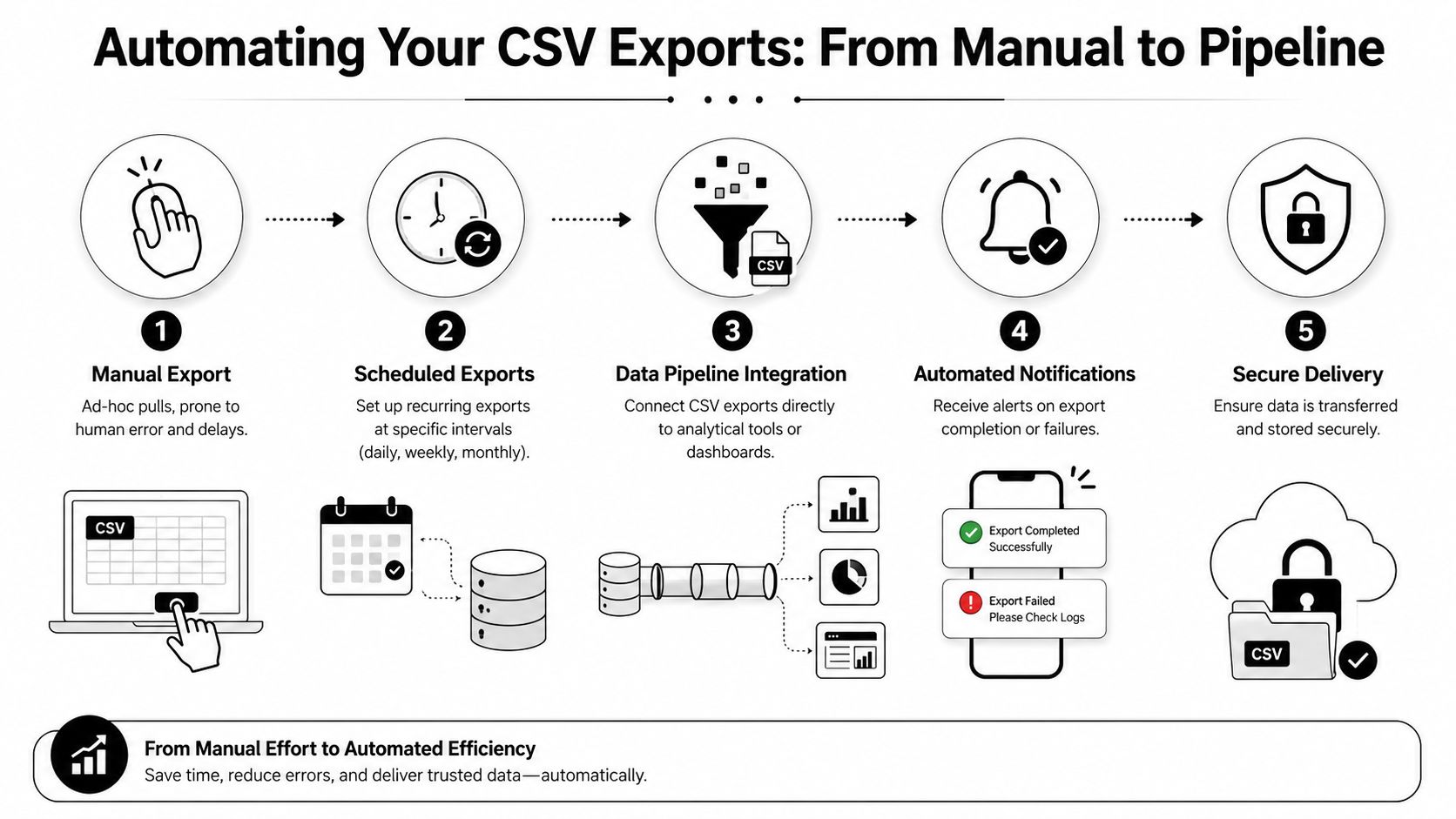
Manual exports work until the same report shows up every week. Then the process becomes copy, click, save, rename, upload, and repeat. Recurring exports remove the step most likely to slip when someone is busy, out sick, or working from an old template.
Use incremental exports when you can
For scale, incremental export is usually the better default. Instead of dumping everything every time, key the export on a last_updated timestamp or a version field so only changed records move through (Webeyez CSV export guide). That cuts file size, reduces load on the source system, and makes review easier on the receiving side.
Validation matters just as much as the export itself. Schema checks, duplicate detection, null and range checks, timezone and date verification, and sample imports help catch bad files before they reach downstream systems. Those checks are boring, and they save hours of cleanup later.
Build the handoff around the workflow, not the file
A good schedule follows the business rhythm. Billing exports often need a fixed cadence. Utilization exports may need a regular snapshot. Historical pulls may need a larger backfill first, then smaller refreshes after that.
IBM's analytics guidance treats CSV as a historical ingestion format, which is a useful reminder that the file should fit the downstream job instead of trying to do everything at once. The same logic applies whether the destination is a spreadsheet, a report, or a billing system.
TimeTackle fits here as one practical option because it can export calendar data to Excel or Google Sheets, and it also supports CSV export from calendar workflows. If your team is already using Google Calendar automation, that can sit between activity capture and reporting without forcing manual rebuilds every week. The value is not just speed. It is fewer chances for someone to change a filter, miss a row, or upload the wrong file.
Keep the schedule close to the system of record. The farther the file travels before validation, the harder it gets to trace an error back to its source.
When to use alternatives to CSV export
CSV is dependable, but it isn't always the right move. If a team needs live data, a spreadsheet sync, API pull, or warehouse sync may fit better than a file that someone has to download and reupload.
| Method | Best for | Freshness | Setup effort | Data volume |
|---|---|---|---|---|
| CSV export | Billing, reconciliation, ad hoc reporting, audit copies | Snapshot based | Low | Moderate |
| Google Sheets sync | Shared review, lightweight collaboration | Near real time in many workflows | Moderate | Lower to moderate |
| API pulls | Custom apps, detailed automation, direct system work | As often as the app calls it | Higher | High |
| Data warehouse sync | Cross-team analytics, long-term reporting, joins across sources | Scheduled or near real time, depending on setup | Highest | High |
CSV wins when the job is portable reporting. It loses when people need continuous refreshes, complex joins, or application-level automation. That's why the choice should follow the use case, not habit.
The other trade-off is control. A file is easy to inspect and archive, but it also relies on people handling it correctly. A sync reduces that manual work, but it adds setup, permissions, and more moving parts. For agency teams that mostly need a clean billing file or a weekly utilization pull, CSV still does the job with less overhead.
Catching silent data corruption before it reaches billing
The worst CSV problems don't look broken. They look normal enough that nobody stops to check them, which is how bad numbers make it into billing, finance, and client reports. One independent study on Dragonfly exports shows that quantities can export without units, and angle values can come out in radians even when the UI shows degrees, which means a CSV can be technically correct and still mislead the person reading it (Dragonfly CSV export documentation).
Treat every file as untrusted until checked
That problem is bigger than science software. Any export can drift if the schema changes, a header gets renamed, a locale changes how dates or decimals are written, or a field loses meaning on the way out without notice. For migration and handoff work, Kagool's guidance on common data migration problems is a useful parallel because the same bad habits show up whenever data moves between systems (Kagool migration guidance).
The safest checks are plain ones. Verify the schema. Compare the row count against what you expected. Import a small sample before you ship the whole file. Check nulls, ranges, and date zones. If the export includes measurement data, confirm that units survive the trip or are documented in the file name or header notes.
Make the export explain itself
If the CSV depends on hidden assumptions, the next person will guess. That's when silent corruption sneaks in. A good export tells downstream users what the columns mean, what the units are, and what the delimiters and formats are set to, so nobody has to reverse-engineer the file after the fact.
The main habit here is simple. Don't trust the export because it opened. Trust it after it passes validation and matches the business rule that produced it in the first place.
If you're trying to get agency reporting out of spreadsheets and into a cleaner flow, TimeTackle can help by capturing calendar-based work and exporting it to CSV, Excel, or Google Sheets with filters that fit billing and utilization work. Visit TimeTackle to see how it fits into a tighter reporting setup for your team.