
The starting point isn't often proof. It's a feeling.
Your laptop wakes up warm when you haven't touched it. The fan spins hard during simple work. A browser tab reloads oddly. Or maybe nothing obvious happens at all, and that's what bothers you. On a work machine especially, you may wonder whether someone can see your screen, track your apps, or review what you do after hours.
That suspicion isn't irrational. The hard part is that modern monitoring rarely looks dramatic. You usually won't get a flashing warning, a pop-up that says “remote session active,” or a mystery app with “spy” in the name. If you want to know how to know if your computer is monitored, the right approach is calm and methodical. Start with what you can see. Then move into processes, network traffic, and logs. Build a case from weak signals to stronger evidence.
A second point matters just as much as the technical checks. The answer changes depending on whether the device is yours or your employer's. A company-issued laptop can have legitimate oversight tools installed for security, support, or policy enforcement. A personal laptop showing the same kind of activity is a very different problem.
That feeling that someone is watching
The old advice was simple: look for weird remote-control software. That advice is out of date.
Monitoring has shifted from visible admin tools to stealthier endpoint software over the past two decades, which means you now need to check system artifacts instead of waiting for an obvious remote-access window to appear, as noted in this overview of modern employee monitoring detection. In plain terms, the useful question isn't just “Is spyware installed?” It's whether the machine shows evidence of managed access, logging, or data leaving the system at specific times.
That shift changes how you should think. Performance issues alone don't prove anything. Slowdowns, battery drain, and hot CPU bursts can come from sync tools, browser tabs, antivirus scans, updates, or badly written software. Those symptoms matter only when they line up with something more concrete.
Practical rule: Don't treat one odd symptom as proof. Treat it as a reason to collect better evidence.
A lot of people also blur together two separate concerns. One is ordinary workplace oversight on a company device. The other is abnormal monitoring that goes beyond what you were told, or activity on a personal machine that you never authorized. Those aren't the same. If you work in a managed environment, it helps to understand the wider tension between visibility and autonomy, which is why this discussion of productivity and privacy in employee tracking is worth reading alongside the technical checks.
What counts as useful evidence
Useful evidence has timestamps, names, and patterns. That includes things like:
- Known software artifacts you can tie to a vendor, publisher, or install date
- Recurring processes or services that relaunch after reboot or run under system context
- Unexpected outbound connections tied to a specific executable
- Login or security events that show access at times you didn't expect
By contrast, vague evidence is mostly noise. A loud fan, a brief freeze, or a high memory number in isolation doesn't get you far.
The mindset that works
Don't start by deleting things. Don't start by killing random services. And if it's a company device, don't start by trying to “beat” the system.
Start by observing. Write down times. Take screenshots. Match one sign against another. If an unknown process appears at the same time the device starts sending traffic out, and a log also shows odd access, that's a real lead. If none of those line up, you may be looking at ordinary administration or background maintenance instead of surveillance.
First-look forensic checks you can do right now
Start with the easy checks because they give you a baseline fast. You're not trying to prove a theory yet. You're trying to answer a simpler question: “Do I recognize what's installed and what starts automatically on this machine?”
Check installed apps and recent additions
On Windows, review the installed applications list and sort by install date if you can. On macOS, look through Applications and any management-related utilities. You're looking for software you don't remember approving, especially anything tied to remote access, screen capture, device management, or activity tracking.
Don't panic if you see tools you don't recognize. On a work computer, IT agents, endpoint protection, VPN clients, and support tools are common. The issue is whether the name, publisher, and purpose make sense for your setup.
Use this quick screen:
- Unknown publisher. An app with no clear vendor is more suspicious than one from a known IT or security provider.
- Odd naming. Generic names can be normal, but a cluster of vague utilities deserves a closer look.
- Recent install timing. New software that appeared around the time your concerns started is worth noting.
- Mismatch with policy. If your company says it uses only certain tools, and you find another one doing similar work, ask why.
Review startup items and login items
A lot of persistent software lives here because it wants to relaunch every time the device boots.
On Windows, inspect Startup apps and also look at what runs in the background after sign-in. On macOS, review Login Items and background permissions. A hidden monitor often relies on persistence, so the startup list can reveal more than the desktop does.
If a program starts every boot, runs quietly, and you can't tie it to a real need on the machine, put it on your list for deeper checking.
Check browser extensions
Browser extensions are a common blind spot. People look at Task Manager but forget the browser can be its own monitoring surface.
Review every installed extension in each browser you use. Remove or disable anything you don't recognize only if it's your personal device and you're confident it isn't business-critical. On a work device, document first and ask before changing anything.
A simple way to judge an extension:
| Question | Why it matters |
|---|---|
| Do you remember installing it? | User-installed tools should be familiar |
| Does the name match what it does? | Vague labels deserve scrutiny |
| Does it ask for broad site access? | Wide permissions can capture more than expected |
| Is it tied to company policy? | Managed browsers may push approved extensions |
Safe research beats guesswork
If you find something unfamiliar, research the exact process name, app name, and publisher. Don't rely on one forum post or one random comment. Cross-check the file location, digital signature if available, and whether the software is known to be part of your security stack or IT management.
What doesn't work here is acting on instinct alone. I've seen people remove a remote support tool, break patching or VPN access, and then create a bigger mess than the original suspicion. The goal at this stage is a clean inventory, not a showdown with the machine.
Finding suspicious processes and services
The next layer is live activity. In this phase, you stop asking “What's installed?” and start asking “What is running right now, under what name, using what resources, and from what location?”
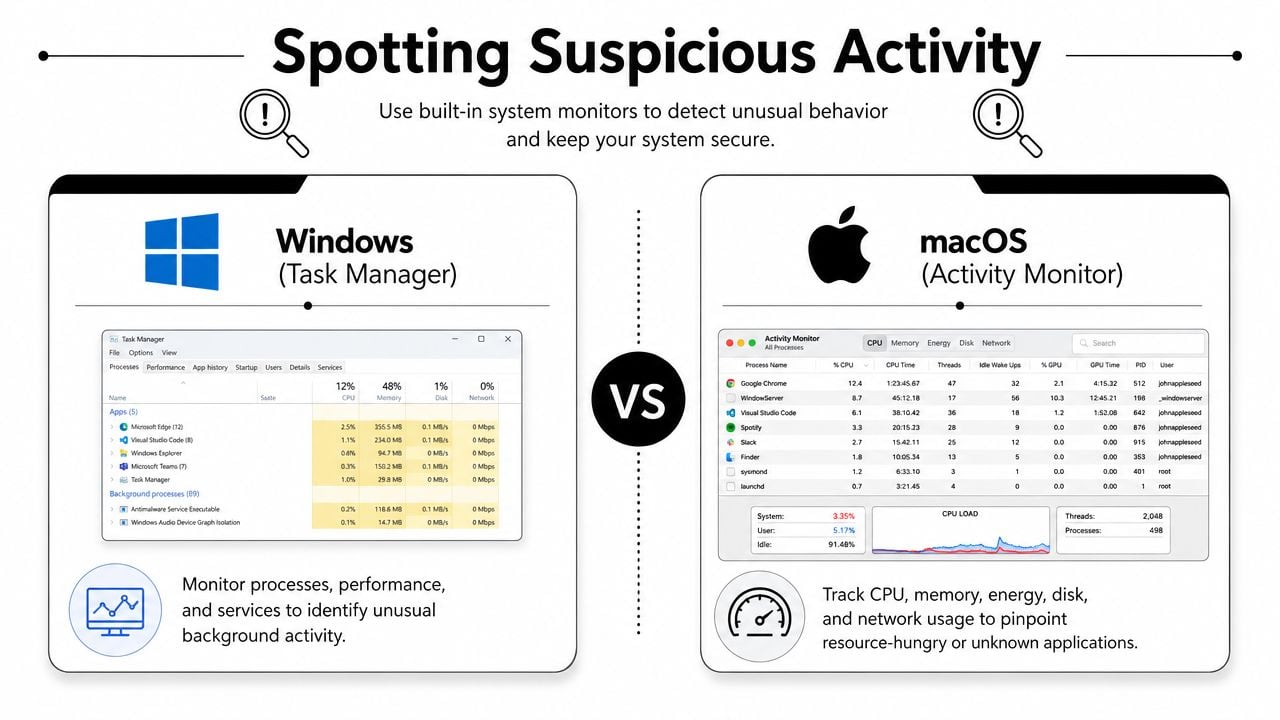
What to look for in Task Manager and Activity Monitor
On Windows, open Task Manager. On macOS, open Activity Monitor. If you use Linux, commands like top or similar tools help you inspect running activity. Don't fixate only on strange names. Some of the most relevant clues are patterns:
- A background process with recurring CPU spikes when you aren't doing much
- Memory use that stays high for a tool you never open
- A process that restarts quickly after you quit it
- A service running under privileged context with no obvious reason
- A file path that looks wrong for the type of app it claims to be
This is also where many people make a bad call. They see one busy process and assume it's the culprit. In reality, browser helpers, sync clients, security agents, and update services can all be noisy. Context matters.
Distinguish system activity from user-level oddities
System processes often have names that sound obscure because operating systems use lots of background components. That alone means nothing. The better test is whether a process belongs where it says it belongs.
Check these details before you judge it:
- Publisher or developer. Known vendor names lower suspicion, though they don't end the inquiry.
- File location. A legitimate system component usually lives in an expected path.
- Parent process. If an unknown tool launches from a management agent or support client, that tells you something.
- Timing. Does it appear after login, after connecting VPN, or only when idle?
A process tied to remote support or device management may be normal on a company machine. The same process on a personal device, with no reason for it to exist, is much harder to explain away.
Don't kill first, investigate first
Stopping random tasks can destabilize the machine or wipe useful clues. A safer workflow is:
- Capture the name exactly as shown.
- Open file location if your system allows it.
- Check the publisher and properties.
- Take note of the time and resource usage.
- See whether it reappears after restart or sign-out.
A process becomes interesting when it combines stealth, persistence, and a purpose you can't account for.
Here's a practical distinction I use with clients. An odd process by itself is weak evidence. An odd process that persists, contacts the network, and appears around suspicious access times is strong evidence. That's the difference between “maybe” and “worth escalating.”
Services deserve their own look
On Windows especially, services can tell you more than the main process list. Monitoring products often install components that run as services so they start before or independently of a normal user session.
When reviewing services, pay attention to startup type, display name, underlying executable, and whether the description reads like real vendor documentation or vague filler. Again, don't assume “unfamiliar” means “malicious.” Plenty of legitimate services look obscure. The question is whether the whole package adds up.
Monitoring your network for hidden connections
If software is collecting logs, screenshots, usage records, or other activity, it usually needs a way to send that data somewhere. That's why network inspection is one of the best places to look for hard evidence.
A practical check on Windows is netstat -b -n, which shows active connections and the programs using them. Tools such as GlassWire or TCPView are also commonly used to visualize outbound traffic and spot unfamiliar service names or destinations, as described in this guide to checking for monitoring through network activity. If you prefer a broader overview of software categories in this area, this remote work monitoring software overview gives useful context without changing the technical basics.
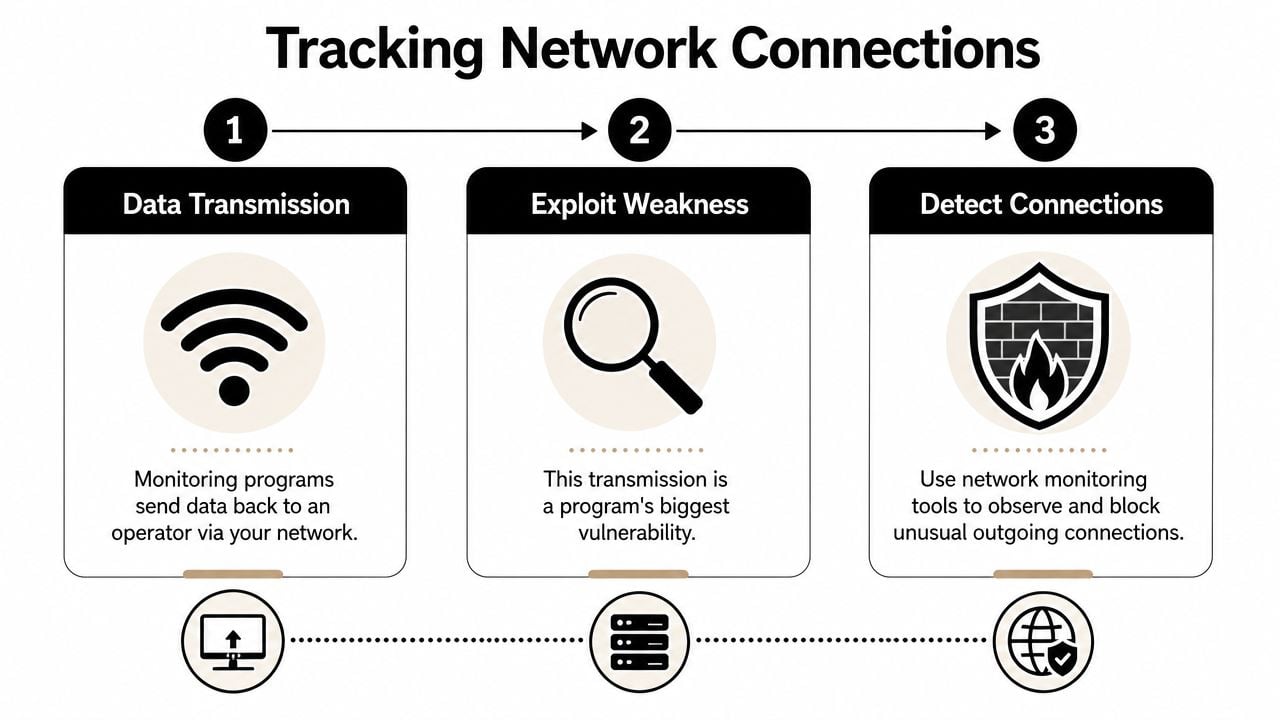
Why network checks are stronger than “the computer feels weird”
Most monitoring tools can hide from casual view. They can run in the background, use generic names, and avoid visible windows. But if they send data out, they leave traces in active connections or recurring traffic patterns.
That doesn't mean every outbound connection is bad. Operating systems, browsers, cloud sync apps, messaging tools, VPNs, and security platforms all talk to the network constantly. The trick is correlation.
Look for combinations like these:
- Traffic when the machine should be quiet
- Connections from a process you can't identify
- Repeated outbound activity after login, even with no apps open
- A process name in network output that also looked odd in Task Manager
How to read the results without overreacting
The raw output can look intimidating, but your first pass is simple. Focus on which executable owns the connection, whether you recognize that program, and whether the timing makes sense.
A workable routine:
| Check | What you're asking |
|---|---|
| Program name | Do I know what this is? |
| Connection timing | Why is it active now? |
| Repetition | Does it keep coming back? |
| Cross-check | Did I already flag this process elsewhere? |
Visual tools help because they turn a wall of text into a list you can sort and watch over time. That matters because one snapshot can mislead you. Ten minutes of observation is often more useful than one command run at a random moment.
What counts as a real red flag
The strongest signal is unexpected network activity from an unfamiliar program, especially when your device is idle or when no app should be uploading anything. If that same program also appears in startup items or as a persistent service, your confidence goes up.
What doesn't work is obsessing over every connection. Modern systems are noisy. You're trying to separate ordinary chatter from traffic that has no clear business being there.
If the machine is sending data out when you're not actively using anything that should sync or upload, stop and document that pattern before you change the system.
For a company laptop, that record gives you something concrete to bring to IT or HR. For a personal machine, it gives you a basis for deciding whether to isolate the device and investigate further.
Analyzing system logs for unauthorized access
Logs are where suspicion either gets firmer or starts falling apart. They aren't perfect, but they're far better than guessing from heat, lag, or fan noise.
Microsoft community guidance points people to Windows Defender Security Center history and Windows Firewall logging when they want to review suspicious activity, because system-level logs often reveal remote-access or monitoring artifacts that visual inspection misses. Login activity also matters. Windows security logs record events such as Event ID 4624 for a successful logon and Event ID 4625 for a failed logon, which helps you check whether access happened at times you didn't expect, based on Microsoft guidance on reviewing remote access and firewall history.
A log view helps when you need to inspect the details:
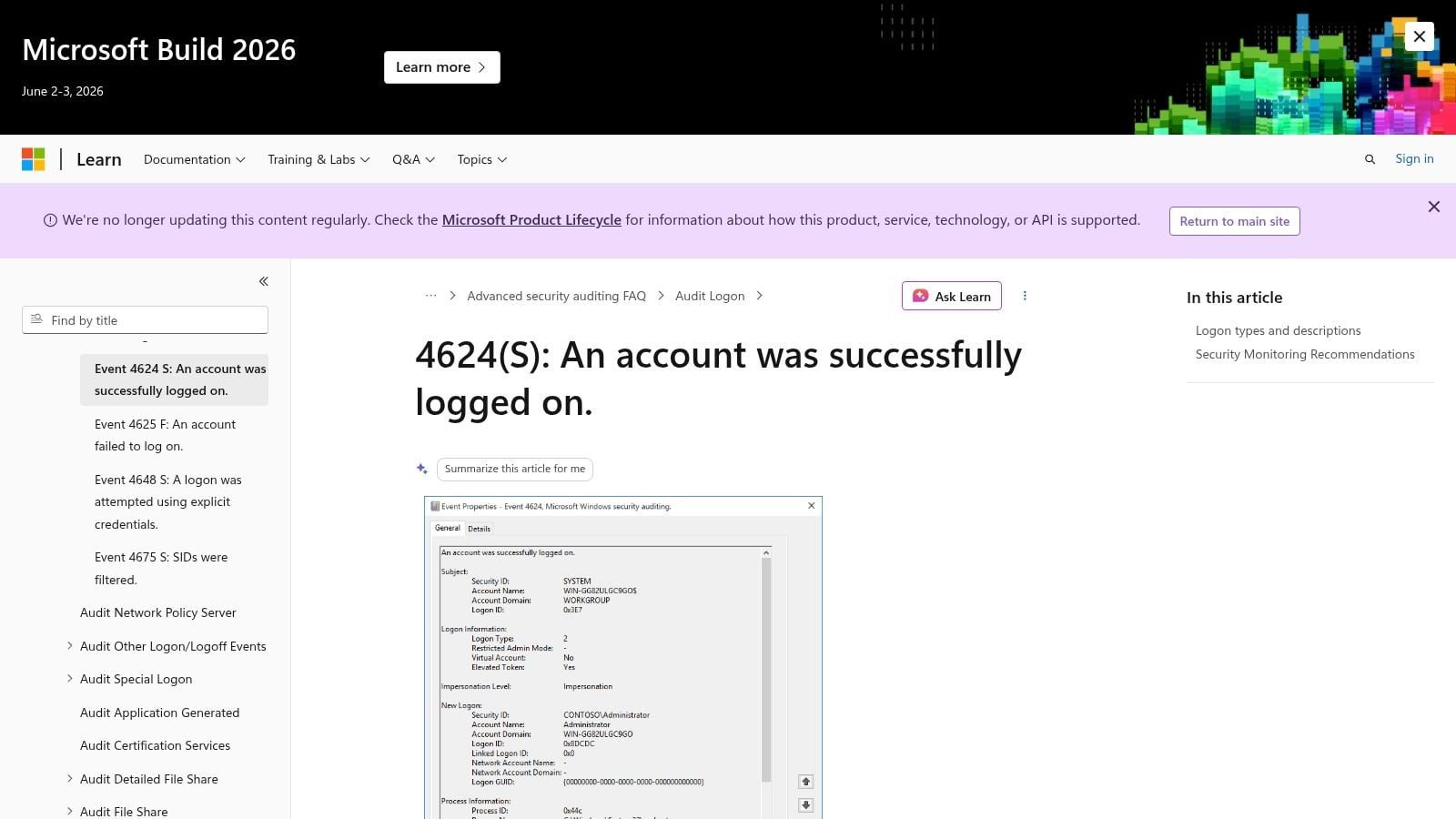
The entries worth your attention
Don't try to read every line in Event Viewer or a system console. You'll drown in noise. Focus on access and security history.
Start with:
- Successful logons at times you know you weren't using the device
- Failed logons clustered around a later success
- Firewall events that show allowed or blocked connections you can't explain
- Security history entries tied to software changes or remote-access behavior
On macOS, the exact workflow differs, but the principle is the same. You want timestamps, event types, and anything that ties an access event to a session you didn't start.
Build a timeline, not a pile of screenshots
One way to rapidly improve evidence quality is to build a short timeline instead of collecting random anomalies.
For example:
- Time A. Unknown process appears.
- Time B. Outbound network traffic starts.
- Time C. Logon event or firewall event appears.
- Time D. Same pattern repeats the next day.
That kind of sequence is persuasive because it links behavior across different parts of the system.
False positives are real
Legitimate remote support tools, VPN software, endpoint detection products, and IT management agents can all look suspicious from a user's point of view. That's why logs need interpretation, not just collection.
A more reliable test is whether the process name, publisher, parent process, and network behavior all fit authorized software. If they do, you may be seeing normal administration. If they don't, and the logs show unexplained access times or recurring traffic, the case gets stronger.
Logs don't just tell you that “something happened.” They tell you when it happened, which is what turns a hunch into evidence.
Corporate vs personal device and what to do next
Once you've gathered signs, the ownership question takes over. The same technical finding can mean “normal oversight” on one machine and “security incident” on another.
Owl Labs reported in 2024 that 62% of hybrid workers said their employer monitors them in some way, while 37% said they do not know what data is collected, which shows how much uncertainty people still have about what's being tracked and why, according to this discussion of employee monitoring concerns. That uncertainty is why context matters more than instinct.
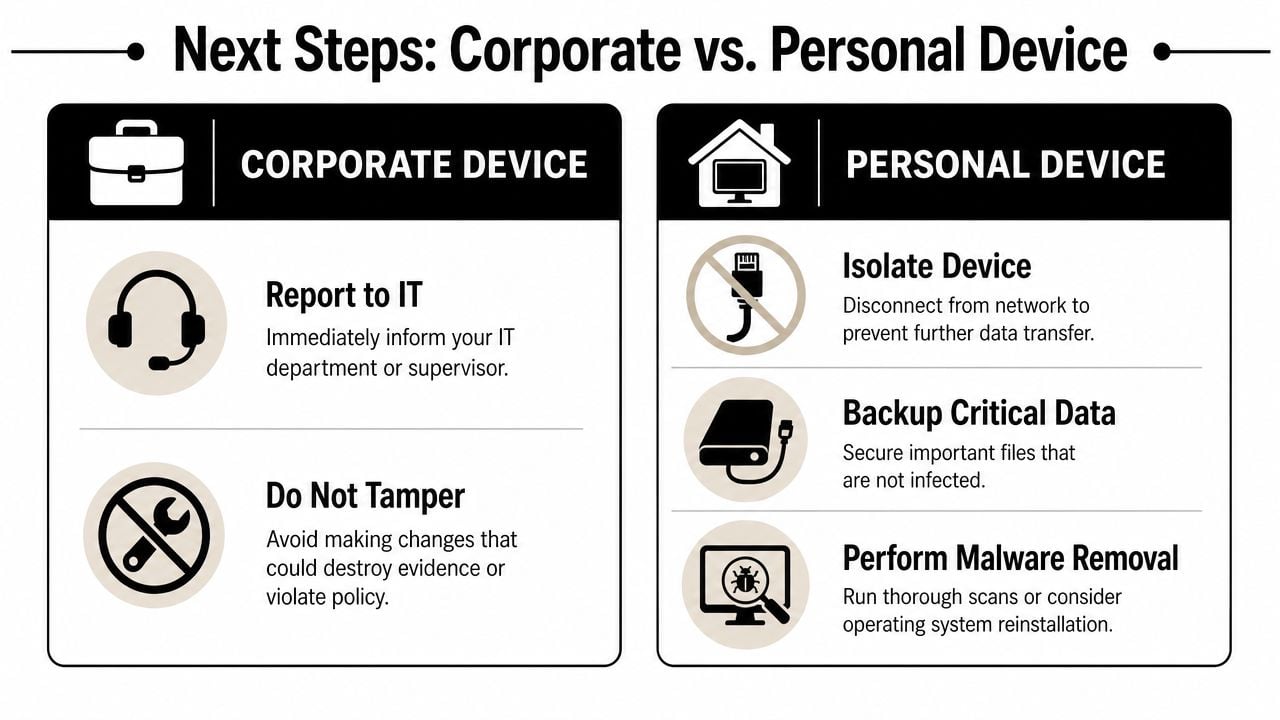
If it's a corporate device
On a company-issued machine, some level of monitoring may be expected. Device management, access logging, endpoint security, and support tooling are common. That doesn't automatically make every form of surveillance reasonable, but it does mean you should proceed carefully.
What I'd do on a work device:
- Check policy first. Review the acceptable use policy, remote work policy, and any notice you received about monitoring.
- Document before changing anything. Save timestamps, screenshots, process names, and network observations.
- Ask specific questions. Don't ask “Are you spying on me?” Ask what categories of data are collected, whether screenshots or keystrokes are involved, and who can access that data.
- Escalate through the right path. Start with IT or HR, depending on the issue.
- Preserve evidence. Don't uninstall tools or wipe logs unless your security team tells you to.
If you work in Mississippi and want a legal context for workplace privacy questions, this resource on privacy for Mississippi workers gives a useful starting point. For teams trying to think about accountability without creeping into constant surveillance, this remote employee time tracking overview is also helpful because it separates time visibility from hidden technical monitoring.
If it's your personal device
A personal device is different. If you find unexplained monitoring behavior there, treat it as a security problem first.
A sensible response looks like this:
- Disconnect the device from the network if you see unexplained outbound traffic that keeps returning.
- Back up critical files that you trust and need to keep.
- Run a full security review with your trusted protections and inspect persistence points again.
- Change important passwords from a different device if you suspect account compromise.
- Consider a clean rebuild if the signs are strong and you can't confidently explain them.
The trade-off is simple. Deep manual cleanup can work, but it can also miss persistence. If the device stores sensitive client, financial, or personal data, a clean reinstall is often the safer path.
How to make the judgment call
Use a simple threshold test:
| Situation | Likely interpretation |
|---|---|
| Known IT tools, clear policy, normal support activity | Probably authorized management |
| Unknown software plus unexplained logs or traffic | Needs escalation |
| Personal machine with recurring hidden activity | Treat as compromise until proven otherwise |
| One weak symptom with no supporting evidence | Keep observing, don't jump |
The goal isn't to prove the worst story. It's to reach the most defensible one. That's what separates a useful investigation from a panic spiral.
If your team wants visibility into work without the mess of manual timesheets or hidden monitoring, TimeTackle is worth a look. It captures work from the calendar, organizes it with rules and tags, and gives leaders clear reporting without turning day-to-day operations into a surveillance exercise.