
If you’re reading this, there’s a strong likelihood month-end billing is already annoying you.
You’ve got hours sitting in calendars, project notes spread across tools, maybe a CRM with client names that don’t match what finance uses, and then a generic Excel invoice template that still expects someone to type everything in by hand. That’s where many teams lose time, not in the math itself, but in the copying, checking, fixing, and rechecking.
I’ve seen the same pattern in agencies repeatedly. The invoice file isn’t the problem. The problem is that the file was built like a one-off document instead of a working system.
That’s the difference this guide focuses on. If you want to know how to make an invoice using excel in a way that holds up under repeat use, you need more than a logo and a subtotal formula. You need a layout that prints cleanly, formulas that don’t break, invoice numbers that stay in order, and a way to pull in actual tracked time without manual re-entry.
Why building your own invoice in Excel is still a smart move
A client asks for a monthly invoice by project, split by role, with retainer hours shown separately from overages. Finance wants the totals tied back to source data. Account managers want the format to stay consistent across every client. Excel handles that kind of billing better than many invoice apps because you control the structure instead of working around someone else’s fields.
That control matters in agency operations. Billing rules are rarely uniform for long. One client wants a clean summary. Another wants line-item detail pulled from tracked time. A third needs purchase order references, tax treatment, and custom payment terms on every invoice. If the tool cannot match those requirements, the team starts exporting data, editing PDFs, and patching the process outside the system.
Excel still fits real agency work
Excel remains a practical choice because the workbook is visible. Operations can inspect formulas, finance can trace totals, and anyone on the team can see how numbers were built. That is hard to beat when clients question hours or when internal reporting needs to match what was sent.
In practice, Excel works well for agencies that need:
- Client-specific invoice formats without rebuilding the billing process each time
- Transparent calculations that finance can audit cell by cell
- Simple exports to PDF for clients and CSV for internal reporting
- Direct links to raw operational data such as time logs, client lists, and project codes
It also scales better than people expect if the file is set up as a controlled template. For teams that bill from tracked hours, pairing Excel with a template for invoice hours worked gives you a cleaner starting point than a one-page generic form.
Where Excel usually fails
The problem is rarely Excel itself. The problem is the way teams build the file.
A quick invoice sheet gets copied month after month. Someone inserts a row in the middle of the totals section. A client address is updated in one file but not the master version. Invoice numbers are typed manually and duplicated six weeks later. At that point, the workbook is no longer a process. It is a risk.
The fix is straightforward. Treat the invoice as a small billing system, not a document. Keep the layout fixed, store client details in one place, pull in time and rate data from source sheets, and control numbering instead of typing it by hand.
Build vs buy is a real operations decision
Buying a dedicated invoicing app makes sense if your billing is simple and standardized. Building in Excel makes sense when billing logic changes by client, your finance team needs auditability, or your time data lives in other tools and needs cleanup before invoicing.
That trade-off is the same operational question covered in make or buy decision making. Agencies run into it constantly. If software handles 80 percent of the workflow but your team still has to rework the last 20 percent manually, the time savings disappear fast.
A good Excel invoice setup is not flashy. It is dependable, repeatable, and easy to audit. For many agencies, that is still the smarter move.
Laying the foundation for a professional invoice layout
A client opens your PDF on a phone, forwards it to accounts payable, and decides in ten seconds whether it looks credible. That judgment happens before they read a single line item. The layout needs to do its job immediately.
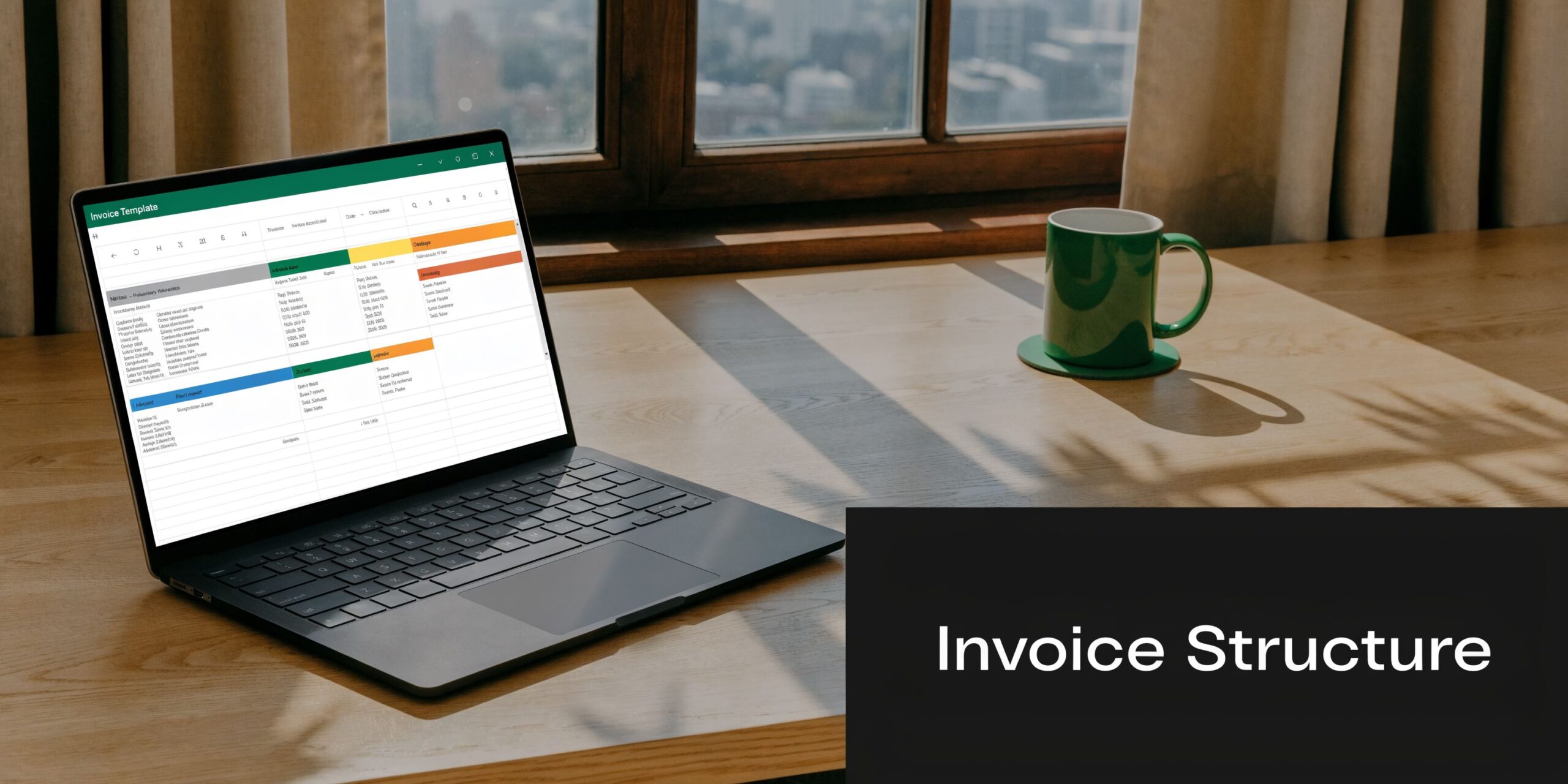
Start with page setup
Set the sheet up for output first. If you wait until the end to adjust print settings, column widths, spacing, and logo placement usually need to be rebuilt.
Use one paper size across your process. A4 works well for international clients. Letter is fine if nearly all of your billing stays in North America. What matters is consistency, especially if several people copy the same template.
Set these options before adding content:
Paper size
Choose A4 or Letter first so your columns are sized for the final PDF.Margins
Use 0.5-inch margins. That gives enough breathing room without wasting space.Orientation
Use Portrait. A horizontal page orientation often leads to bloated invoices with too many columns.Scale
Keep the invoice to one page when possible. A clean one-page PDF is easier for clients to review and approve.
Build fixed zones for each type of information
A good invoice layout is predictable. The same information should appear in the same place every time, no matter which client receives it.
I use four zones:
| Area | What goes there | Why it matters |
|---|---|---|
| Top left | Company logo, business name, address | Establishes who sent the invoice |
| Top right | “INVOICE”, invoice number, issue date, due date | Gives finance the reference details fast |
| Middle | Bill-to client details | Separates recipient details from your business details |
| Lower section | Line items, subtotal, tax, total, payment terms | Keeps charges and payment information easy to follow |
For the title, keep it simple. Merge a header range if you want a cleaner treatment, use a larger font size for “INVOICE,” and avoid decorative styling that makes the sheet harder to maintain.
Keep formatting restrained
The best invoice templates are easy to scan. They do not try to impress anyone with design tricks.
Use one font family. Use one accent color. Keep borders light and limited to the billing table and totals area. Right-align every numeric column, especially rates, hours, and amounts, so finance teams can check the figures quickly.
White space matters too. Crowded invoices create questions, and questions slow payment.
Place the billing table lower on the sheet
Reserve the top section for sender details, client details, invoice metadata, and branding. Start the line-item area around row 9 or lower so the page does not feel compressed.
For agency billing, these headers cover most cases:
- Date or period
- Description
- Hours or quantity
- Rate
- Amount
That structure works for both manual entry and imported data. If your team exports hours from a tracker, matching your Excel columns to the export fields saves cleanup later. That matters if you plan to pull approved time from tools like TimeTackle instead of retyping project hours every month. If you want a practical field reference, this invoice template for hours worked shows the standard inputs service businesses usually need.
If you bill by deliverable, change “Hours” to “Qty” and keep the rest.
Add the details that prevent payment delays
Leave dedicated cells for:
- Invoice number
- Invoice date
- Due date
- Client name and address
- Payment terms
- Currency
- Payment instructions
Skipping any of these creates avoidable back-and-forth. Missing payment instructions delay transfers. Missing currency creates disputes for international clients. Missing due dates give accounts payable teams an excuse to put your invoice at the bottom of the queue.
A professional invoice layout is not complicated. It is consistent, easy to scan, and built so the data can come in cleanly from the systems your team already uses.
Adding the essential formulas that do the math for you
A professional layout makes the invoice readable. Formulas make it usable.
If you’re still typing line totals manually, stop. That’s the fastest route to billing mistakes, and it’s exactly what Excel is supposed to remove.
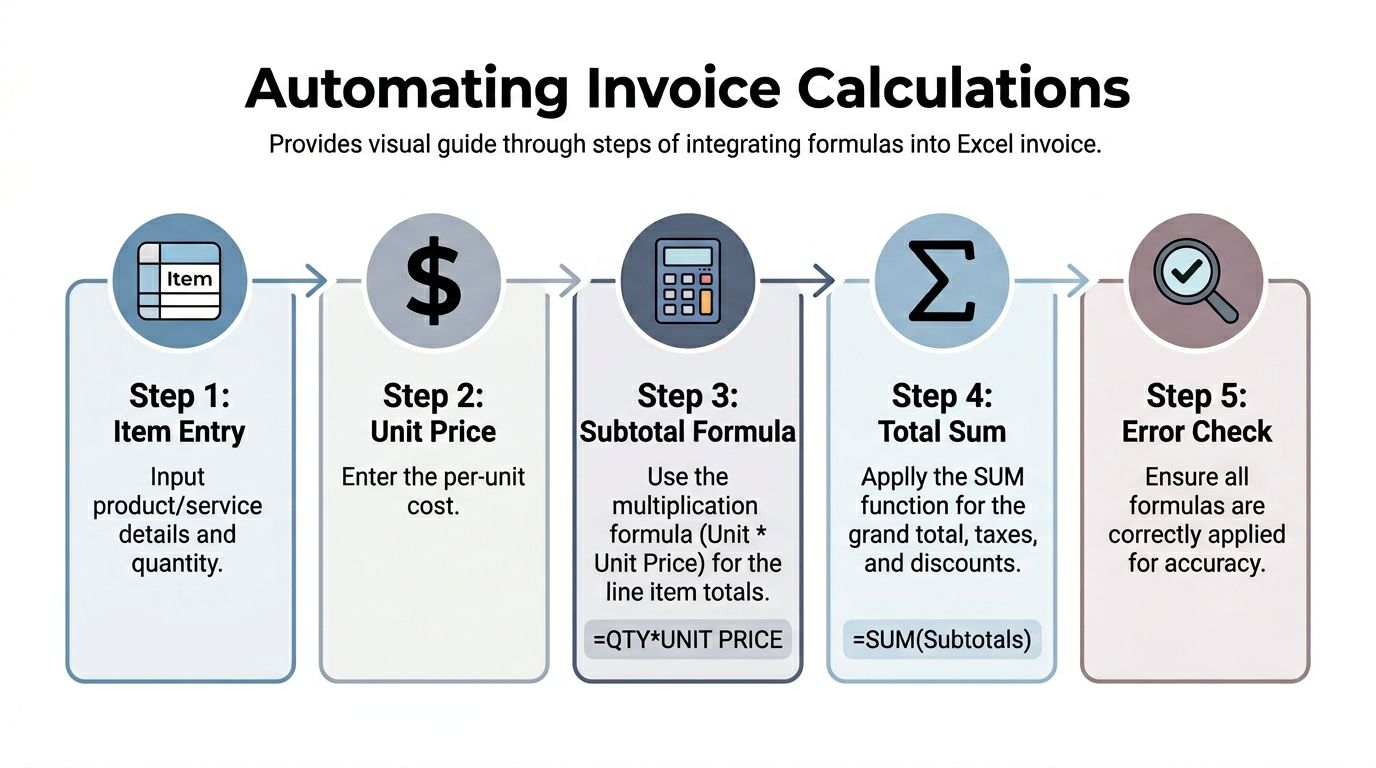
Turn the line-item area into an Excel Table
This is one of the most useful moves in the whole workbook.
Select your billing rows and press Ctrl+T. Excel will turn that range into a formal table, which means formulas copy down automatically, formatting stays consistent, and the table expands when you add new rows.
According to the verified data, using Excel tables and built-in SUM functions for line items can reduce calculation errors by up to 40% compared to manual entry, and Harvest benchmarks show a well-automated template can cut invoicing time from 20 minutes to 2 when paired with time tracking exports and lookup functions (reference).
Use the core line-total formula
The standard formula is simple:
=Quantity*UnitPrice
In many invoice layouts that might look like:
=C10*D10
That calculates the amount for one row. If the line item is hours-based, Quantity is your hours column and UnitPrice is your hourly rate. If it’s deliverable-based, Quantity is the number of units.
The better version, especially in a reusable template, hides blank rows:
=IF(C10="","",C10*D10)
That pattern appears in the verified invoice examples and keeps the sheet clean. You won’t see zeros all over the invoice before data is entered.
Sum the subtotal and final amount
Once each row calculates its own amount, your subtotal formula is straightforward:
=SUM(G10:G20)
The exact range depends on your layout, but the principle stays the same. Put subtotal below the table, then calculate tax, then final total.
A common pattern is:
| Label | Example formula |
|---|---|
| Subtotal | =SUM(E10:E25) |
| Tax | =D23*0.08 |
| Total | =D23+E24 |
If you don’t charge tax on some invoices, keep the tax formula in place and let it return zero or blank based on a condition you control elsewhere.
Keep formulas readable
A lot of broken invoice templates come from people trying to be too clever.
Use direct formulas where you can. Keep labels clear. Avoid burying logic inside nested formulas unless the business rule requires it. If someone else on your team can’t audit the workbook quickly, the template is too complicated.
Here’s a good standard:
Line math stays at row level
Calculate each item amount in its own row.Summary math stays in the summary block
Don’t mix subtotals and taxes into the table itself.Business rules get their own cells
Put tax rate, currency, or discount settings in visible helper cells or named cells.
Add lookups only where they save time
VLOOKUP or similar functions are useful when rates, client names, or project codes already live on another sheet.
For example, if you keep a client-rate table in a separate tab, you can pull a standard rate based on the selected client or project code instead of typing it again. That’s especially useful when your team exports time data and wants invoice rows to match the approved rate card.
If you need a refresher on how the supporting logic works, this walkthrough of timesheet Excel formulas is useful because the same approach applies when your invoice depends on tracked hours.
“If a formula saves ten seconds but makes the sheet harder to trust, it’s not an improvement.”
Test the sheet before you trust it
Don’t stop when the formulas look right. Test edge cases.
Create a fake invoice with:
- one blank row in the middle
- one zero-value line
- one decimal quantity
- one tax-exempt scenario
Then compare the workbook result to hand math. If the totals match in messy cases, your template is ready. If not, fix it now. Bad invoice logic doesn’t stay small. It repeats every month.
Automating your workflow with advanced techniques
A reusable invoice template should survive handoffs.
If an account manager, project lead, and finance coordinator can all use the same workbook without breaking numbering, formatting, or client details, the process is in good shape. That matters more than adding clever Excel tricks that only one person understands.

Set up invoice numbering that won’t drift
Invoice numbers need one owner and one rule.
For small teams, the simplest reliable setup is an Invoice_Log sheet with the last issued number, issue date, client, and workbook filename. Each new invoice pulls the next number from that log. It is easy to audit, and finance can see gaps before they become a month-end problem.
Teams that create invoices in higher volume can use VBA to increment numbers such as INV-001, INV-002, and INV-003 when a new invoice is created. I use that approach only when the team already works comfortably with macro-enabled files. Macros save time, but they also add maintenance, version-control issues, and security prompts that some clients and internal IT policies dislike.
Build branding into the template itself
Branding should be baked into the file, not recreated by whoever is in a rush that day.
Insert the logo once. Set fixed row heights and column widths. Define cell styles for headings, client details, line items, and totals. Use one accent color and one number format for money. Those decisions remove judgment calls, which is exactly what keeps invoices consistent.
The same principle applies to print settings. Lock the print area, margins, header spacing, and page scaling before the template goes into use. A file that looks right on screen but breaks in PDF is not finished.
Use a client database sheet to remove repeat typing
A separate Client Database sheet saves more time than people expect, especially in agencies with repeat monthly billing.
Keep one row per client with fields such as:
- Client name
- Billing contact
- Company address
- Currency
- Tax treatment
- Default payment terms
Then add a dropdown on the invoice tab and pull the rest of the fields with XLOOKUP. Older Excel versions can use VLOOKUP or INDEX/MATCH. The point is consistency. If the legal name or billing email changes, update it once in the database instead of fixing it across old templates and copied files.
This also sets up the next step cleanly if you plan to connect tracked hours to invoicing. A time tracking and invoicing workflow for freelancers follows the same logic. Keep client records structured, then feed approved work into the invoice with as little retyping as possible.
Protect the parts people should not touch
Automation fails when editable cells are not obvious.
Leave input cells modifiable and clearly shaded. Lock formula cells, headers, and numbering fields. Protect the sheet with a simple internal password if multiple people use the file. That will not stop a determined Excel power user, but it will prevent routine mistakes like pasting over totals or deleting a lookup formula.
I also recommend keeping raw data, reference tables, and the client-facing invoice on separate tabs with plain names. Invoice, Client_Database, Invoice_Log, and Raw_Time are better than clever labels that only make sense to the person who built the workbook. A scalable invoice system is one another team member can open and use correctly in five minutes.
Connecting your invoice to your time tracking data
For service businesses, the hardest part of invoicing usually isn’t building the template. It’s getting approved hours into the invoice without someone doing copy-paste work for half a day.
That’s where the system starts to pay off.
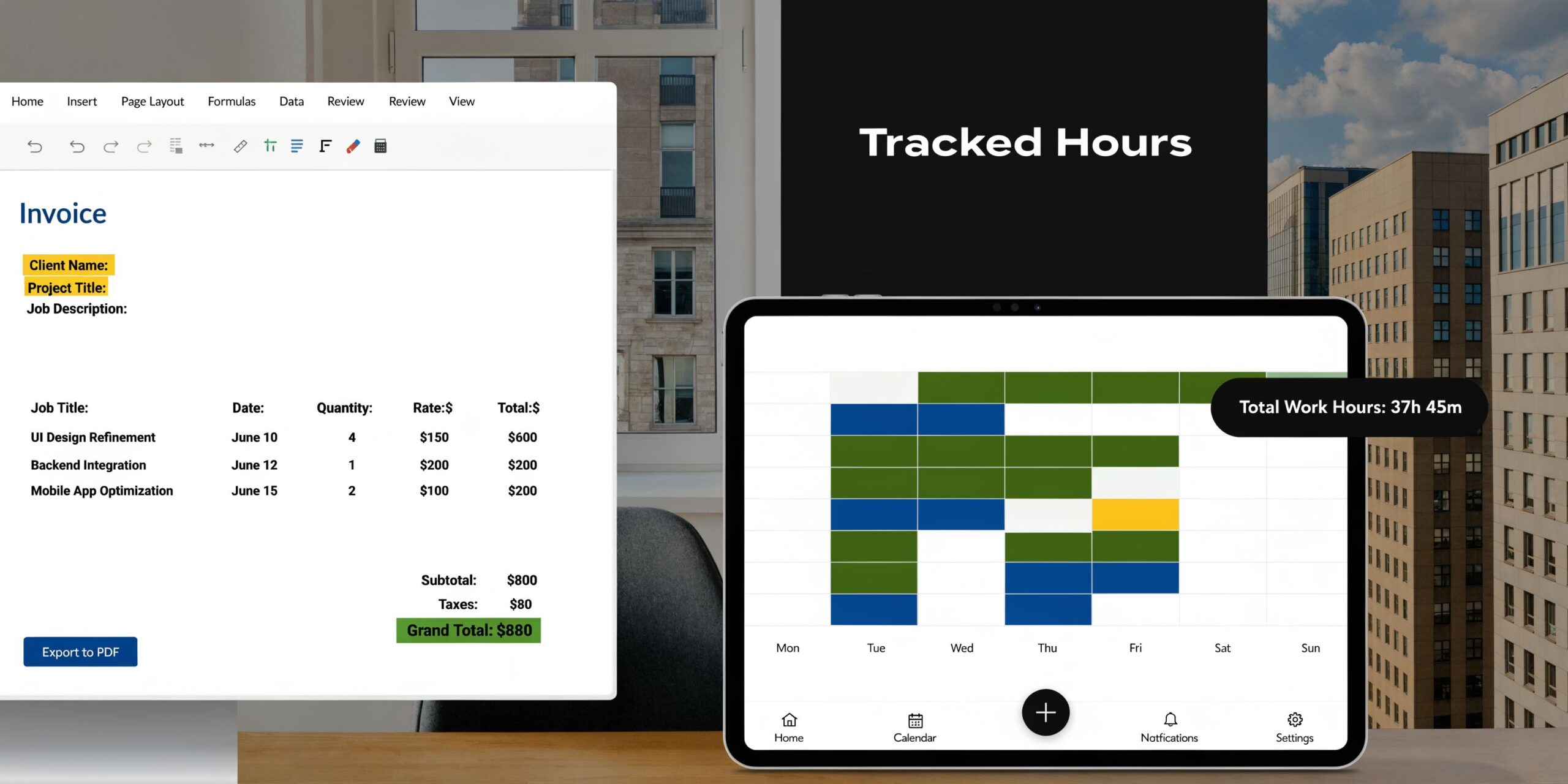
Import raw time into its own sheet
Don’t paste time entries directly into the invoice tab. That mixes source data with client-facing output, which is how sheets get corrupted.
Export tracked time to CSV and import it into a dedicated sheet such as Raw_Time. In an agency setup, that export usually includes date, team member, client, project, activity, and duration.
One practical option is TimeTackle, which captures calendar-based work and exports activity data for analysis in Excel. The point is not the tool itself. The point is getting structured time data into a sheet where Excel can work with it.
Summarize hours before they hit the invoice
Once raw entries are in Excel, reduce them into billable groups.
There are two dependable ways to do this:
PivotTable
Good when you want a quick summary by client, project, or service category.SUMIFS
Better when you want the invoice sheet to pull exact totals based on selected criteria.
If your invoice has one line for “Strategy hours” and another for “Design hours,” SUMIFS is usually cleaner because each invoice row can point to a category in the raw data.
For example, your formula can sum duration where:
- client matches the selected invoice client
- date falls within the billing period
- task category matches the invoice line
That removes manual adding and keeps the invoice tied to the source records.
Match client and project names before import
This is the part many guides skip.
If your time tracking export says “Acme Co” and your billing file says “Acme Corporation,” your formulas will miss the match. Before you automate anything, normalize naming conventions.
Use one client name standard. One project code standard. One service category standard.
If you invoice from tracked hours often, this guide on time tracking and invoicing for freelancers is a useful reference because it gets into the operational connection between captured time and billable output.
If the source data is messy, Excel won’t fix it. It will just calculate the mess faster.
Decide how detailed the invoice should be
Not every client wants the same level of detail.
Some want one line per project. Some want one line per person. Some want a single monthly services line with the backup kept internal. Excel handles all three, but you should decide that format before you wire the formulas.
That’s why I prefer keeping a summary sheet between raw data and the invoice itself. It gives operations a place to review and approve billing logic before the client sees anything.
When this is set up properly, the invoice becomes the last step in the process, not the place where calculations happen for the first time.
Finalizing and sending your invoice professionally
The last step is where a lot of good work gets undermined.
An accurate invoice still looks amateur if the PDF breaks across pages, the file name is messy, or the tax treatment is wrong for the client.
Export to PDF every time
Send invoices as PDF, not as editable Excel files.
That keeps the formatting fixed, stops accidental edits, and makes the document easier for the client’s finance team to process. In Excel, use the export or save-as-PDF option and check the preview before sending. Don’t assume the print area is right. Verify it.
Before you export, review:
- page breaks
- currency format
- due date
- payment instructions
A quick final scan catches more issues than people think.
Use a naming convention your finance team can live with
Good file names save time later.
A format like Invoice-2026-001-ClientName.pdf works because it sorts properly, identifies the client fast, and gives you a clean audit trail. Keep the same pattern every month.
Avoid vague names like:
invoice finalMarch billclient123 latest
Those names create confusion the moment someone has to search archives.
Handle cross-border billing inside the workbook
This matters more now than many teams realize. A 2025 HubSpot report shows 65% of mid-sized creative and financial agencies invoice cross-border, yet Excel tutorials often ignore dynamic tax and currency handling. That gap can lead to manual adjustments and risks 15% to 30% penalties for non-compliance in places like the EU. A formula like =IF(country="EU",subtotal*0.2,0) is one practical way to apply tax logic based on client location (reference).
That doesn’t mean every workbook needs a global tax engine. It does mean you should not hard-code one tax rate into every invoice if you bill internationally.
Keep the final sheet locked down
Once your template works, protect the formula cells and leave only the input fields editable.
That one step prevents accidental overwrites in totals, dates, or lookup formulas. It also makes handoff easier when more than one person on the team prepares invoices.
Frequently asked questions about Excel invoices
Can I do this in Google Sheets too
Yes, you can. The basic structure is the same.
The trade-off is that Excel is usually stronger for established finance workflows, print control, and some advanced workbook behavior. Google Sheets is convenient for shared editing, but if your invoice process depends on precise formatting and heavier spreadsheet logic, Excel is often the better fit.
How should I handle recurring invoices
Use one locked master template and duplicate it for each billing cycle.
For retainer clients, keep the client details, rate logic, and standard line items already in place. Then only update the billing period, any variable charges, and the invoice number. Don’t rebuild the invoice each month. That’s wasted effort and creates more chances for inconsistency.
What’s the simplest way to track paid, pending, and overdue invoices
Create a separate log sheet with one row per invoice.
Include:
- Invoice number
- Client
- Issue date
- Due date
- Amount
- Status
Then add conditional formatting so overdue items change color automatically. That gives operations and finance a quick status view without opening individual invoice files.
If payment collection is becoming a bigger process issue, not just a spreadsheet issue, this guide on how to manage accounts receivable effectively is a useful next read because invoicing and receivables discipline are tightly linked.
Should I use one workbook or separate files
Many teams can use one master workbook template and export each final invoice as its own PDF.
You can keep a central invoice register separately, but don’t keep every client invoice as a new ad hoc spreadsheet with random edits. Standardization matters more than clever setup.
If your team is tired of rebuilding invoices from scattered calendar entries and manual timesheets, TimeTackle is worth a look. It helps teams capture work from calendars, categorize it, and export structured data into Excel so your invoice template starts with cleaner inputs instead of copy-paste cleanup.