



If you've ever watched a Friday billing run turn into a scavenger hunt, you already know the problem. Someone exported a calendar, someone else pasted time entries into a sheet, and by the time leadership asked for utilization numbers, half the team was fixing stale rows, missing approvals, or the wrong week in the wrong tab. Google Sheets sync matters because it turns that scramble into a repeatable reporting flow, so the spreadsheet stops being a dumping ground and starts acting like a live ops layer.
For agencies, that shift is not cosmetic. Google documented IMPORTRANGE years ago as a lightweight way to pull data from one sheet into another by supplying the source spreadsheet, tab name, and cell range, with permissions granted before anything appears in the destination sheet (Google Workspace blog). That basic model helped a lot of teams get started, but it also shows the ceiling of formula-first sync when reporting needs two-way updates, stable permissions, and clear ownership of edits.
Teams that want a cleaner workflow often look beyond spreadsheets, including tools that replace spreadsheets for tutors, because the pain is familiar across service businesses. Agencies hit it hardest when client billing, calendar capture, and time tracking all need to agree before anyone can send an invoice.
Why manual reporting fails agencies at scale
A 12-person studio can get away with copy and paste for a while. A 90-person agency can't. Once project leads, account managers, and finance all depend on the same time sheet, manual reporting starts to fail in predictable ways. The month ends, someone is still chasing consultants for missing entries, and the ops team spends more time reconciling dates than reading the numbers.
The basic issue is that manual work creates lag at every step. Calendars change after the fact. Time entries get edited late. A client asks for a billing summary, and the report is already stale before anyone exports it. That's why sync isn't a nice extra, it's the thing that keeps reporting from turning into cleanup work.
Practical rule: if a report takes longer to assemble than the meeting it informs, the workflow is already broken.
For agencies that track both calendar activity and billable time, the fix starts with pulling those systems into a shared sheet on a schedule, then tagging the rows so they can roll up cleanly by client, project, and person. TimeTackle's article on automated timesheets and time management fits that problem well because it starts from the same operational pain, not from a theory about productivity.
The point is simple. You need one place where the data lands, one place where it gets cleaned, and one place where finance can trust it. That's why operations teams move from manual exports to sync pipelines, even if the first version is basic. Once the data is live, the team stops arguing about which spreadsheet is current and starts fixing the work itself.
Available sync methods and when to use each
The right method depends on how often the data changes, how many people depend on it, and how much breakage your team can tolerate. A one-time client report can live with an export. A live utilization board can't. The trade-off is usually between setup speed and long-term reliability, and the wrong choice shows up later as duplicate rows, stale dashboards, or broken formulas.
Compare the common paths
TimeTackle native sync is the lowest-friction option when your source is calendar and time data. It fits teams that want scheduled updates without building a custom stack, and it works well when the goal is to keep reporting current without manual exports. If you need a deeper integration story later, TimeTackle also supports exports, API use, and warehouse sync, so the sheet doesn't have to be the end state.
CSV or Excel exports are fine for snapshots. They're fast, easy to share, and usually good enough for a one-off billing review. The problem is version drift, because every new export creates a new file and someone still has to decide which one is right.
Zapier or Make works for simple triggers. It's useful when one event should create or update one row, but the setup gets brittle when you push a lot of records or expect consistent refreshes across several tabs. The more logic you add, the more you're maintaining an integration chain instead of a report.
Direct API or data warehouse sync is the most durable choice for teams that need current dashboards and controlled transformations. It takes the most effort upfront, but it's the only option that holds up when the reporting logic matters as much as the data itself.
| Method | Setup Time | Data Freshness | Scalability | Maintenance |
|---|---|---|---|---|
| TimeTackle native sync | Low | Scheduled and current | Good for agency reporting | Low to moderate |
| CSV or Excel export | Very low | Snapshot only | Weak for ongoing use | High |
| Zapier or Make | Medium | Near real time for simple flows | Moderate | Moderate to high |
| API or warehouse connection | High | High | Strong | Moderate once built |
A practical way to choose is to ask one question. Does the report need to survive changing fields, changing permissions, and repeated edits? If yes, move toward API-driven sync. If not, a file export may be enough.
For teams comparing vendors, US data startup funding sources can help you map the broader integration market and see how much emphasis investors place on data plumbing and workflow tools. That matters because the category is crowded, but not every tool is built for the same workload.
The internal TimeTackle workflow for syncing Google Sheets with Google Calendar is useful here because it shows the practical path from calendar data into Sheets without making the setup feel like an engineering project.
Mapping fields and designing your sheet schema
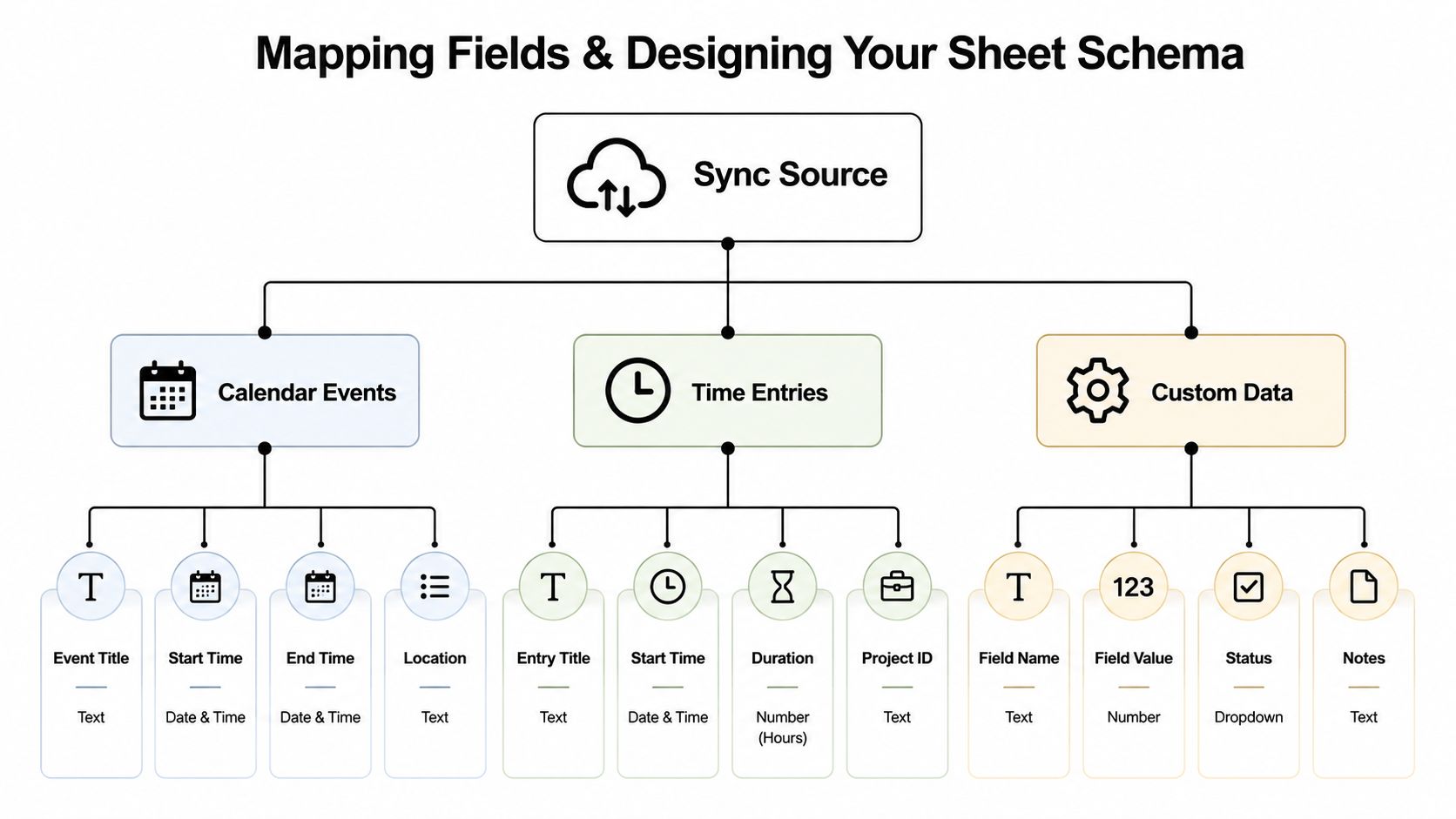
The sync itself is only half the job. The other half is making the sheet readable enough that finance, ops, and team leads can use it without breaking the data. A bad schema forces everyone to sort, filter, and rebuild logic by hand. A good one keeps raw input separate from reporting views, which means the same sheet can support billing, utilization, and project review without collapsing under its own weight.
Use one tab for intake and one for reporting
The first rule is to keep the raw import untouched. Put calendar events or time entries in a raw data tab, then do your cleaning in a separate transformations tab, and keep the final numbers in a reporting tab. That split protects you from accidental edits and makes debugging much easier when someone asks why a row disappeared.
Recurring events need special care. If you flatten them too early, you lose the shape of the schedule. If you normalize them too much, your pivots become harder to read. I've found that the best compromise is to keep the event instance, the client, the project, and the activity tag as separate fields, then roll them up later for billing or utilization views.
Map fields to the question the report has to answer
Use the schema to answer the next decision, not to store every possible detail in one place. A billing sheet needs start time, end time, duration, client, and project. A utilization sheet needs person, week, billable status, and activity class. A profitability tracker needs those same fields plus enough structure to separate delivery work from admin time.
A few field rules hold up in practice:
- Keep IDs stable: Use a project ID or client ID so edits don't break joins later.
- Tag before you aggregate: Apply activity tags early, because they decide how rows roll up in pivots.
- Don't build one mega-sheet: Large all-in-one tabs slow down review and make versioning messy.
- Leave room for audit fields: Sync time and source flags help when someone questions a number later.
A sheet that tries to answer every question in one tab usually answers none of them well.
The TimeTackle guide on Google Sheets time tracking is relevant because it reflects the same design issue. Once time data lands in Sheets, the schema decides whether the file stays usable or turns into a pile of columns nobody wants to touch.
Scheduling automation and preventing silent failures
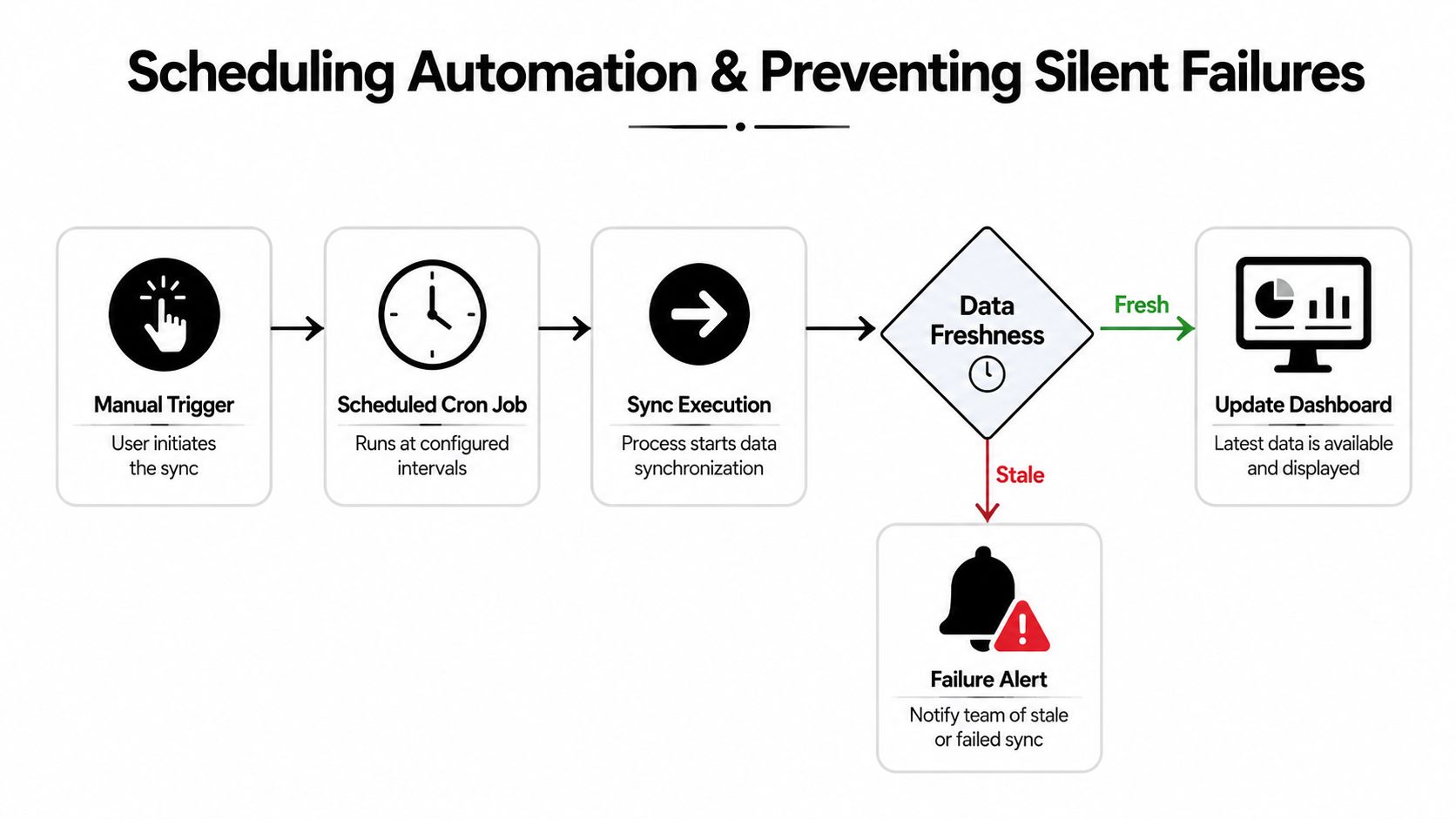
A sync that stops updating without warning is worse than a failed run, because teams keep trusting old numbers. Ops leaders don't just need refreshes, they need proof that refreshes are still happening. That's where scheduling and monitoring have to work together.
Match cadence to the decision being made
Hourly syncs make sense for live dashboards where managers check the current week. Daily syncs are often enough for utilization tracking, since those reports usually guide staffing and workload checks. Weekly syncs fit client billing summaries, where the goal is stable numbers rather than constant motion.
The trigger itself can come from a native sync tool, a workflow builder, or a custom script. What matters more is that the sync leaves a trace. Every run should record a timestamp, a row count, and a status so you can tell whether the data is current before someone exports it again.
Build alerts around the failure modes people miss
Silent failure usually shows up as a mismatch, not a crash. The sheet looks normal, but the latest edits never arrived, or one tab updated while another didn't. That's why basic checks matter more than fancy automation.
Use these checks together:
- Timestamp check: Compare the last sync time to the current time and flag stale runs.
- Row-count check: Watch for sudden drops or flat lines when the source should be changing.
- Alert routing: Send a message when a job misses its window, so the ops team sees it fast.
- Fallback view: Keep the previous good report visible until the fresh one passes validation.
If you're using a custom API path, add retry logic for temporary failures and make sure the job doesn't overwrite a healthy report with partial data. If you're using a workflow tool, test the schedule after any permission change or field update, because those changes are where syncs tend to break.
The hard lesson is that automation isn't reliable because it runs by itself. It's reliable because someone designed the failure path first.
Security and governance for client data in Sheets
Syncing client data into Sheets creates a quiet risk that many agencies ignore until a client asks for proof. The danger isn't just data loss, it's exposure. Raw time entries can reveal salaries, internal staffing patterns, project budgets, and strategic work that should never land in front of the wrong person.
Permission design matters more than the sync itself
If the whole sheet is shared too widely, one mistake can expose more than a report. Keep raw data tabs tighter than reporting tabs, and use separate views for leadership, team leads, and individual contributors. Junior staff should see their own utilization and assigned work, not everyone else's numbers.
That same logic applies to connected apps. If an employee leaves, their tokens and shared access need to be removed right away, because stale permissions live longer than expected. Audit logs matter too, especially when a client challenges a billed hour and you need to show where the number came from.
Use governance rules before the first sync runs
A few controls keep most agencies out of trouble:
- Separate raw and published tabs: Limit the sensitive source tab to a smaller group.
- Review service access: Check who owns the connection and what it can write.
- Document field ownership: Decide which system is authoritative for each field.
- Track changes: Keep a history of sync changes so you can explain a bad report later.
TimeTackle's public materials note that the platform is SOC 2 Type II certified and uses enterprise-grade encryption, which matters if your reporting setup has to fit a broader controls process. That doesn't remove your responsibility in Sheets, but it does help when you need a system that fits an agency security review.
The governance test is simple. If someone outside finance opened the sheet tomorrow, would they see more than they should? If the answer is yes, the sync is too open.
Troubleshooting common sync failures and data conflicts
When sync breaks, the first sign is usually confusing. A few rows vanish. Duplicates show up. A calendar event lands on the wrong day. People blame the spreadsheet, but the root cause is usually in the sync rules, the permissions, or the source timestamps.
Start with the failure pattern, not the tool
Missing rows often point to permission changes or filters that are too strict. Duplicates usually come from retries without deduping keys. Timezone problems show up when calendar data crosses regions and the sheet reads local time differently than the source. Two-way sync conflicts happen when both sides think they own the same record.
The best diagnostic move is to test one connection in isolation. Use a single record, one user, and one destination tab. If that works, expand to the full dataset. If it doesn't, the logs should tell you whether the problem is access, mapping, or write logic.
Use rollback before you need it
A bad sync can pollute weeks of reporting if nobody can recover the last clean state. Keep a backup tab or export of the last known good run, and don't let a partial refresh replace a working report unless validation passes. That matters most for two-way sync, where a bad edit in Sheets can flow back to the source and make the problem worse.
Recent sync guidance also points to delta updates, delayed or offline sync, rate-limit handling with exponential backoff, and permission-related failures like 403 errors, which is a good sign that reliability now depends on infrastructure thinking, not just formulas (Adalo best practices). That matches what operations teams see in practice. The failure isn't usually one big crash, it's a chain of small mismatches that go unnoticed.
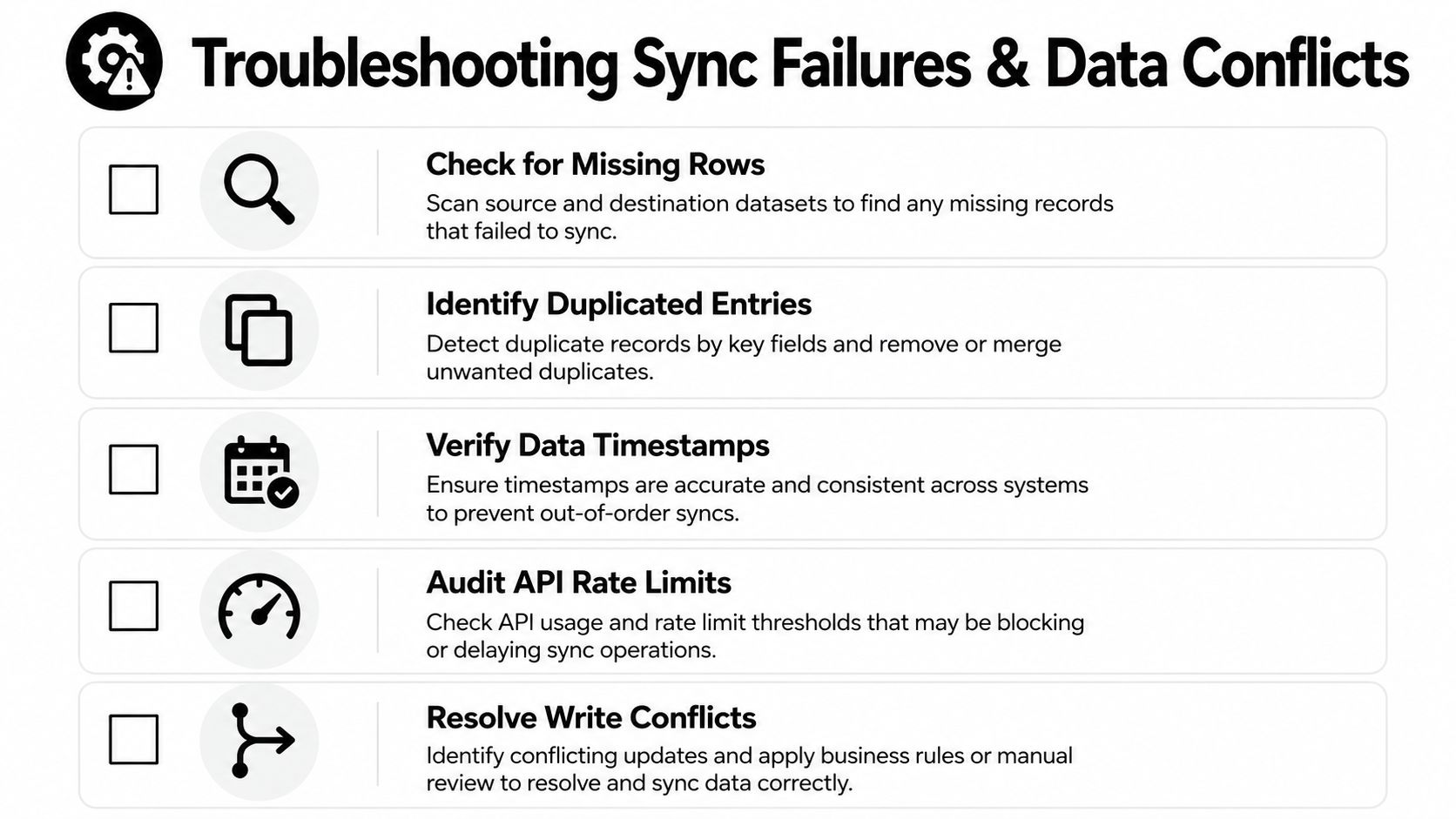
A solid troubleshooting habit is to check five things in the same order every time.
- Check for missing rows before you assume the source is empty.
- Identify duplicated entries and look for retry loops.
- Verify data timestamps so you know what updated.
- Audit API rate limits if large datasets stall mid-run.
- Resolve write conflicts by deciding which system owns the record.
If your agency runs time and calendar reporting through Sheets, the goal isn't to make it clever. It's to make it boring, repeatable, and hard to break. TimeTackle gives teams a calendar-first way to capture work, sync it into Google Sheets, and keep reporting moving without hand-built copy jobs. If you want a setup that's built for operational reporting instead of one-off exports, visit TimeTackle and see how it fits your workflow.