
Month-end usually exposes the same mess.
A few people filled out their hours. A few forgot. One account manager sent a screenshot from a spreadsheet. Another dropped time in Slack. Someone logged “client work” with no client name, which is useless when finance asks what can be billed. You can feel the gap between “we track time” and “we can trust the numbers.”
That’s why a google forms timesheet still shows up inside a lot of agencies. It’s cheap, fast, and already sitting inside a Google Workspace account your team probably uses every day. Google Forms launched in 2008, and as Apps Script integrations got better around 2015, teams started turning simple forms into workflows that cut manual processing by up to 80% for early adopters. Usage also spiked 200% during the remote-work surge, which tracks with what most ops teams saw in practice: forms were easy to roll out when process had to change fast (Jotform’s guide to making a timesheet in Google Forms).
The part most tutorials miss is what happens after the form goes live. Collecting entries is the easy bit. The hard part is making the data clean, getting manager approvals, and turning rows into reports leadership can use.
Tired of chasing down timesheets
If you’ve ever spent the last two days of the month cleaning up time data, you already know where this breaks.

A project lead wants utilization by client. Finance wants billable versus non-billable time. Department heads want to know who’s overloaded. Instead of answering those questions, you’re fixing spelling differences between “Acme,” “ACME,” and “Acme Inc.” That’s not reporting. That’s cleanup.
A lot of teams start by managing timesheets in Excel, and that’s fine for a while. The problem isn’t Excel or Sheets by themselves. The problem is letting every person track time in their own format, which means the reporting burden lands on operations later.
“Free” only feels free when the admin work stays small.
Google Forms and Google Sheets give you a decent starting system because they force all entries into one structure. Every submission lands in the same place, in the same order, with the same fields. That one change removes a lot of noise before you touch formulas or approvals.
Why agencies keep using this setup
This setup works best when you need something stable, quick, and good enough for a team that’s outgrown ad hoc spreadsheets but isn’t ready to buy a full platform yet.
It’s a solid fit when:
- You need one intake point: one form link, one submission pattern, one sheet.
- You care more about consistency than elegance: the form won’t wow anyone, but it will collect cleaner data.
- You want reporting without a software rollout: no procurement cycle, no long training window.
- Your ops team can own the logic: if someone on your team is comfortable with formulas and basic scripts, you can get a lot done.
The catch is simple. A form is not a time-tracking system by itself. It’s just the front door. The rest of the work happens in Sheets and Apps Script.
Building the foundation with a smart timesheet form
Monday morning is where weak forms show up. Someone logs time to "Acme," someone else uses "ACME Retainer," and a third person leaves the client field blank because they were in a rush. By Friday, ops is fixing naming errors instead of reviewing billable hours.

A good Google Forms timesheet prevents that mess before it reaches Sheets. The form should collect only the inputs your reporting, approvals, and invoicing process can use. Every extra field adds friction. Every open-text field creates cleanup later.
Start with fields that hold up in Sheets
For agencies, the best form is usually short and strict. You need enough detail for billing and staffing, but not so much that the team starts delaying submissions or guessing their way through fields.
This structure has held up well for client work, internal reporting, and manager review.
| Field Name | Field Type | Validation / Options | Reporting impact |
|---|---|---|---|
| Employee name | Dropdown | Pre-filled employee list | Prevents duplicate name variants in filters and pivots |
| Work date | Date | Required | Supports daily, weekly, and monthly rollups |
| Client | Dropdown | Approved client list only | Keeps client reporting clean |
| Project | Dropdown | Approved project list only | Makes project totals usable without manual recoding |
| Task type | Dropdown | Billable, non-billable, internal, admin | Separates utilization and billing categories |
| Start time | Time or short answer | Required | Supports hour calculations for time-range entry |
| End time | Time or short answer | Required | Supports hour calculations for time-range entry |
| Break minutes | Short answer | Number validation | Keeps unpaid time treatment consistent |
| Notes | Paragraph | Optional, short guidance text | Gives reviewers context without bloating the sheet |
That table looks basic. That is the point. Fancy forms usually create maintenance work.
Set rules that reduce cleanup
Dropdowns do more work than any policy doc ever will. If a value needs to show up in a dashboard, approval queue, or invoice review, lock it down at the form level.
Use a few rules from the start:
- Require the fields that drive reporting: employee, date, client, project, and task type.
- Use dropdowns for anything grouped later: client names, project names, departments, task categories.
- Validate numbers: break minutes, units, or hours should reject text.
- Keep notes optional: reviewers need context sometimes, but forced explanations produce low-value comments.
- Use sections sparingly: branching logic sounds helpful, but it often slows people down unless the workflow is distinctly different by role or job type.
One test catches bad form design early. If a manager cannot filter the response sheet cleanly after the first week, the problem started in the form.
Pick one time-entry method
This decision matters more than the field labels.
Teams usually choose between two models. The first is decimal hours, such as 7.5. The second is start time, end time, and break minutes. Either model works. Mixing both inside one form usually creates reporting problems, exception handling, and approval disputes.
Use decimal hours if the team mainly needs quick entry and weekly totals. It is faster for account managers, strategists, and other staff who split time across many tasks.
Use start and end times if you need better daily records, overtime checks, or a clearer audit trail. It takes longer to submit, but managers get fewer vague entries and less back-and-forth.
I usually make this choice based on what happens after submission. If payroll, client billing, or utilization reporting needs exact daily logic, time ranges are safer. If the goal is simple weekly allocation by client and project, decimal entry is easier to maintain.
For a faster setup, it helps to review an existing timesheet template for agencies and teams and cut it down to the fields your approval and reporting process will use. Start small. You can always add one field later. Removing a bad field after people get used to it is harder.
Connecting your form to Google Sheets
Once the form is live, the next move matters more than commonly understood. Link it to a response sheet immediately and treat that sheet like a database, not a scratchpad.
In Google Forms, open the Responses tab and click the Sheets icon. Google will create a linked spreadsheet, or you can connect the form to an existing one. After that, every submission lands as a new row in order, with a submission timestamp attached automatically.
That timestamp matters because it gives you a built-in record of when the entry was sent. It also removes one source of manual entry error. In practice, that means fewer arguments over whether someone submitted on time and less cleanup when payroll or billing deadlines hit.
Add helper columns right away
Don’t wait until the sheet is crowded. Add helper columns while the file is still clean.
I usually add:
- Day of week
- Week starting
- Month
- Approved status
- Manager
- Calculated hours
These columns don’t belong in the form itself. They belong in the sheet, where formulas and scripts can use them without adding friction for employees.
If you’re collecting start and end times, Google Sheets needs one core formula to turn time into decimal hours: **=((End Time – Start Time)*24)**. That conversion matters because Sheets stores time as a fraction of a day, so the multiplication by 24 turns it into hours. Benchmarks cited in this context say this setup can slash human error by 90% compared with manual entry, and team summaries can be rolled up with a QUERY function such as =QUERY(A:Z,"SELECT Employee, SUM(Hours) GROUP BY Employee") (Orbit AI’s Google Forms timesheet guide).
Protect the raw tab
Many DIY systems go sideways when someone sorts one column, overwrites a formula, or pastes cleaned data back into the response tab. Then your records are no longer trustworthy.
Use this rule instead:
- Leave the response tab untouched.
- Create a second tab for calculations.
- Build reports from that second tab, not from the raw responses.
For more ideas on how to structure the sheet side well, this guide to Google Sheets time tracking is useful because it focuses on the reporting layer, not just the form itself.
Creating a simple reporting dashboard in sheets
Raw rows don’t answer management questions. Summaries do.
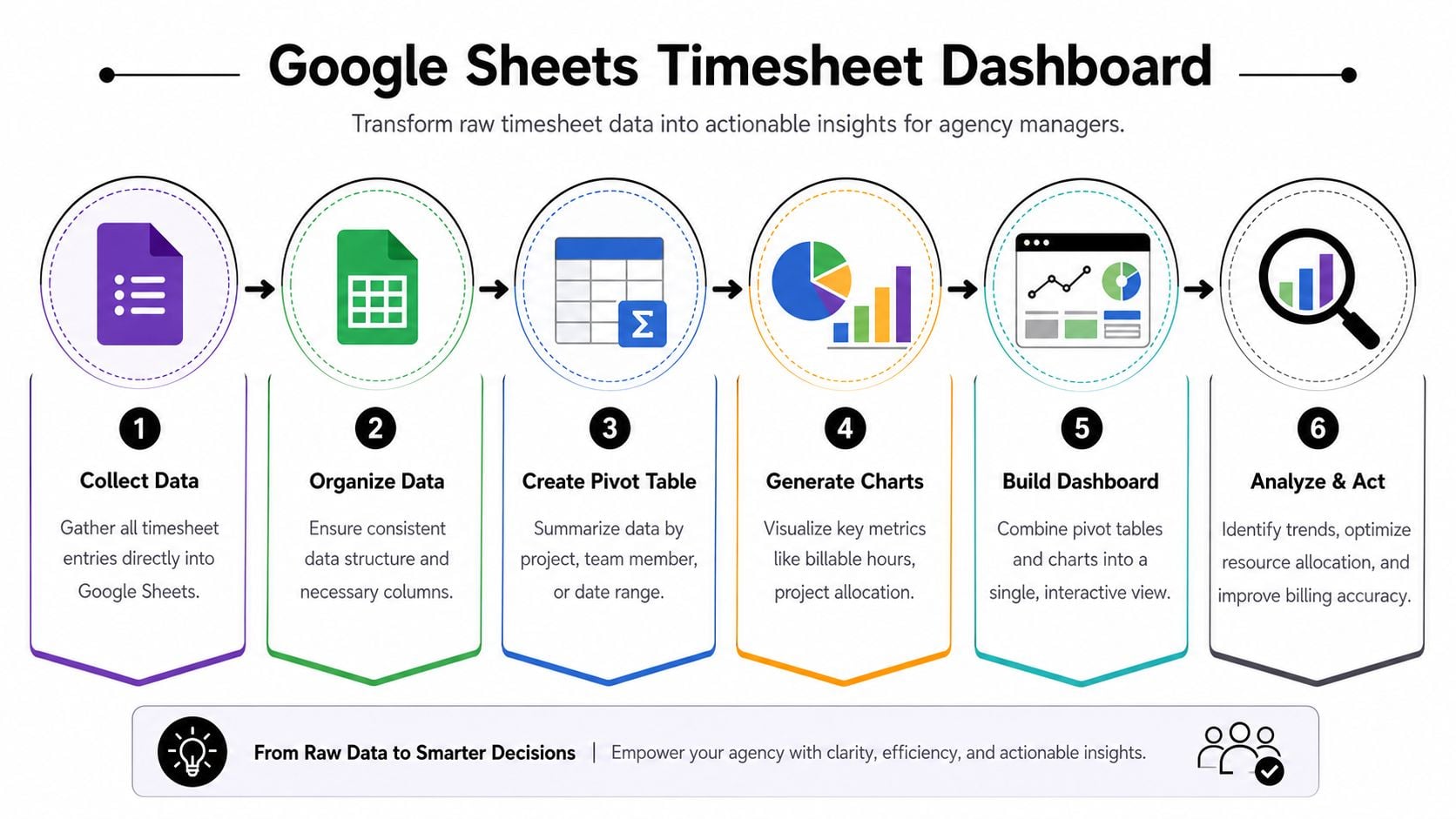
A good dashboard for an agency doesn’t need to be fancy. It needs to answer the same operational questions every week without someone rebuilding the report by hand.
Build the first pivot table around one business question
Start with one question only. For most agencies, that’s usually “Where did the team spend time this month?”
Create a pivot table from your cleaned sheet tab and set it up like this:
- Rows: Client
- Columns: Task type or project
- Values: Sum of calculated hours
- Filter: Date range or month
That gives leadership a usable split across clients and work categories. If you want a staffing view instead, change the rows to employee and keep hours as the value.
The dashboard is only useful if each field in the form maps cleanly to a reporting question.
Add one chart per decision
Don’t turn the sheet into a wall of charts. Each chart should answer a real question.
Try these instead:
| Report | Best view | What it helps you spot |
|---|---|---|
| Hours by client | Bar chart | Which accounts are consuming team capacity |
| Billable vs non-billable | Pie chart | Whether delivery time is drifting into internal work |
| Hours by employee | Bar chart | Capacity imbalances across the team |
| Hours by project over time | Line chart | Project creep and changing delivery load |
The point is not visual polish. The point is speed. If someone in finance or leadership can’t read the dashboard in a minute, it’s too busy.
Use a separate dashboard tab
Keep pivots on one tab and the shareable dashboard on another. Link charts from the pivot outputs, and leave enough whitespace that people can scan the page.
A simple layout I like:
- Top row for date filter and total hours
- Middle row for client and employee charts
- Bottom row for billable mix and project trend
This is also where conditional formatting helps. Mark overtime or unusual entries in your source analysis tab, then surface those exceptions in a small “Needs review” panel on the dashboard. It’s a much better use of screen space than adding five extra charts nobody checks.
Automating approvals with a simple script
Thus, a google forms timesheet becomes usable for managers, not just employees.

Basic Google Form timesheet setups often fall apart at the approval step. Tutorials usually stop at form creation, but they don’t deal with manager review, and that manual review can eat up 10 hours per week that a more automated setup could save (Google Apps Script timesheet automation sample).
You don’t need a huge build to improve this. A small Apps Script can send approval emails every time a new entry hits the sheet.
What the script should do
Keep the first version boring.
When a new row is added, the script should:
- Read the row data: employee, date, client, project, and hours.
- Send an email to the assigned manager: one entry per notification is fine to start.
- Write a pending status back to the sheet: that gives you a visible approval queue.
- Log the manager’s response: approved or rejected, plus date.
That alone removes a lot of “Did you see my timesheet?” back-and-forth.
A simple Apps Script example
Open the linked Google Sheet, then go to Extensions > Apps Script. Paste this in and update the column positions and manager email to match your sheet.
function onFormSubmit(e) { const sheet = e.range.getSheet(); const row = e.range.getRow(); const employee = sheet.getRange(row, 2).getValue(); const workDate = sheet.getRange(row, 3).getValue(); const client = sheet.getRange(row, 4).getValue(); const project = sheet.getRange(row, 5).getValue(); const hours = sheet.getRange(row, 9).getValue(); const managerEmail = "manager@youragency.com"; const subject = "Timesheet entry pending approval"; const body = "A new timesheet entry was submitted.nn" + "Employee: " + employee + "n" + "Date: " + workDate + "n" + "Client: " + client + "n" + "Project: " + project + "n" + "Hours: " + hours + "nn" + "Please review this entry in the sheet."; MailApp.sendEmail(managerEmail, subject, body); sheet.getRange(row, 10).setValue("Pending"); } This version is intentionally plain. It doesn’t create true one-click approve or reject links yet, but it solves the first real problem, which is making sure the manager knows a submission exists.
Make it workable for real teams
After the script runs, build a review tab filtered to pending entries. That gives managers one place to check submissions without touching the raw response sheet.
A few lessons from doing this in live agency environments:
- Don’t start with complex approval routing: one manager inbox is easier to debug than conditional logic based on client or department.
- Add a status column before adding email logic: if the status handling is messy, the automation won’t save you.
- Use installable triggers, not manual runs: set the script to run on form submit so nobody has to remember anything.
- Keep rejection simple: add a notes column where the manager explains what needs fixing.
If approvals are messy on day one, they won’t get cleaner once the team relies on them for billing.
If you want to go further, you can add a second script for manager actions, or connect the process to a broader workflow tool. This primer on automating repetitive tasks is useful if you want ideas beyond email alerts and status updates.
Common pitfalls and when to upgrade your system
A Google Forms setup can work well for a while. It just doesn’t stay simple forever.
The first issue is edits. If someone submits the wrong client, the clean fix isn’t obvious unless you’ve already designed an edit process. The second issue is governance. Your client list, project list, and approval owners start living in too many places, so one small org change turns into sheet maintenance.
Then there’s performance. A DIY system feels fine early on, but as the data grows and reporting gets more layered, Sheets gets harder to manage. Formulas take longer, pivots get messier, and every workaround adds more admin work for operations.
Signs you’ve outgrown the setup
You’re probably ready for a dedicated system when these start happening:
- Managers approve outside the sheet: email, Slack, and verbal approvals make the record unreliable.
- Reporting needs cross-tool data: if you need time tied to CRM, calendar, or delivery systems, the DIY model gets thin fast.
- Your team argues with the data: once trust drops, every report turns into a cleanup project.
- Ops owns too many manual patches: if one person has to babysit formulas, dropdowns, and exports, the “free” tool is getting expensive.
That doesn’t mean the Google setup failed. It means the team matured past a starter system.
Frequently asked questions
How do you handle edits after someone submits a form?
Don’t let people edit the raw response row directly unless you trust them to preserve the audit trail. A better process is to add a short correction form or a manager review step. The original entry stays in the response tab, and the corrected value gets logged in a separate review tab with an approval note.
Should the form track retainer work and one-off projects differently?
Yes. Add a Task type or Engagement type dropdown. If you don’t separate retainer, project, internal, and admin work at entry time, you’ll end up doing manual classification later, which usually means the numbers stay fuzzy.
What’s the best way to archive old data?
Archive on a regular schedule. Copy closed periods into a separate spreadsheet, keep your active reporting file lean, and leave the current dashboard connected only to live or recent data. That keeps the working sheet faster and reduces the chance that someone breaks an old reporting range.
Can this setup work for manager approvals without coding?
Partly. You can use a status column and manual review tab without any script, and that’s still better than chasing approvals in chat. But once the team grows, automation helps because reminders and notifications stop depending on memory.
What’s the biggest mistake teams make with a google forms timesheet?
They think the form is the system. It isn’t. The system is the full chain: form structure, clean sheet logic, approvals, and reporting. If one part is loose, the whole thing gets harder to trust.
If your team has reached the point where Forms and Sheets are creating more maintenance than clarity, TimeTackle is worth a look. It’s built for teams that want cleaner time capture, automated categorization, better dashboards, and less manual reporting overhead, especially when calendar data, client work, and utilization reporting all need to connect in one place.