You're probably here because the numbers don't match.
An account manager logs a full day. Task Manager shows the laptop has been up for ages. Battery usage says Teams, Chrome, and PowerPoint were active. Yet when you ask a simple operations question, “How much of that day went to Client A, internal admin, and proposal work?”, nobody can answer without guessing.
That's the core problem with screentime for Windows in a business setting. The operating system can show pieces of device activity, but agency leaders don't need a vague sense that a machine was on. They need a clean view of where time went, how work got split across clients and projects, and whether the team is drowning in meetings, admin, or context switching.
For personal habits, rough device usage can be enough. For an agency, it isn't. Billing, staffing, utilization, and project planning all depend on better data than “screen on” or “PC up since restart.”
Why “screen time” on Windows is more than just a number
An operations manager once asked me a version of the same question I hear all the time: “Why do I have three time stories for one person's day?”
One story came from the timesheet. Another came from the employee's calendar. The third came from Windows itself, through uptime and app activity. None of them were technically wrong. They were just measuring different things.
That's where most confusion starts. In a home setting, screen time usually means time spent on a device. In a professional setting, that definition falls apart fast because a workday has layers. A laptop can be on while someone is in lunch, in transit between meetings, waiting on feedback, or stuck in an inbox spiral that adds no client value.
The business question is different
A parent might ask, “How long was this device used today?” An agency lead asks something else:
- Client allocation: How much time went to each account?
- Work mix: How much of the day was meetings, focused production, internal admin, or reactive chat?
- Utilization: Did this person have enough project work, or were they buried in overhead?
- Proof of effort: Can the team defend billed time without rebuilding the day from memory?
Those aren't wellness questions. They're operating questions.
Practical rule: If the metric can't help you staff a project, review profitability, or reduce timesheet cleanup, it's probably too shallow for agency use.
Time on a device isn't the same as value created
Teams often reach for the easiest number first. Uptime feels objective. Screen-on time feels clean. But both can mislead.
A strategist might spend a morning in workshops and approval meetings, then produce one page of notes that initiates a campaign. A designer might have long stretches of active Adobe work with no meeting trail at all. A paid media manager might bounce across dashboards, docs, and chat threads in ways that look busy but don't map neatly to one client unless someone adds context.
That's why screentime for Windows becomes tricky once you leave personal use behind. The useful question isn't “How long were they online?” It's “What kind of work filled that time, and where should it be counted?”
Start with categories, not hours
When agencies struggle with reporting, the issue usually isn't missing hours. It's missing categories.
A better mental model looks like this:
| Measure | What it can tell you | Why it falls short |
|---|---|---|
| Device uptime | How long the PC has been running | Includes idle time and background time |
| Screen-on or battery usage | Which apps drew power or showed activity | Doesn't explain project purpose |
| Timesheet entry | What someone says they worked on | Depends on memory and compliance |
| Calendar context | Why blocks of time existed | Needs tagging and analysis to become useful |
That shift changes everything. Once you stop treating Windows activity as the answer, you can use it for what it is. A starting signal, not a business metric.
Using Windows' built-in tools to check usage
Windows gives you fragments, not one clean dashboard. According to Make Tech Easier's guide to checking screen time on Windows, Windows does not ship with a single, universal “screen time” meter. Instead, visibility is split across Power & battery settings for app usage, Task Manager for system uptime, and Event Viewer for sleep and wake times.
That setup tells you a lot about how Microsoft built this. Windows treats usage as a diagnostic topic, not a work analytics system.
Check battery usage in Settings
If you want the quickest built-in view of recent usage on Windows 11, open:
- Settings
- System
- Power & battery
- Battery usage
There, you can review usage over selectable periods such as the last 24 hours or last 7 days.
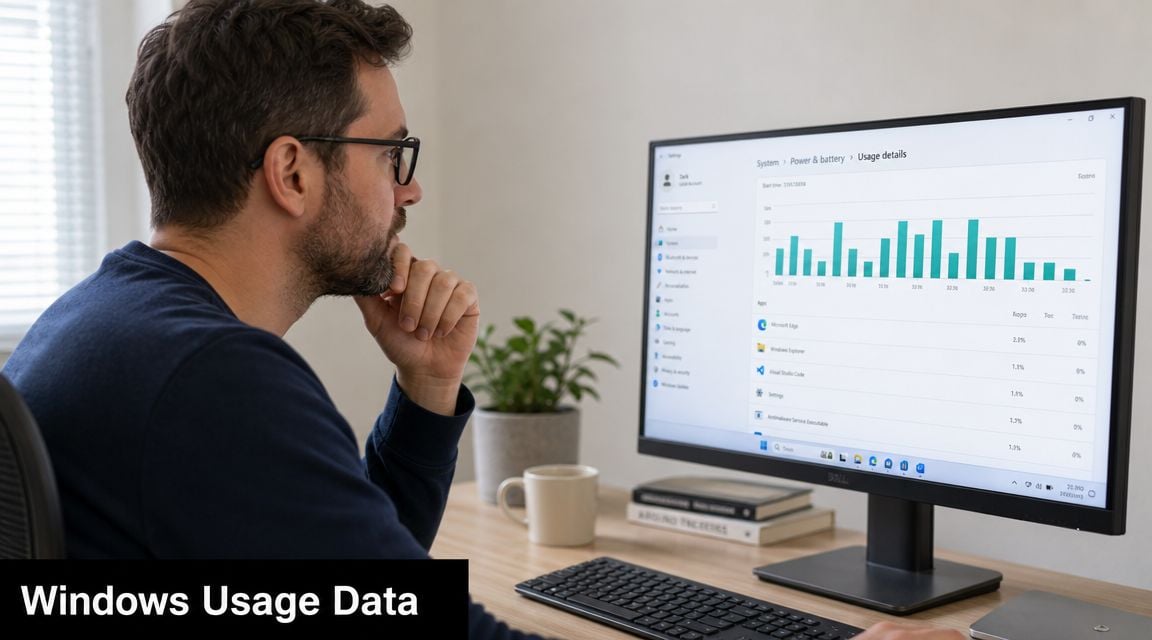
This view is useful when you want a rough answer to questions like, “Was this laptop heavily used?” or “Which apps were active enough to affect battery life?”
What this doesn't tell you is the part agency managers care about. It won't separate billable work from internal work. It won't tell you whether Chrome time belonged to a client dashboard, a research rabbit hole, or a lunch break with YouTube open in another tab.
Check system uptime in Task Manager
For a session-length estimate, open:
- Task Manager
- Performance
- CPU
- Look for Up time
This shows how long the PC has been running since the last restart.
That can help with very narrow questions. Maybe you're checking whether someone rebooted after a patch, or you want a rough sense of how long the machine has been active since morning.
A laptop that has been up all day doesn't prove a person worked all day. It only proves the machine wasn't restarted.
What this doesn't tell you is whether the user was present, focused, distracted, or working across specific clients and tasks.
Check sleep and wake events in Event Viewer
If you need more detail around when a machine slept or resumed, use Event Viewer and look for Power-Troubleshooter events. That can help reconstruct a pattern of sleep and wake times.
For admins, this is handy when you're troubleshooting or validating broad usage windows. For operations reporting, it's still thin.
Here's the plain reading of each built-in source:
- Battery usage: Good for rough app activity.
- Task Manager uptime: Good for “how long has this PC been on?”
- Event Viewer: Good for sleep and wake history.
- Business reporting: Not good enough without another layer of context.
The built-in tools are worth knowing because they help you avoid buying software for the wrong reason. But if you're trying to measure work, not hardware behavior, you'll hit the ceiling almost immediately.
When to use Microsoft Family Safety for screen management
A lot of people land on Microsoft Family Safety because it sounds like the official answer. In a narrow sense, it is the closest thing Microsoft has to a cross-device screen management framework.
Independent Windows guidance notes that Microsoft Family Safety can help families review activity reports and set screen-time limits, and that same discussion points to market demand for third-party tools that “track the time only when you are at the computer.” That demand exists because the native Windows stack still leaves gaps for true analytics.
Where Family Safety works well
At home, Family Safety makes sense.
It can help households manage use across Windows devices and fit better in mixed environments that may also include Android and Xbox. If your goal is to manage children's device access, review broad activity, or set boundaries around when devices can be used, it's a reasonable fit.

For parents, the structure is the point. You want controls, visibility, and limits. Family Safety was built for that use case.
Why it breaks in a professional setting
For agencies and consulting teams, Family Safety creates more problems than it solves.
The first problem is structural. It's designed around family roles, not employee relationships. If your reporting model depends on treating staff like child accounts just to get usage controls, you're already off track.
The second problem is ethics. Adults at work need transparency, consent, and a clear business purpose for any measurement system. Family controls send the wrong signal because they frame the issue as restriction and supervision, not operational clarity.
The third problem is data quality. Family Safety doesn't answer questions like these:
- Project split: Which client did this meeting belong to?
- Service line: Was this strategy, production, support, or internal admin?
- Billing support: Can finance use this to validate invoiceable time?
- Capacity planning: Can managers spot overload or under-allocation by team?
It can't, because that's not what it was built for.
If your team needs utilization data, billing context, or project reporting, family controls are the wrong category of tool.
Use it for home boundaries, not agency operations
This is the clean dividing line.
Family Safety is fine when the goal is household screen management. It is not a workable answer for adult self-management in a professional environment, and it is not a serious system for team analytics.
If you run an agency, what you need isn't stronger parental control logic. You need a better model of work time.
The gap between screen time and productive work
Most coverage of screentime for Windows still leans toward parental controls and general device checks. But there's a clear gap for adults and teams who need visibility into their own work patterns. As Digital Zen's discussion of limiting screen time on Windows points out, the unmet need for knowledge workers is figuring out how to manage and measure personal or team usage without child-account workarounds, especially when tracking utilization by client and project.
That gap exists because screen time sounds useful, but for agency work it's often a vanity metric.
A full day can still be a messy day
Take a normal workday on a Windows laptop.
The screen is on early. Slack opens. Outlook opens. Teams starts running in the background. Browser tabs multiply. There are calls, proposal edits, status meetings, approvals, internal chat, CRM updates, deck reviews, file searches, and a half-finished brief waiting in another window.
If you total all that as “screen time,” you get one number. It looks neat. It also tells you almost nothing.
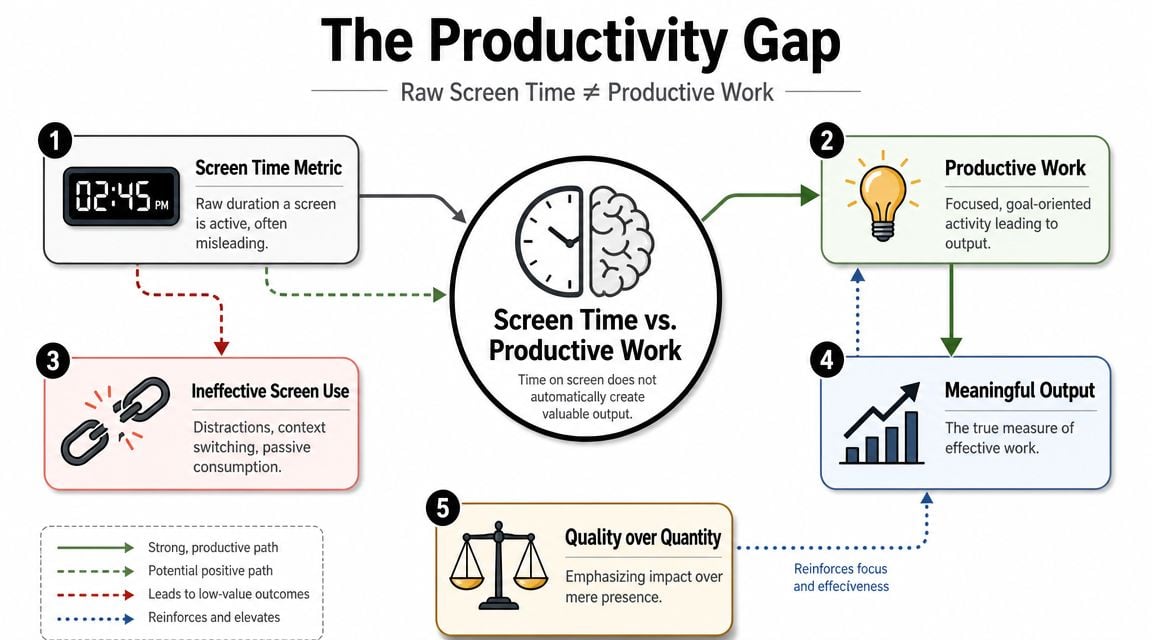
The number can't tell whether the day produced useful output or got shredded by interruptions.
What agencies should measure instead
For professional teams, useful measurement usually sits closer to categorized effort than raw device activity.
Look at the contrast:
| Weak metric | Why teams like it | Why it misleads |
|---|---|---|
| Screen-on time | Easy to see | Includes passive presence |
| Uptime | Feels objective | Counts idle and unattended time |
| App open time | Seems granular | Lacks client and project context |
| Categorized work time | Harder to build | Actually supports decisions |
The last one is the only category that helps with staffing, invoicing, and performance review.
That's why many teams also start training managers to protect focused work, not just count visible activity. If your team needs a better baseline for that conversation, this deep work guide for beginners is a useful companion read.
The aim isn't surveillance
This point matters. A lot of teams resist time measurement because they assume it means watching people.
Done badly, it does. Done well, it removes guesswork.
A good system helps a consultant prove how much time a client consumed. It helps a department lead see that the team is overloaded with internal meetings. It helps operations spot where timesheet cleanup is soaking up admin hours every Friday.
Raw screen time tells you who was near a machine. Productive work data tells you where the day went.
Those are not the same thing, and once you separate them, a lot of reporting problems become easier to fix.
Using calendar analytics to measure what matters
The missing piece is context.
Windows can show screen-on hours, uptime since restart, and related activity clues, but it can't answer the question “How long did I work today?” The distinction between screen time, device uptime, and active work time is exactly why the trend is moving toward automatic calendar- and activity-based time capture rather than native Windows reporting, as noted in Acer's explanation of screen time usage in Windows 11.
Why calendars work better than memory
Calendars already contain the skeleton of a workday.
Meetings, client calls, reviews, internal check-ins, workshops, demos, interviews, and focus blocks usually live there before anyone opens a timesheet. That makes the calendar a better source of truth than end-of-day recall, especially for teams that hate rebuilding hours from memory.
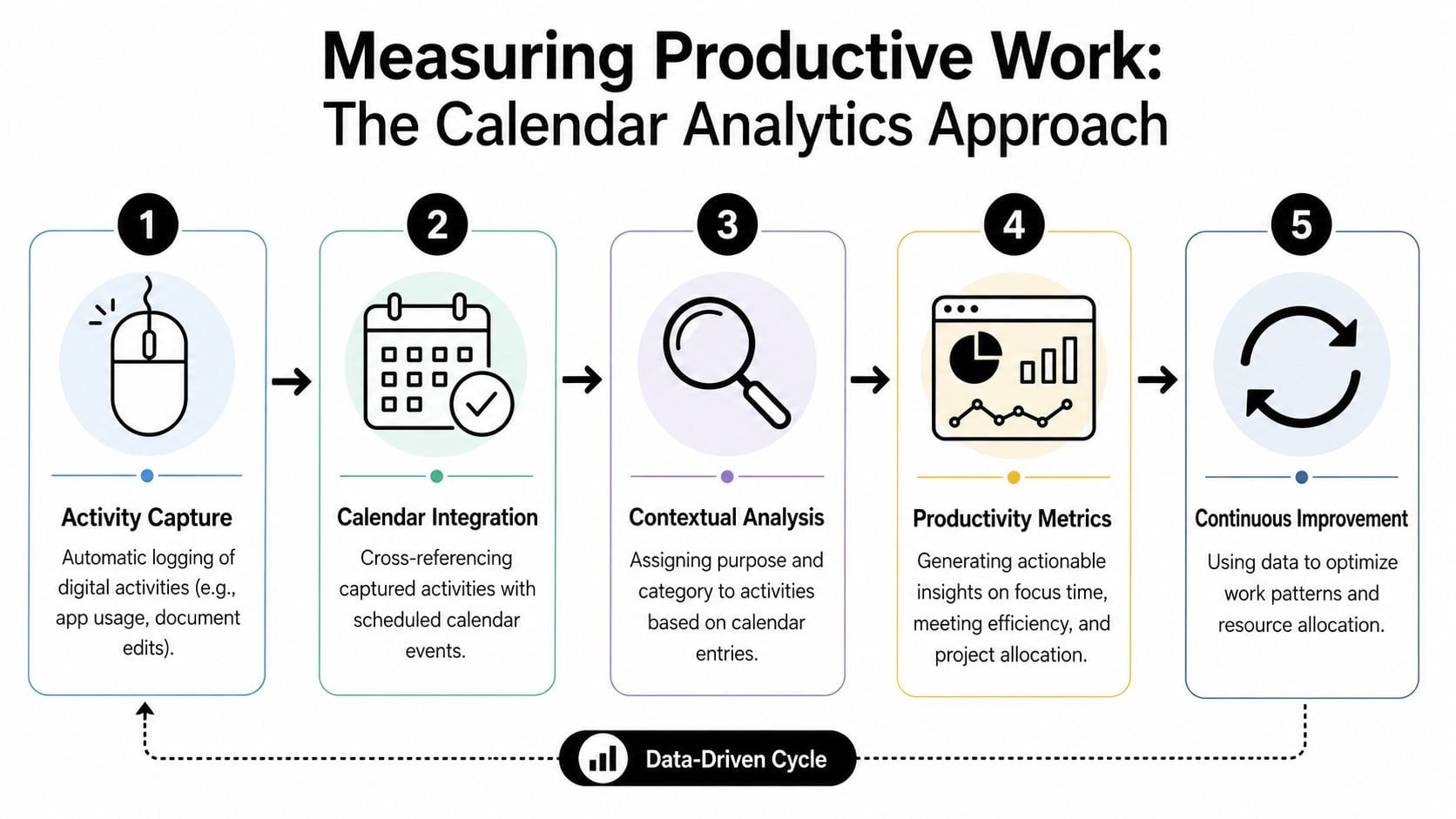
The advantage isn't that calendars are perfect. It's that they start with business context. A block named “Client QBR,” “Creative review,” or “Proposal work” is already closer to operational truth than a battery graph or uptime counter.
What calendar analytics adds
When you layer analytics onto the calendar, the data becomes more useful.
A solid setup can do work like this:
- Capture scheduled time automatically: Meetings and planned work blocks don't need manual recreation.
- Apply tags and rules: Client names, project codes, service lines, and billing categories can follow patterns instead of relying on memory.
- Show utilization clearly: Leaders can see how time splits between revenue work and overhead.
- Reduce admin drag: Staff spend less time cleaning up timesheets at the end of the week.
The useful output isn't “screen time.” It's a mapped workday.
If you want to see what that looks like in practice, calendar analytics and insights gives a practical view of how teams turn calendar data into operational reporting.
Better data changes management behavior
This approach also changes the kind of conversations managers have.
Instead of asking, “Why were you only online for this long?” they can ask better questions:
- Was this account overloaded with meetings?
- Are too many senior people stuck in internal reviews?
- Which projects create the most admin overhead?
- Where is focus time getting squeezed out?
That's a much healthier use of measurement because it looks at work design, not just digital presence.
The best time systems don't just record effort. They explain how the workday gets spent so managers can fix bad patterns.
For agencies, that's the bridge between rough Windows usage and real business insight. You stop tracking presence and start tracking work in context.
Deployment notes for admins and team leads
Rolling this out well matters as much as picking the right system. Teams accept measurement when it removes pain and produces fairer reporting. They push back when it feels vague, punitive, or disconnected from daily work.
Gaining team buy-in
Lead with the problem people already feel.
Most agency staff don't enjoy timesheet cleanup. They don't enjoy Friday guesswork, missing context, or being asked to defend hours from memory. If you position calendar-based tracking as a way to reduce that burden, the conversation starts on solid ground.
Keep the message simple:
- Less manual entry: The goal is to cut reconstruction work.
- Better accuracy: Meetings and planned work shouldn't disappear because someone forgot to log them.
- Cleaner client reporting: Better categorization protects billing integrity.
- Fairer workload visibility: Managers can see who is overloaded and who has room.
A practical reference for that conversation is this guide on how to track employee productivity, especially if your managers still think “productivity tracking” means screenshots and monitoring.
Setting up your first dashboard
Don't start with a giant reporting schema. Start with a small set of views that answer common operating questions.
A good first dashboard usually includes:
| View | What to look for |
|---|---|
| Billable vs non-billable | Whether admin is crowding out client work |
| Time by client | Which accounts consume the most attention |
| Time by project or service line | Where delivery effort actually lands |
| Meetings vs focus work | Whether calendars are blocking execution |
That's enough to make your first review useful. You can add more detail after the team trusts the data.
Connecting to other systems
The ultimate reward comes when time data stops living alone.
If your team already uses a CRM, project system, or finance workflow, connect naming conventions and tags early. Even simple rule logic can clean up a lot of reporting if client names, opportunity labels, or project codes match across systems.
That gives you one operating view instead of three partial ones. Operations sees utilization. Finance sees cleaner billing support. Team leads see workload mix. Staff stop doing repetitive admin just to satisfy reporting.
For most mid-sized agencies, that's the point. Not more oversight. Less friction, better categories, and a work record that people can trust.
If your team is stuck between weak Windows usage data and painful manual timesheets, TimeTackle is worth a look. It's built around calendar-based time capture, tagging, and reporting, so agency leaders can see where work goes by client, project, and team without forcing everyone to rebuild the week by hand.